User guide
What attic can do and how to use it day to day, across the terminal, the browser, and the API.
About the screenshots. Every picture here is attic running against the master demo
dataset in demos/masterdata, never against a real cellar: the todos, notes, conversations
and photographs are all synthetic. docs/screenshots.py regenerates the whole set from
that fixture in one command, and docs/img/MANIFEST.json records which archive and which
commit the current pictures were taken against.
Install & run
Attic needs uv for the core and Rust/Cargo for the TUI. From the repo root:
cd core                       # all Python commands run from core/
uv sync                       # create the env and install everything

# headless core: JSON API + background scheduler (one process)
uv run uvicorn server:app --host 127.0.0.1 --port 8484   # from core/

# TUI: a separate Rust client; requires the server above running
cd ../tui
cargo run                     # targets http://127.0.0.1:8484
core/ is headless: it serves only the JSON API (interactive docs at
/docs), not a web page. To use it in a browser, run the
React web app (webapp/); for the terminal, run the TUI above.
Off by default: the token. Out of the box the cellar has no login, so anyone who can reach its address can use it. Keep it on localhost, a trusted LAN or a tailnet, and set a cellar token before you reach it from anywhere else.
A cellar token
The cellar can ask every client for a token. Put one in core/secrets.toml:
[server]
token = "a-long-random-string"
It takes effect on the next request, with no restart, and removing it turns the check off again. With a token set, every client needs it once:
- Web app and Mac app: they ask for it the first time the cellar refuses them, and keep it as a login cookie. Settings can change or forget it.
- Phone: Settings › Cellar token.
- TUI and CLI:
token = "..."inattic.toml, orATTIC_TOKEN, or--tokenfor one command. Without it the header readscellar · needs token. - The
cellarcommand: reads the token fromsecrets.toml, orCELLAR_TOKEN. - Your own scripts: send
X-Attic-Token: <token>(orAuthorization: Bearer <token>). A skill that calls the cellar, such as a remote's script, needs it too.
Flows, connected bots, remote devices and webhooks keep working unchanged: each already carries a credential of its own. Applet pages never see the token at all; see Applets.
The TUI lives in its own top-level Rust crate, tui/ (binary attic, which is
also the CLI), and talks to the server purely over the JSON API, so it has no
direct database access and no shared process with core/. It targets CELLAR_URL (default
http://127.0.0.1:8484); see Navigating the TUI and
Running remotely below.
The cellar command
cellar looks after the server itself. Run it from core/ with uv run cellar:
uv run cellar serve              # same as the uvicorn line above
uv run cellar status             # is it up, and what runs in it
uv run cellar models             # every model your providers offer
uv run cellar logs -f            # domain events as they happen
uv run cellar update             # pull, sync, rebuild or restart
$ cellar status
cellar  v0.1.0 · running · up 12 d · 12 ms
●  crew      margin, courier, chat
●  models    openrouter:qwen3 · openrouter, mistral
●  apps      13 · 2 applets
●  attic     1 of 2 remotes connected (tv)
Everything runs in your cellar. Nothing leaves the house.
When the server is down it says ⚠ can't reach your cellar · <url> and exits 1.
Add --json for scripts, --quiet to drop progress lines and --yes to skip the
update question. It finds the server through --url, then [server] url in
cellar.toml, then $CELLAR_URL.
On a server that runs the cellar under Docker, cellar update refuses to rebuild until
CELLAR_BIND is set, in the environment or in a .env beside compose.yaml
(CELLAR_BIND=100.x.y.z, your server's tailnet address). Without it the rebuilt cellar
would answer on the server itself only, and every phone and laptop would lose it. A
refused update changes nothing.

Interfaces
core/ is a headless JSON API; everything you do is available through one of its
clients, all backed by the same data:
| Interface | How | Best for |
|---|---|---|
| Web app | React SPA in webapp/ (pnpm dev) |
Rich views, charts, editing notes, chat. |
| Mac app | The web app in its own window (desktop/, pnpm build) |
The web app, plus a shortcut that opens the launcher from anywhere. |
| TUI | cd tui && cargo run (server must be running) |
The crew, Todo and Wiki from one terminal prompt. |
| CLI | The same binary with arguments: attic todo add "buy milk" |
Quick capture from a shell, scripts, pipes. |
| Phone | Android companion app (phone/) |
Every app on the go, with writes that wait out a bad signal. |
| JSON API | /api/<module>, docs at /docs |
Scripting and integrations. |
A change in one shows up in the others: a todo added in the terminal appears in the web app on refresh, because every client goes through the same service layer over HTTP.
This manual is in the apps too. Your cellar serves it at /manual/, so the version you
read matches the cellar you use: Settings › Manual in the web app and the Mac app
(its own window), and Settings › Manual on the phone. On a phone, ☰ opens the
contents.
Navigating the TUI
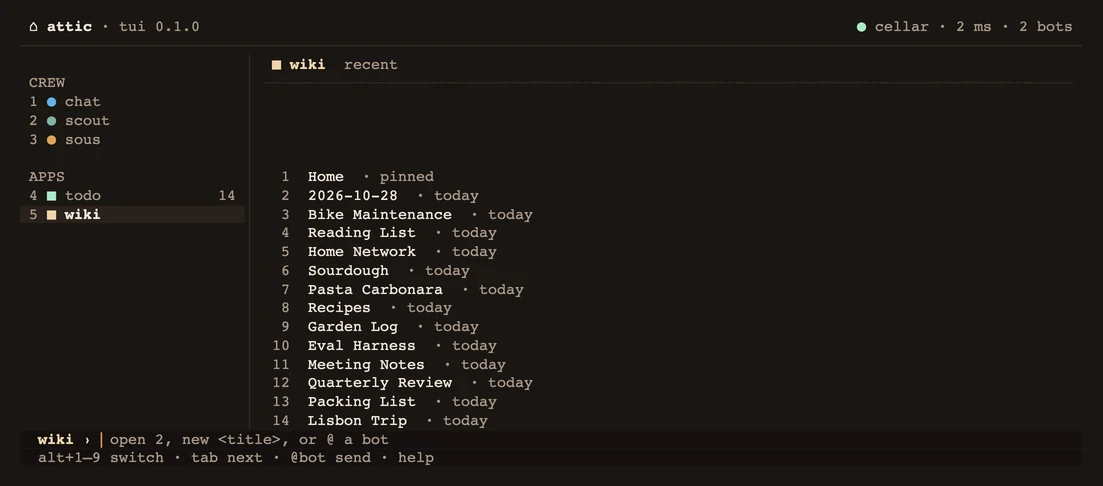
The TUI is one screen: a header, a sidebar, one pane, a prompt line and a hint line.
The header names the build (attic · tui 0.1.0) and, on the right, your cellar: a green
dot with the round-trip time and how many bots you have, or a red dot and
cellar · unreachable.
The sidebar mirrors the phone's rail. CREW is Chat and then every bot, each
a ● in its own colour; APPS is Todo and Wiki, each a ■. A bot shows a spinner
while it works and ok? when it is waiting for you, and Todo shows its open count. The
other modules have no terminal screen: use the web app or the phone for them, or the
command line for calendar, thoughts and flows.
The prompt is where almost everything happens, and it has the keys by default. What
you type goes to the item on screen, so the label in front of the caret (chat ›,
margin ›, todo ›) says where it will land.
| Keys | Action |
|---|---|
| alt+1-9 | Switch to that item (plain digits once the keys are in the pane) |
| tab / shift+tab | Next / previous item |
@name text |
Send text to that bot from any pane, then show its pane |
y or n, then enter |
Answer the open approval |
| a number, then enter | Answer a bot's question card |
| escape | Stop a reply while it streams; otherwise move the keys into the pane |
| ctrl+g | Open the conversation the newest notification links to |
| ? | Every key, for the pane on screen (on an empty prompt) |
| ctrl+c | Quit |
Digits and a lone y type normally into a message: an answer only counts when the whole
line you submit is y, n or a number. When the TUI asks you to confirm something
(deleting a task, say), only y means yes; enter or any other key means no.
alt+digit needs your terminal to send Option as Meta (macOS Terminal and iTerm2 each have a setting for it). Without that, use tab, or escape and then the digit.
With the keys in the pane, j k g G and pgup pgdn scroll a thread or move through a list, and enter acts on the row. Typing any other letter hands the keys back to the prompt, and escape does too.
The TUI paints its own colours when your terminal announces truecolor (COLORTERM),
the nearest of 256 colours otherwise, and none at all when NO_COLOR is set. The command
line follows the same rule.
@name matches a bot's name or slug, case aside, and then a unique prefix: @marg
finds Margin. A name that fits two bots prints an error line in the pane instead of
guessing, and your draft stays put to fix. Typed from the Todo or Wiki pane, the message
reaches the bot scoped to that app, and its thread marks it from todo.
Two words are the terminal's own. help prints the short list of commands into the
pane, and cellar status prints the server's state there: uptime, the crew, the model
and the enabled modules, ending with "Everything runs in your cellar. Nothing leaves the
house."
Chat and bot panes
A thread reads in two columns: who on the left (you, the bot's name in its colour, a
✓ for each finished step, ok? for an approval) and the text on the right, rendered
as markdown and wrapped in its own column. Chat keeps all of its keys:
ctrl+l opens the conversation list inside the pane, where
enter opens one, n starts one and r d
f rename, delete and file it. m and T (keys in the
pane) pick the model and the tools.
ctrl+r starts fresh from here: Chat sets the conversation so far aside behind a short summary, keeping every message visible (see Starting fresh).
While a reply runs, each tool step shows as a live line, and a stream that drops reconnects once on its own and picks up where it was.
A bot pane is that bot's single thread. A script waiting for your OK shows as an ok?
line; submit y to approve the newest one and the bot carries on, or n to leave it
for later.
The cellar's own rows (a script approved, a key added, a script turned down)
read as dim markers, not as you, and a routine's reply just appears, like any other
message from the bot. When a bot asks for a key, ctrl+k opens a
masked prompt for it, so the value never shows on screen. The sidebar marks a paused bot
paused and a connected bot whose agent is away offline.
Todo and Wiki panes
In Todo, text on the prompt adds a task, x 2 ticks (or unticks) task 2 and d 2
deletes it after a y/n. Wiki lists its pages pinned first, then the most recently
edited: open 2, or just 2, opens page 2 in your editor, and new <title> creates a
page and opens it. Save and quit the editor to write the page back.
Command line
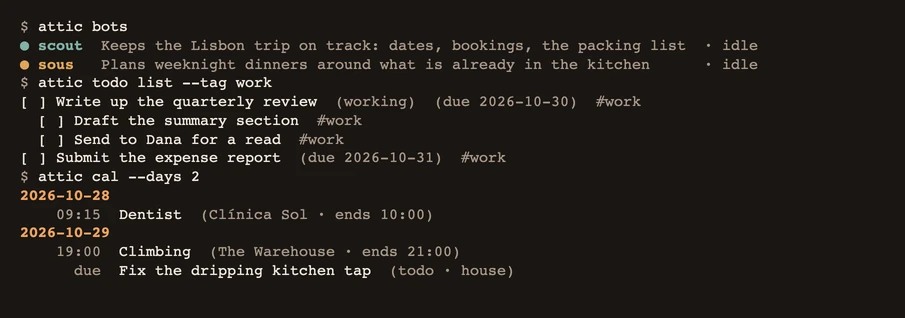
attic with no arguments is the TUI above. Give it a subcommand and it runs that one
action against the same JSON API and exits. Useful for capturing something without
leaving the shell, and for scripts. It needs the server running, exactly like the TUI.
attic todo add "buy milk" --due 2026-07-25 --tag errand
attic todo add "pick a shop" --parent "buy milk"   # nest under a task
attic todo list --tag work --all                   # --all includes done tasks
attic todo done milk                               # match by text

attic think "an idea worth keeping"
echo "an idea" | attic think                       # or from a pipe

attic ask "summarise my open todos"                # streams the reply
attic ask --detach "do the slow thing"             # returns a conversation id
attic ask --conversation <id> "and now this"       # continue that thread
attic ask --conversation <id>                      # follow its running reply, or print the last one
attic -q ask "one line please"                     # print the reply once it's done
attic --json ask "what's due?"                     # {"conversation_id", "reply", "tools"}

attic wiki list
attic wiki new "Trip plan"                         # opens $EDITOR on a terminal
echo "- book trains" | attic wiki new "Trip plan"  # or the body from a pipe
attic wiki open trip                               # prints the markdown
attic wiki open trip --edit                        # edit it in $EDITOR

attic flow list
attic flow run morning_briefing                    # returns immediately

attic cal                                          # agenda for the next 7 days
attic cal --days 1                                 # just today

attic bots                                         # the crew: name, purpose, status
attic @margin "review this before I merge"         # one bot, prints its reply
git diff main | attic @margin review               # piped stdin rides along as context
attic @lena --detach "quiz me tonight"             # start it and return

attic ok                                           # scripts waiting for your OK, numbered
attic ok 1                                         # approve 1 (asks y/N first)
attic ok 1 --yes                                   # approve without asking
attic ok 2 --no                                    # turn 2 down
attic log                                          # Activity across the crew
attic log @margin -f                               # one bot, live until Ctrl+C

attic bot new --name Sous --access shopping=write --tone brief,warm
attic @margin                                      # its settings
attic @margin --model default --access wiki=off    # change some of them
printf %s "$KEY" | attic @margin --key GITHUB_TOKEN   # give it a key it asked for
attic chat still works and is the same command as attic ask.
Anything that takes text (think, ask, todo add) reads standard input when you
give it no words, so other tools can pipe into quick capture.
attic @name is different:
the words are the message and piped input is appended to it as context. It finds the
bot the way the TUI's @name does, and @chat starts a new Chat conversation.
--json on any command
swaps the human-readable output for JSON, --quiet drops progress lines (a reply prints
once it is finished), --yes answers a confirmation for you, and --cellar-url and
--token override attic.toml (and CELLAR_URL, ATTIC_TOKEN) for a single
invocation. A failed call exits non-zero with the cellar's own explanation.
A reply prints as plain text: no thinking, and one line per tool the model used. Under
--json, ask and @name print {"conversation_id", "reply", "tools"}, the reply's
text and the names of the tools it called; with --detach they print
{"conversation_id", "detached": true}. Text arguments fall back to stdin only when
something is piped in, so a bare command on a terminal never sits waiting. --key
reads a key's value only from a pipe, never from the command line, so it stays out of
your shell history.
Bots from a shell
attic ok lists every script a bot is waiting for you to approve, across the crew, with
the bot, the script, the first characters of its hash and what the bot said when it
asked. attic ok 1 asks approve margin · scripts/merge.sh (3fa9c21)? [y/N] and, on a
yes, approves that exact content, the same approval the TUI's y and the apps' cards
give, and the bot carries on. --yes skips the question.
attic ok 1 --no turns it
down: the bot stops waiting and finds a note in its thread saying the script was not
approved and to ask you what you would change. The script itself stays unapproved, and
the request drops off the list. The apps' approval cards offer the same Decline.
attic log is Activity: what the bots did, newest last, one line each. It reads the
bots' threads, so a routine firing, a tool step, an approval asked for or given, a key
added, a message from an app and each reply all show. attic log @margin is one bot,
-n 100 shows more (-n 0 everything), and -f keeps printing new entries until
Ctrl+C. Under --json each entry is one JSON object per line.
attic bot new --name X makes a bot with the same settings the New bot screen has:
--purpose, --colour, --model (default for the cellar's), --tone (brief, warm,
playful, asks_first), --language, --personality and --access app=off|read|write,
repeated or comma-separated. attic @margin with nothing else shows a bot's settings, and
the same flags change them: --access changes only the apps you name, and --pause /
--unpause stop and restart its routines. A message and settings flags in one command
are refused.
On a terminal the output wears the TUI's colours: bot names in their colour, ✓ on a
confirmation, ⚠ in front of an error. Piped into another program or a file it is
plain text, exactly as before, and --json is never styled.
Where a command takes a name (todo done, flow run, --parent), it matches the way
the chat tools do: an exact case-insensitive title first, then a unique substring. If a
query matches several things it lists them and stops rather than picking one.
attic ask --detach starts the turn on your cellar and prints the conversation id right
away, without waiting for a reply: the turn finishes server-side even after the command
exits. Read it later with attic ask --conversation <id> or in the TUI/web app.
Running remotely
The server owns the database; every other surface (the web app, the Mac app, the TUI
and CLI, the phone app, scripts on the JSON API) is a network client of it. There's no shared-database
constraint anymore: the TUI can run on a completely different machine from the server,
the same way a browser can. Point it at the server with CELLAR_URL:
CELLAR_URL=http://<server-ip>:8484 cargo run # from tui/
(or set cellar_url in attic.toml, copied from tui/attic.toml.example, instead of the env var
each time; the file is read from the working directory or ~/.config/attic/).
Web app / TUI / API over the LAN (simplest)
Bind the server to a reachable address:
# on the server
uv run uvicorn server:app --host 0.0.0.0 --port 8484   # from core/

# from another computer:
CELLAR_URL=http://<server-ip>:8484 pnpm dev     # web app, from webapp/
CELLAR_URL=http://<server-ip>:8484 cargo run    # TUI, from tui/
--host is the IP/interface to listen on (0.0.0.0 = all interfaces, or use a specific
LAN IP). Desktop notifications fire wherever the TUI is running, since it's a local
process on your machine polling the remote server for new notifications.
With the cellar reachable over a network, set a cellar token, and consider
[server] hosts in cellar.toml: a list of the names and addresses clients use
(127.0.0.1 included, since flows and skills call the cellar on loopback). Any request
naming another host is refused, which stops a malicious web page from reaching your
cellar through a DNS trick. It is read at startup.
Safe remote access: an SSH tunnel
Without a token attic has no login, so prefer keeping the server bound to localhost
and forwarding the port over SSH instead of exposing it on the network:
# server stays private:
uv run uvicorn server:app --host 127.0.0.1 --port 8484   # from core/

# from your computer, tunnel the port, then point both clients at localhost:
ssh -L 8484:localhost:8484 you@server
CELLAR_URL=http://127.0.0.1:8484 cargo run   # TUI, from tui/
# and run the web app (webapp/) against http://127.0.0.1:8484
Only use --host 0.0.0.0 on a trusted LAN behind a firewall. Without a token, anyone
who can reach that IP and port gets full access.
Web app (webapp/)
The browser UI is a standalone React SPA in webapp/. The cellar is headless, so this is
the web front end (there's no server- rendered page). It covers every module plus
/styleguide and is built with Vite + React + TypeScript + Tailwind v4 + shadcn/ui and
TanStack Query. It's a separate pnpm project (not part of the phone app's workspace) and
ships no server code of its own; the cellar must already be running.
cd webapp
pnpm install
pnpm dev       # http://localhost:5173, proxies /api (and file routes) to CELLAR_URL

pnpm build     # production build
pnpm preview   # serve the build, same proxy behavior
CELLAR_URL (env var) points the dev/preview proxy at your cellar, defaulting to
http://127.0.0.1:8484. If your cellar isn't on that default, run
CELLAR_URL=http://<host>:8484 pnpm dev instead. The cellar's [server] cors_origins in
cellar.toml already allow the default Vite dev origin (see Configuration); add
your own origin there if you serve the webapp from somewhere else. See
webapp/README.md for details.
Spaces
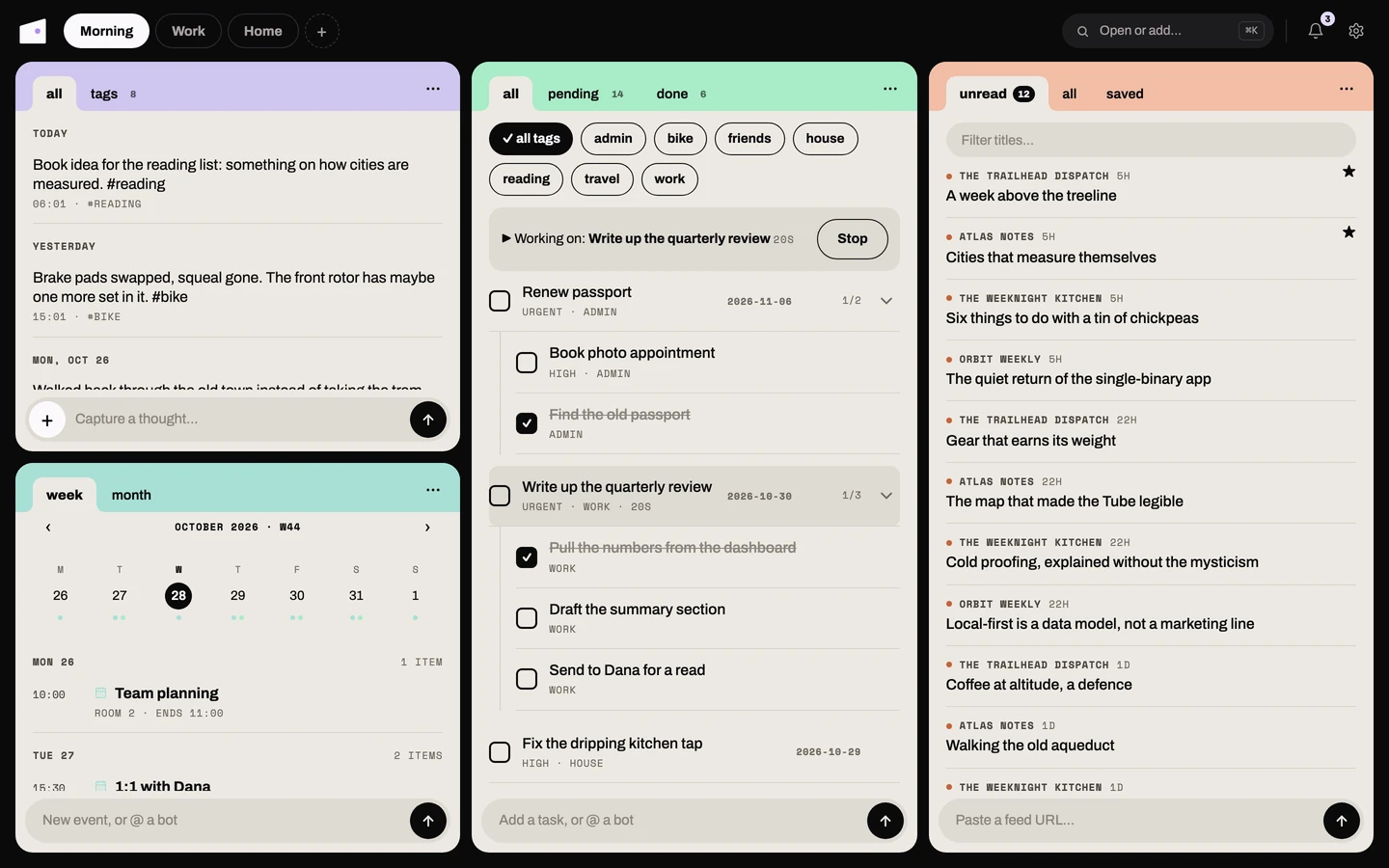
The web app has no sidebar. You work in spaces: named pages, shown as pills in the top bar, each holding columns of cards. A card is one app (Todo, Wiki, Chat and so on) or one applet, drawn as a paper card on the dark desk. The cards in a space sit side by side, and two cards in the same column stack.
Each card keeps its own place. Open a note in a Wiki card and a todo list in another,
and moving around in one never disturbs the other. A link inside a card to another app
(a [[wiki link]] from a chat reply, say) opens that app as a floating card instead of
reloading the page. Links under /api/ or /applets/, external links, links that open
a new tab and clicks with a modifier key are left to the browser.
A fresh browser starts with three spaces, Morning, Work and Home, holding the enabled
apps. The + beside the pills makes a new space, and double-clicking a pill renames it. In
Edit the current space's pill gets a ⋯ menu with Rename and Delete. Delete
asks first, and the last space can't be deleted. Spaces and their layouts are saved in
your cellar, so a new browser or computer opens on the same spaces, and so is the
Dashboard's tile order.
Which space you are on and where each card has navigated stay with the browser, so two computers never drag each other around. Each browser also keeps a copy per cellar, which is what you see first while the cellar answers.
Counts and the inbox. App tiles in the launcher and the Edit tray show a live count where the app has one: open todos, unread RSS items, unread notifications. Notifications sits in no space by default, so the bell at the right of the top bar carries a count while anything is unread. Clicking the bell opens the inbox card.
Open or add (Cmd/Ctrl + K). The launcher finds a bot, an app, an applet, or something inside an app. It groups results as Bots (ending with New bot), Apps, Applets and Inside apps. It offers only the apps your cellar has enabled, and pinned applets come first.
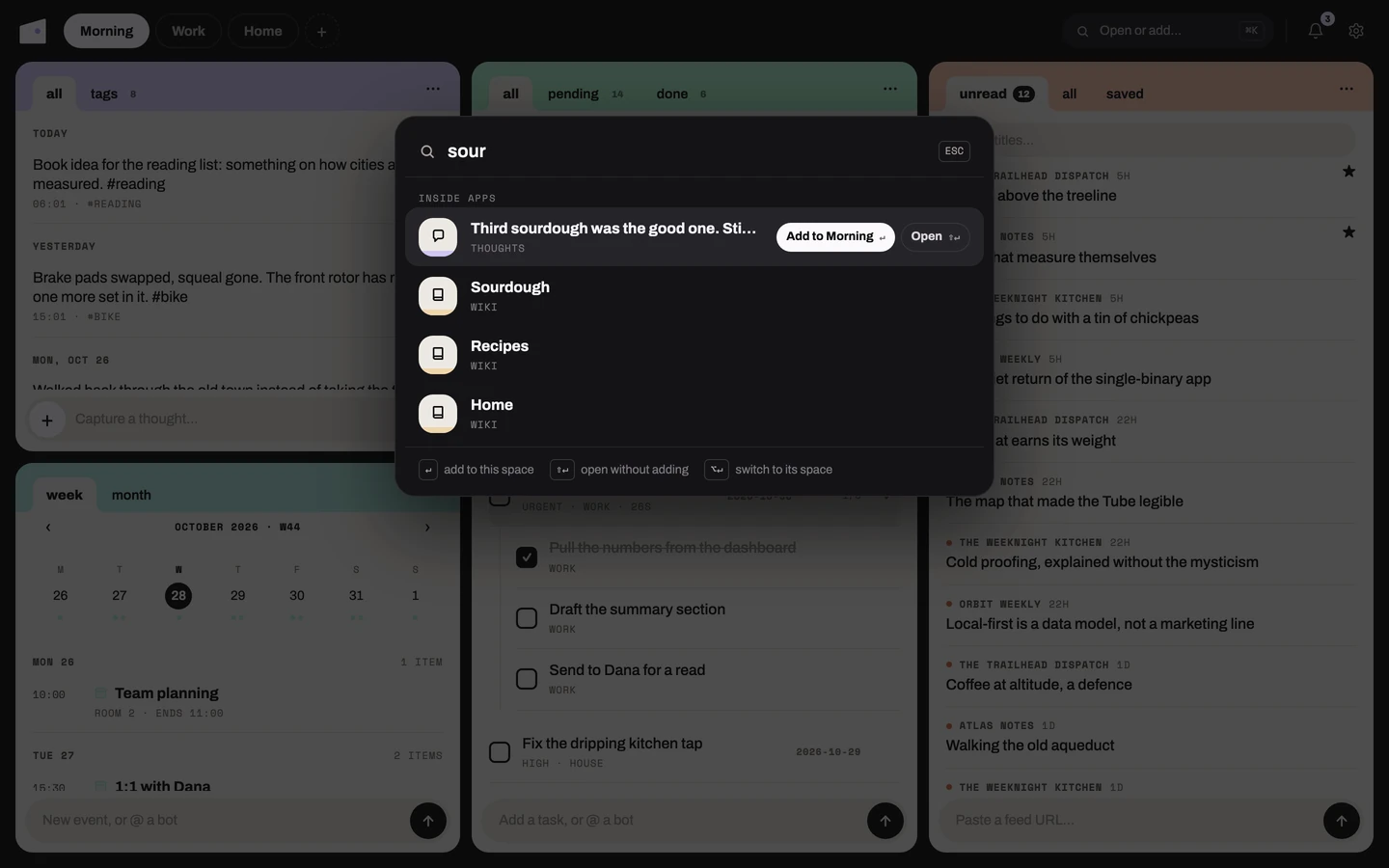
| Key | What it does |
|---|---|
| Enter | Add the card to the current space |
| Shift + Enter | Open it as a floating card, leaving the columns alone |
| Alt + Enter | Switch to a space that already has it |
| Esc | Close |
Edit. Edit workspace in the gear menu (the gear at the right of the top bar) shows a drag handle and an x on every card, a dashed "Add a card" slot in each column, and a tray along the bottom listing everything you can place. Drag a tile onto a column to stack it, or between two columns to make a new one. Tiles already in the space are faded. A card that fills its column shows a bar across its top to drag it by. Done, in the top bar while you edit, leaves Edit.
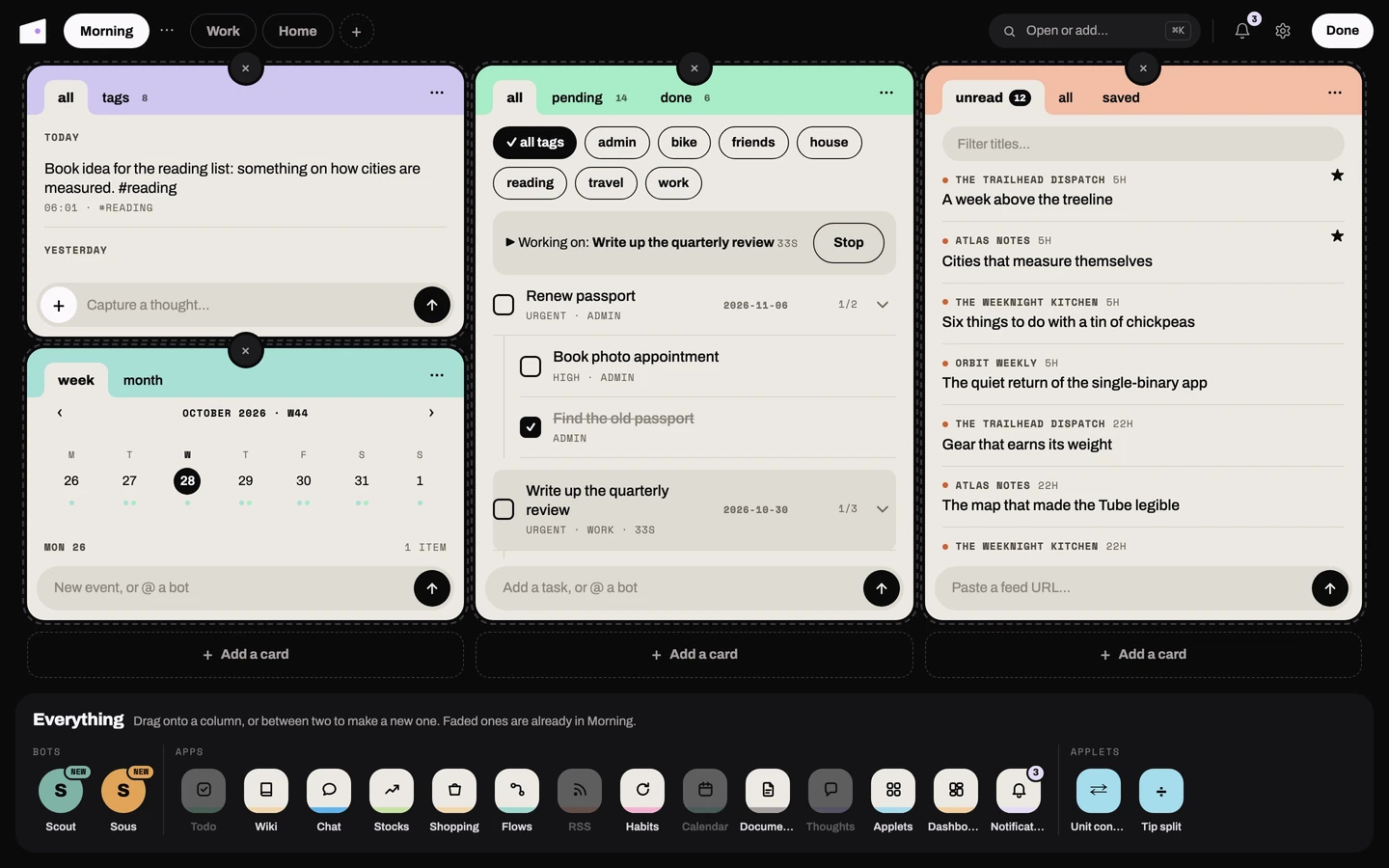
Panels. Settings in the gear menu opens a dark panel on the right: your cellar's address and health first, then each app's own settings. Thoughts opens its capture composer as a second side panel, and closing it keeps the draft. The gear menu's last line says whether the cellar answers, and how fast; while it does not, a red dot sits on the gear.
Narrow windows. Below about 900px wide the columns collapse into one: every card of the space stacks in a single column.
Opening. A fresh page load shows the house over the dark desk, a light stroke running once round its outline while the first space paints, then fades. It never blocks a click.
Card tabs. Each app card shows its views as folder tabs along the top, and opening an item (a note, a conversation, a document) replaces the tabs with a back link to the app. Apps that can be asked about their contents have Ask Chat in the card's menu.
| Card | Web tabs | Phone tabs |
|---|---|---|
| Todo | all, pending, done | same |
| Shopping | all, to buy, checked | same |
| Habits | today, week, stats | same |
| Calendar | week, month | same |
| Stocks | watching | same |
| Flows | flows, logs | same |
| Wiki | recent, folders | same |
| Documents | all, one per type | same |
| Thoughts | all, tags | all |
| RSS | unread, all, saved | same |
| Applets | pinned, all | same |
| Chat | recent | recent, folders |
| Notifications | new, all | same |
| Dashboard | today | same |
Mac app
desktop/ wraps the web app in a Mac app (Tauri). Build it with pnpm build
from desktop/; the app lands in src-tauri/target/release/bundle/macos/attic.app.
It is the same web app, served from inside the app and talking to your cellar.
- Alt+Space brings the window forward with the launcher open, from any app.
- The menu bar icon opens the window, the launcher or the settings file.
- Cellar notifications routed to the
desktopchannel show as Mac notifications, with a bot's face beside the text. Clicking one opens what it is about (the bot, the conversation). Add"desktop"to a source in[notify.routes]to get them. - While you are using the Mac, your phone stays quiet (see Notifications on your phone).
- Closing the window keeps the app running; click the Dock icon to bring it back.
Settings live in desktop.toml, which the menu bar's Settings file… reveals:
cellar_url (default http://127.0.0.1:8484), shortcut and notifications.
Restart the app after editing it. The app shares its spaces with your browsers through
the cellar, like any other web client.
To use more than one cellar, open Settings: in the app it lists Cellars, the ones
it has connected to before. Type an address and press Connect, or press Switch on a
saved one. The app checks the cellar answers before it switches, then reloads on it and
remembers the choice. cellar_url is only where it starts the first time.
Todo
Card tabs (web and phone): all, pending, done.
A task list with single-task time tracking: you can have one task marked as the thing you're "working on", and attic tracks time against it.
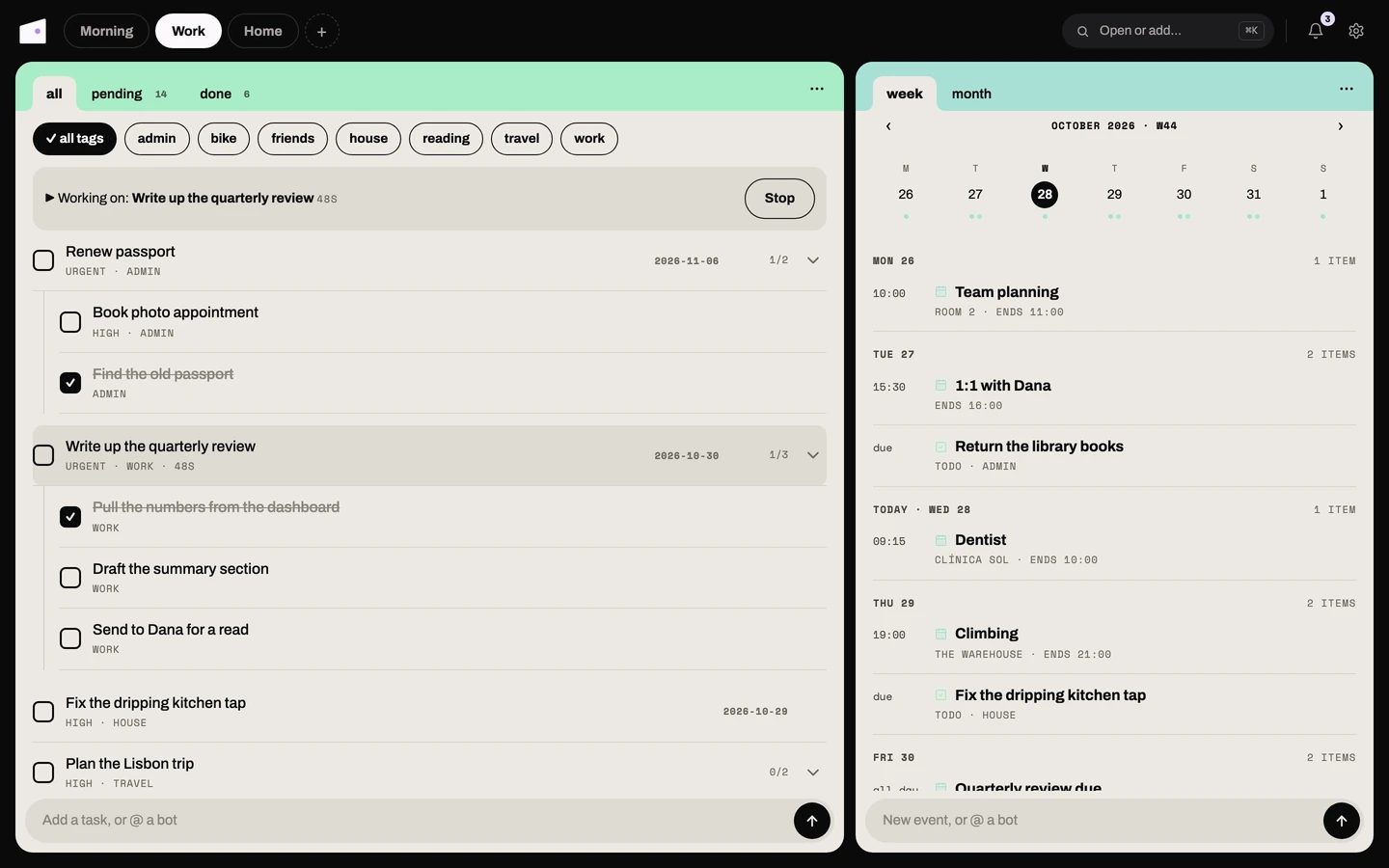
Web: the Todo card. Reorder by drag-and-drop: drag a task's row and drop it
where you want. Drop it onto another task to make it a subtask, or drag it back out to
promote it (nesting is capped at two levels). Each row's ⋮ menu holds the per-task
actions: Edit, Start working/Stop working, Add subtask and Delete.
Archive done: completed tasks stay in the list ticked off until you choose Archive
done tasks in the card's ⋯ menu (or archive-done on the phone). That sweeps every done task out of the active
list but keeps it: each task remembers when you finished it, so you build up a
history of what you got done over time. (A done task that still has an open subtask is
left in place until the subtask is resolved.)
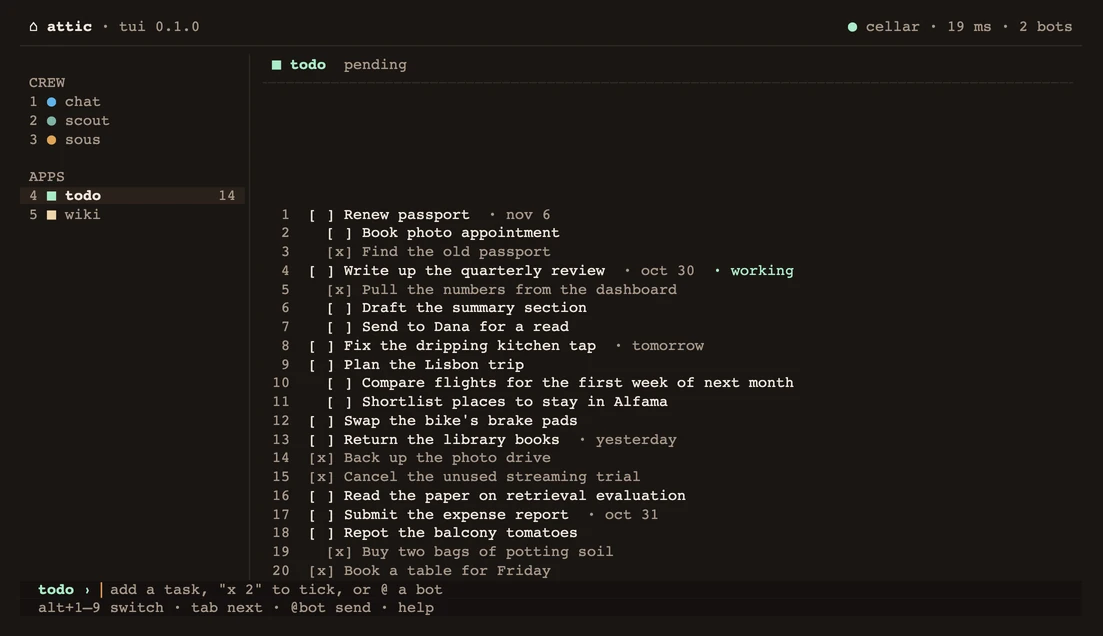
TUI: the Todo pane numbers the tasks. Text on the prompt adds one, x 2 ticks or
unticks task 2, and d 2 deletes it after a y/n. With the keys in the pane,
j/k pick a task and enter ticks it. Timers, reordering
and archiving live in the web app and on the phone.
Chat tools: Chat can call todo_add (optionally as a subtask: pass
parent with the text of an existing task, matched exactly or by unique substring, one
level deep; tags, a due date and a priority too), todo_list (filter by status, tag,
and/or a due_from/due_to date range), todo_complete, todo_uncomplete,
todo_edit (new text, due date, priority or tags) and todo_delete. The last four find
the task by its text the same way, and ask you to be more specific when two tasks match.
Wiki
Card tabs (web and phone): recent, folders. A note opens in place with a back link.
An Obsidian-compatible note vault. Notes are Markdown files on disk (in vault/), so
you can edit them with any editor and they stay in sync. Features:
[[Wiki Links]]between notes, with automatic backlinks.- Full-text search (FTS5) across the vault.
- YAML frontmatter: tags, and
aliasesthat also resolve[[links]]. - Subfolders and a folder tree.
- Daily notes: Today opens/creates today's
YYYY-MM-DD.md. On the phone this lives in the new-note sheet ("Today's daily"), and naming a new note with a date (2026-07-26) creates that day's daily note in the daily folder instead of a loose note. - Pinned notes: pin the handful you keep coming back to and they sit as cards above the recent list. A pin survives a rename, and a note deleted and later written again under the same name comes back pinned.
- Move to folder: moves the note's file into another folder (typing a folder that doesn't exist yet creates it); the note keeps its name, links and backlinks.
- Export: downloads the note's raw
.mdfile. - Attachment embeds:
![[image.png]]renders inline images (optionally![[image.png|400]]for width); other files become download links. - Live-preview editor on the web: opening a note drops you straight into an
Obsidian-style editor where Markdown is styled as you type (heading sizes,
bold/italic,
code, and[[wikilinks]]as clickable chips) while the file stays plain Markdown. Changes autosave. Choose Reading mode for the fully rendered view (inline images, embeds, backlinks). - No silent overwrites: if a note changed somewhere else since you opened it (in Obsidian, on the phone, in another tab), saving stops and says Changed elsewhere, with Reload to take the other version and Overwrite to keep yours. A save that fails says Not saved and keeps retrying. Creating a note whose name is already taken is refused rather than replacing the existing one.
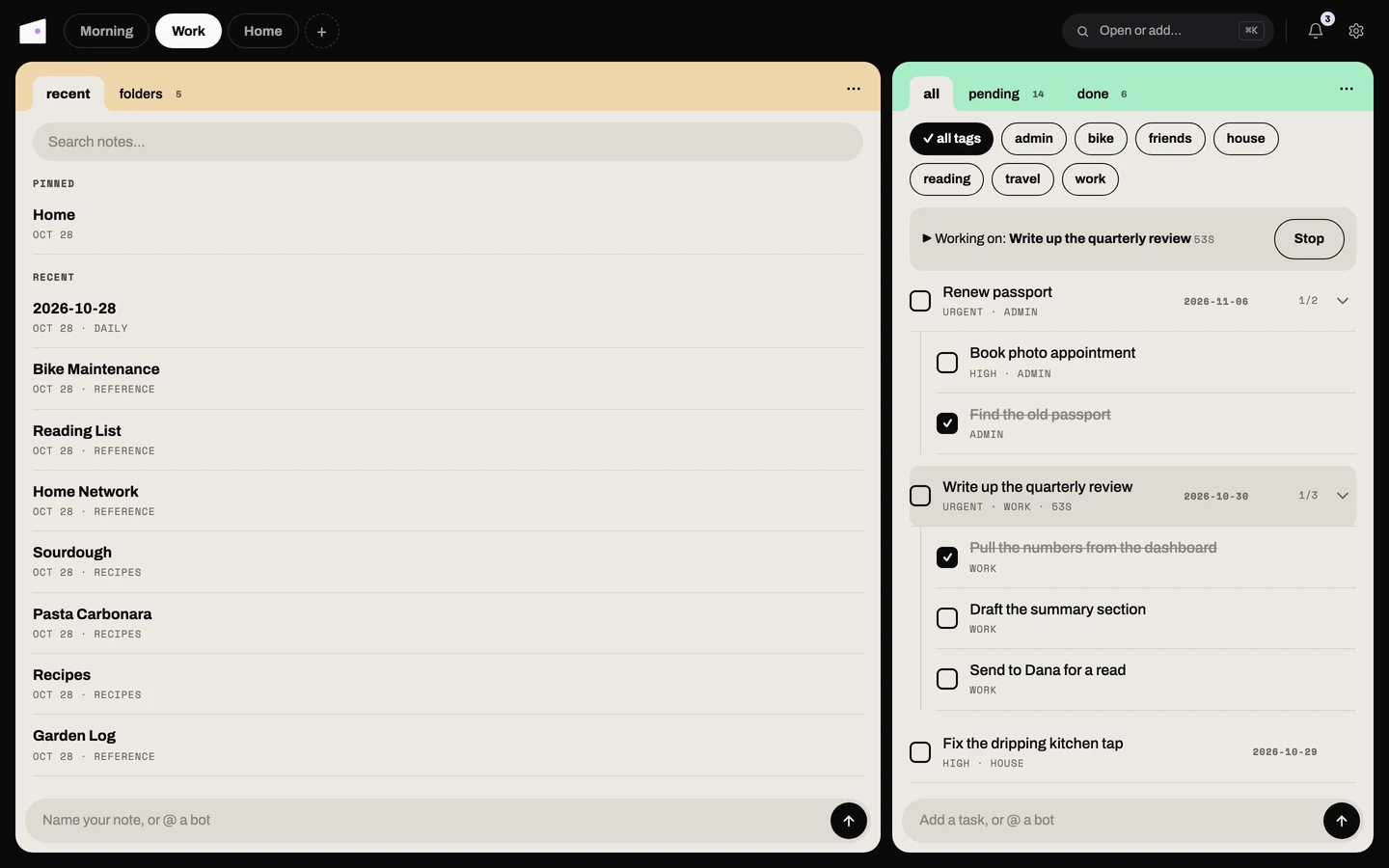
AI edits: use Ask Chat in the card's ⋯ menu (or ask Chat itself, via the wiki tools) to clean up,
restructure, or summarize a note. It reads the note with wiki_read and writes back
with wiki_save. The dedicated rewrite dialog was removed in favor of this.
Web: the Wiki card. Its folders tab holds the folder tree, and its ⋯ menu holds
New note, Today (the daily note), Ask Chat and Rescan. A note opens in
reading mode at /wiki/<slug>, and the live-preview editor sits at
/wiki/<slug>/edit: ⌘/Ctrl+E or the card menu's Edit / Reading mode
switches between them. New and daily notes open straight in the editor.
Each tree row's ⋯ menu holds the same actions as the phone's long-press: Pin (pinned notes surface in a Pinned section above the tree),
Rename, Move to folder, Export (downloads the note's own .md), and
Delete.
TUI: the Wiki pane lists your pages, pinned first and then the most recently
edited. open 2 (or just 2) opens page 2 in your editor, and new <title> creates a
page and opens it; save and quit to write it back. Folders, search and rescan live in
the web app and on the phone.
The files on disk are the source of truth. Notes you add or edit outside attic are
picked up within about two minutes; Rescan in the Wiki card's ⋯ menu refreshes the
index at once. Hidden files and folders (a leading dot) are left out.
Chat
Card tabs: recent on the web; recent and folders on the phone. A conversation opens in place with a back link.
An LLM chat that can take actions in attic. It streams responses live and can call tools provided by other modules:
- Todos: add, list, and complete items ("remind me to call the bank", "what's still pending?", "done with the report")
- Wiki: search, read, and save notes ("what did I note about the mortgage?")
- Stocks: quotes and the watchlist ("how's AAPL doing?", "show my watchlist")
- Shopping: add, list, and check off items ("add milk to my shopping list", "I bought the eggs")
- Habits: list, check off, and create habits
- RSS: latest headlines and unread count
- Documents: search the archive and read a document's extracted text ("find my electricity bill from March")
- Thoughts: capture a quick thought or search past ones
- Flows: list your automation flows and run one on demand
- Applets: show a published applet, or create and edit one ("make me a tip calculator") via a dedicated authoring conversation, see Applets for how that works
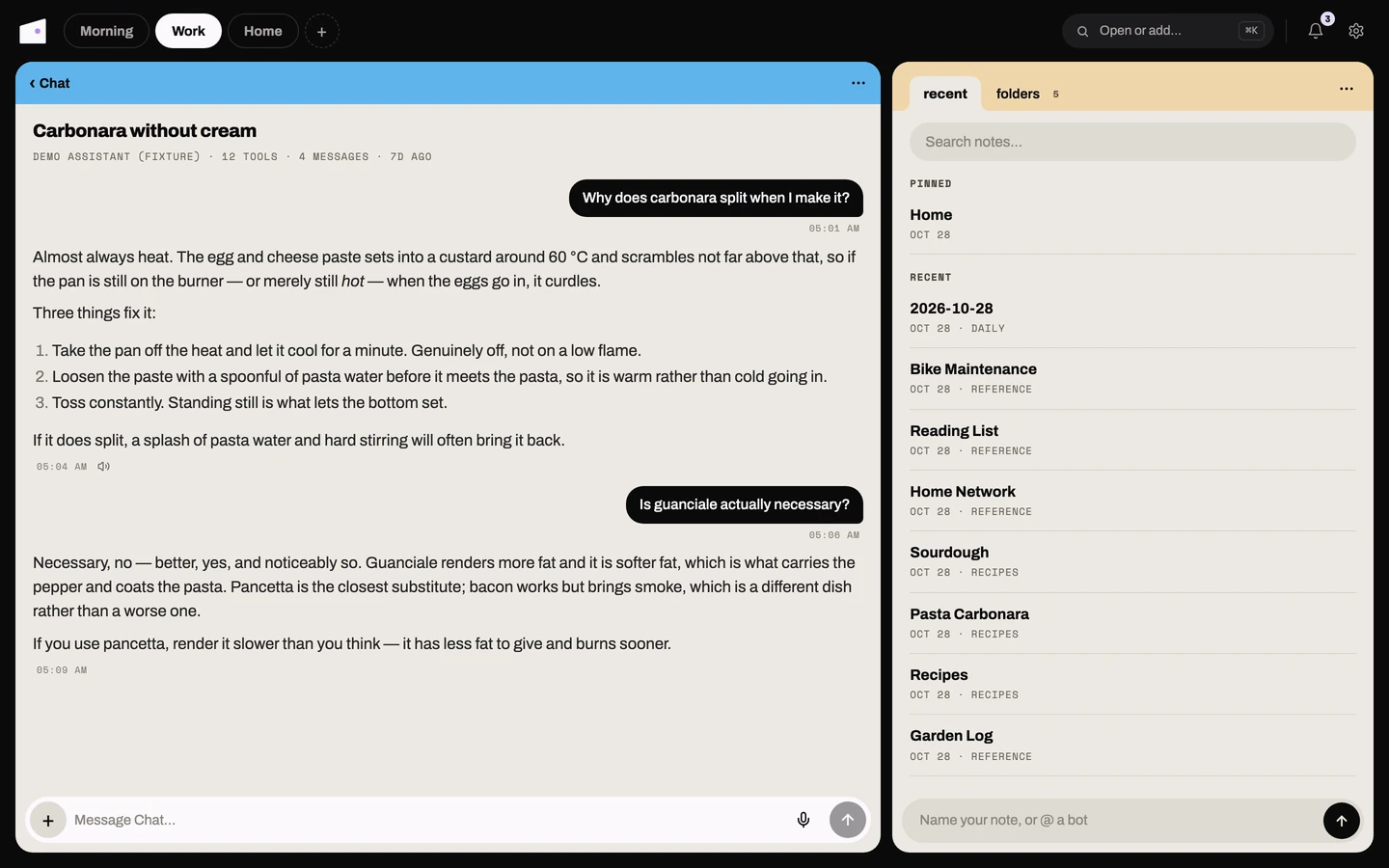
Leave and come back. A reply keeps generating on your cellar even if you close the app, switch conversations, or lose your connection mid-stream: nothing is tied to your device staying connected. Open the conversation again (on any surface: web app, phone, or TUI) and the still-running reply picks up right where it is, catching up on whatever you missed. This is also why the phone's voice mode (below) works even if you background the app or the connection drops while it's thinking: reopen it and the answer is there, or still on its way.
Stop button. Closing the app no longer cancels a reply; that's now a deliberate
action. A Stop button (web app and phone) cancels it explicitly, and in the TUI
Esc does the same while a reply is streaming. Nothing is lost: the partial
answer you already saw is kept as the message, with a trailing [stopped] note marking
where it was cut off. Stopping a reply also stops anything it set going, such as an
applet being built for it.
Cut-off replies. A reply that runs into the model's output limit ends with a
[truncated] note rather than passing for a complete answer (raise [chat] max_tokens
for longer ones, Anthropic models only). A reply that came back empty reads
[empty reply], never a blank bubble.
Notified when you walk away. If a reply finishes while nobody's actually watching it
(you left the conversation, closed the app, whatever), your cellar sends a notification,
handy for a slow tool-using turn or a long voice-mode question. Route it to your phone
by adding "chat.turn_done" = ["push"] to [notify.routes] in cellar.toml (see
Notifications on your phone); tapping it opens straight into that conversation. A
turn you stopped yourself, or one you were still watching when it finished, never
notifies.
Picking a model. Each conversation has its own, chosen from a live catalog. On the
web that's Model in the Chat card's ⋯ menu. In the TUI, typing in the Chat pane starts a conversation, and
m (with the keys in the pane) picks its model.
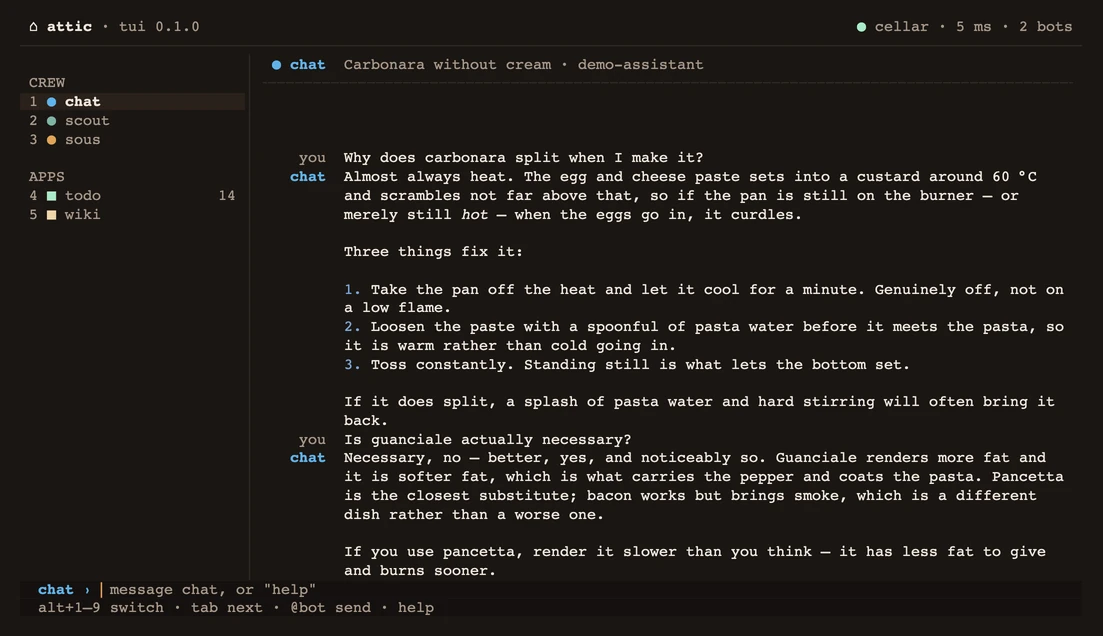
Inside the TUI picker, typing filters and enter assigns the highlighted model to the conversation. ctrl+d makes it the app-wide default and ctrl+x clears the stored default override. The ★ marker and the subtitle show the current default, and ● marks the conversation's own model.
The webapp and phone pickers are search-first, with a Recent section pinned above the
full list, since OpenRouter's catalog runs to 300+ models. On the web, the picker's
footer shows the app-wide default, with Set as default for the selected model and
Reset to the default to go back to the cellar.toml value.
Thinking. Reasoning models' thinking is never requested, so it costs nothing extra.
But when a model volunteers it, as inline <think> tags or as a separate reasoning
stream, your cellar normalizes it into the message, and the web and phone render it as a
collapsed "Thinking" block you can expand.
Tool calls. On the web and the phone, a run of tool calls renders as a work rail: while the turn runs, a shimmering "Working…" line with a step count and a ticking clock, and one row per call behind a left rule. Finished rows get a green check, the in-flight one a spinner, and repeats collapse to one row ("habits_add ×8"). Once the turn settles the rail folds to a one-line receipt ("Worked · 5 steps") you can expand. Tapping a row shows the raw result: a bottom sheet on the phone, an inline fold on the web.
The TUI gives each finished call a ✓ line with a one-line preview, and
ctrl+e expands them.
Managing conversations. On the web, a conversation's ⋯ menu in the Chat card's
list (or the open conversation's card menu) holds Rename, Move to folder… and
Delete. In the TUI,
ctrl+l opens the conversation list inside the Chat pane:
r renames the highlighted conversation, d deletes it (after a
confirmation). Deleting the conversation you're viewing drops you back to the
empty state.
Searching. The phone's chat list and the web app's Chat card search box both search server-side as you type: titles and message content both match, and content matches show a snippet of the matching message. The TUI has the same search on / in the conversation list: results replace the list live (snippets included), Enter keeps the query so you can move through the hits, Esc clears it.
Folders. File a conversation into a folder to keep a long-running or recurring
thread (a Chat cron flow's daily briefing, say) out of the main list. The web
and phone lists group foldered conversations together, collapsed by default;
the TUI shows a folder/ prefix instead. Move a conversation via the web ⋯
menu or the TUI's f (both prompt for a folder name; leave it blank to
unfile it).
Starting fresh
A long conversation gets slower and costlier, since every turn sends its history to the
model. New from here (in the conversation's ⋯ menu on the web and the phone,
ctrl+r in the TUI) sets everything so far aside: Chat writes itself
a short note on where things stand, and from then on it reads that note instead of the
whole thread.
Nothing is deleted. Every message stays visible above a "context reset here" divider, and you keep talking in the same conversation. It is not offered while a reply is running: stop the reply or let it finish first. It takes a few seconds, then unloads any skills the conversation had loaded.
Even without a reset, Chat keeps long threads in check by itself: older tool results
shrink to one line, and past a budget ([chat] history_chars) the oldest turns stop
being sent. Bots work the same way and also start fresh on their own when their thread
grows long.
Turning tools on or off
Every conversation can enable or disable which modules Chat is allowed to call, per module (all of them are on by default; nothing to set up). Turning a module off just narrows the tool list the model is offered; it doesn't affect anything else in that module.
- Web: Tools in the Chat card's
⋯menu shows an All tools box and one checkbox per module. Changes save as you tick them. - Phone: Tools in the conversation's
⋯menu opens a settings sheet with an All tools switch and one switch per module, below the model row. - TUI: press T in the Chat pane to open the tools picker; enter/l toggles the highlighted row, s saves, esc cancels without changes.
Reply vibration (phone): the phone buzzes once when Chat finishes answering, so you can put it down while your cellar thinks. A turn that searches the web or calls tools can take a while before the first word appears. Controlled by Settings → Chat → "Reply vibration" (default on); switching it on plays the buzz once, so you can hear what you're agreeing to.
Memory
Chat can remember lasting facts and preferences you share with it ("I'm vegetarian", "call me Vic") and reuses them in every conversation, not just the one where you mentioned them. Saving happens only when the model chooses to, so there is no automatic extraction of everything you say. Settings shows the full list, where you can edit, add, or delete entries by hand; asking Chat to forget something works too.
Commands and skills
These are two different things with two different folders. Both are your content: Attic ships neither, and both folders are gitignored, so nothing you write there is ever committed.
A command is a shortcut you invoke. It lives in core/commands/<slug>/SKILL.md
([chat] commands_dir, default commands/): frontmatter with a name and one-line
description, and a body that is simply prepended to your message. Start a message with
/slug and the rest of the line becomes the content the instruction applies to. Typing
/ pops up a matching-slug suggestion list on every surface (TUI, web, phone);
accepting a suggestion completes the slug and a space so you can keep typing. Good for
things like proofread this or translate this.
A skill is a capability Chat loads by itself. It lives in
core/skills/<slug>/SKILL.md ([chat] skills_dir, default skills/) and can carry
whatever else it needs alongside: reference files, and a scripts/ folder of runnable
helpers. When a skill's description matches what you asked for, Chat loads it
mid-conversation with no /slug needed, and its instructions then stay in force for the
rest of that conversation. Because the body goes into Chat's instructions
rather than into the chat, a skill can be as long as it needs to be: a full procedure,
not a one-liner.
Skills can bundle scripts. Anything under the skill's scripts/ folder can be run.
An executable file runs via its own shebang, so bash, Python, Node or anything else
works; a non-executable .py runs through uv run --script, so a
PEP 723 header can pull in libraries attic itself
does not have, exactly like flows. Scripts get 60 seconds and their output is capped.
Secrets. Hidden files are invisible to Chat: anything starting with a dot
is left out of the skill's file listing and cannot be read by Chat at all. So a
skill that needs an API key keeps it in a .env beside its script, and the script reads
it directly. The key never reaches the model or your chat history.
Both folders are live: add or edit a file and it takes effect with no restart.
Conversation titles
New conversations are named from your first message (trimmed). Set [chat] title_model
to a fast, cheap model (e.g. deepseek/deepseek-v4-flash) and attic will instead name
the chat from the first exchange, just after the reply finishes streaming, so it never
slows the response. The model must be valid for your configured chat provider. Leave it
unset to keep the simple truncation.
Pasting large text
Paste a big block (≥ [chat] paste_collapse_lines lines, default 6) and it collapses
into a [Pasted text #1 +N lines] chip in the input instead of flooding the box. The
full text is kept and sent to the model when you press Send; the chip is just for
display. Works alongside commands (the command instruction is prepended to the expanded
paste). Smaller pastes go in as normal text.
Web search
Point [search] base_url in core/cellar.toml at a self-hosted
SearXNG instance and Chat gains two tools on every
surface: web_search (top results as titles, links and snippets;
[search] max_results, default 5) and web_open (fetches a page and reads its main
text, truncated past 8000 characters). Remove the config line and the tools disappear on
the next message, with no restart needed either way. The SearXNG instance must allow JSON output
(search: formats: [html, json] in its settings.yml).
Attachments (web app, phone, TUI)
Two kinds of attachment behave differently, and the difference matters:
- Images (png/jpeg/webp/gif) are stored on your cellar (
[chat] uploads_dir, default../data/chat/uploads) and re-sent to the model with every turn, so follow-up questions still see them. The model must be vision-capable. - Text files (.txt, .md, .csv, .json, code, and so on, up to ~200 KB) are inlined into your message as a collapsed chip and expanded at send time. Nothing extra is stored.
Every surface offers both. The web app composer has a + attach button. The phone's
composer + button has the same text-file attach, plus Take photo and Attach
image. The Rust TUI attaches too: drag a file from the desktop onto the terminal, or
press Ctrl+A and enter a path, in the Chat pane or a bot's. Attachments
show as chips above the prompt.
Push to talk (phone)
Next to the phone composer's + is a microphone button. It opens voice mode: hold
the big button, say your question, let go. No keyboard and no bubbles: one question and
one answer at a time, set large enough to read at arm's length.
The turn goes into the same conversation you opened it from, so Chat still has the thread's history and tools, follow-up questions work, and Open as chat takes you back to the normal view with everything in place. Chips under the answer show what it consulted ("2 notes", "1 todo").
Releasing sends. There are three ways to change your mind: let go in under about half a second, slide your finger off the button before releasing (it turns red), or simply say nothing, since silence is treated as a cancel and the conversation is left untouched. While it works you'll see Transcribing, then your words appear, then Reading your notes while the answer is composed.
Backgrounding the app or losing signal mid-answer doesn't lose the question: the reply keeps generating on your cellar regardless, and narration plays as soon as you're back (or you'll get a push notification that it's ready, see "Leave and come back", above).
On Android there's also a hardware shortcut: long-press volume-down from any screen in the app. The phone ticks, the voice screen appears and the mic is already open. Keep holding the key while you talk and release to send, walkie-talkie style. A short press still lowers the volume as normal, and volume-up is untouched.
The hardware gesture always talks into its own dedicated conversation, created the first time you use it and reused after that, so your quick questions collect in one thread no matter where you were in the app.
On the web app the same two capabilities appear in lighter form: a microphone button
in the chat composer records a clip (click to start, click to stop) and drops the
transcript into the input for you to review and send, and each Chat reply grows a
small speaker icon on hover that reads it aloud (click again to stop). Both use the same
[audio] and [tts] providers as the phone.
The answer is also spoken aloud. Turn narration on/off in the voice screen's ⋯
menu switches it, and the bottom panel says which: on (the default), your cellar
synthesizes the reply once it finishes and the phone plays it; off, voice mode is silent. The choice is remembered. Holding the button for a
new question cuts the narration instantly, so the mic never hears the speaker. The voice
is set on the server in [tts], where voice takes a preset name like "Marie - Neutral"
(the default) or "Paul - Confident".
Voice mode needs a transcription provider configured in [audio] (see
Secrets), the same one Thoughts uses for voice memos. Without one the
screen says so. Narration additionally uses the [tts] provider (Mistral Voxtral TTS,
the same Mistral key); without it the answer is shown but not spoken.
Pinned content
Ask Chat to show you something ("show me the Japanese wiki page", "pull up the NVDA chart") and it pins that content as a floating bubble on the phone's chat and voice screens, and on the web app's chat. Wiki pages, stocks and applets, for now.
Tap the bubble to open the real page or chart in a floating card over the conversation;
tap outside the card and the bubble is still there. Pins ride along with the conversation
and come back when you reopen it. On the phone they stack when there are several (tap
the stack to fan them out) and drag onto the ✕ to dismiss; on the web app the bubbles
sit above the composer, each with its own ✕.
Chat can close bubbles too ("close the chart", "clear the bubbles"), and it knows exactly what's on screen, including the ones you already dismissed by hand, so it never talks about ghosts.
Images in the reply
Pictures also come back out of Chat. Ask about a thought you captured with a
photo or a drawing ("what was that whiteboard sketch from Tuesday?") and
thoughts_search hands the model a link to each matching image, which it repeats in its
answer. The web app and the phone show the picture inline (tap it on the phone
to zoom). The TUI can't draw a picture inside a scrolling reply, so it shows a 🖼
link instead. Most terminals let you click it, or press
Ctrl+O to open the most recent one in your browser.
Chat needs an API key; see Secrets. Without one it shows a banner and stays inert.
Bots
Card tabs: none. On the phone bots sit first in the rail, then your apps; on the web each bot is a card of its own, opened from the launcher.
A bot is a resident assistant with its own name, face, colour, way of talking, memory and folder. You tell it once what to do and it keeps doing it, reporting back in its own conversation. Chat stays as it is, beside your bots.
Each bot has one long thread, like texting a person. Nothing is ever deleted from it. The same thread also shows in Chat's list, in a folder named after the bot, and a message sent from there is a message to the bot.
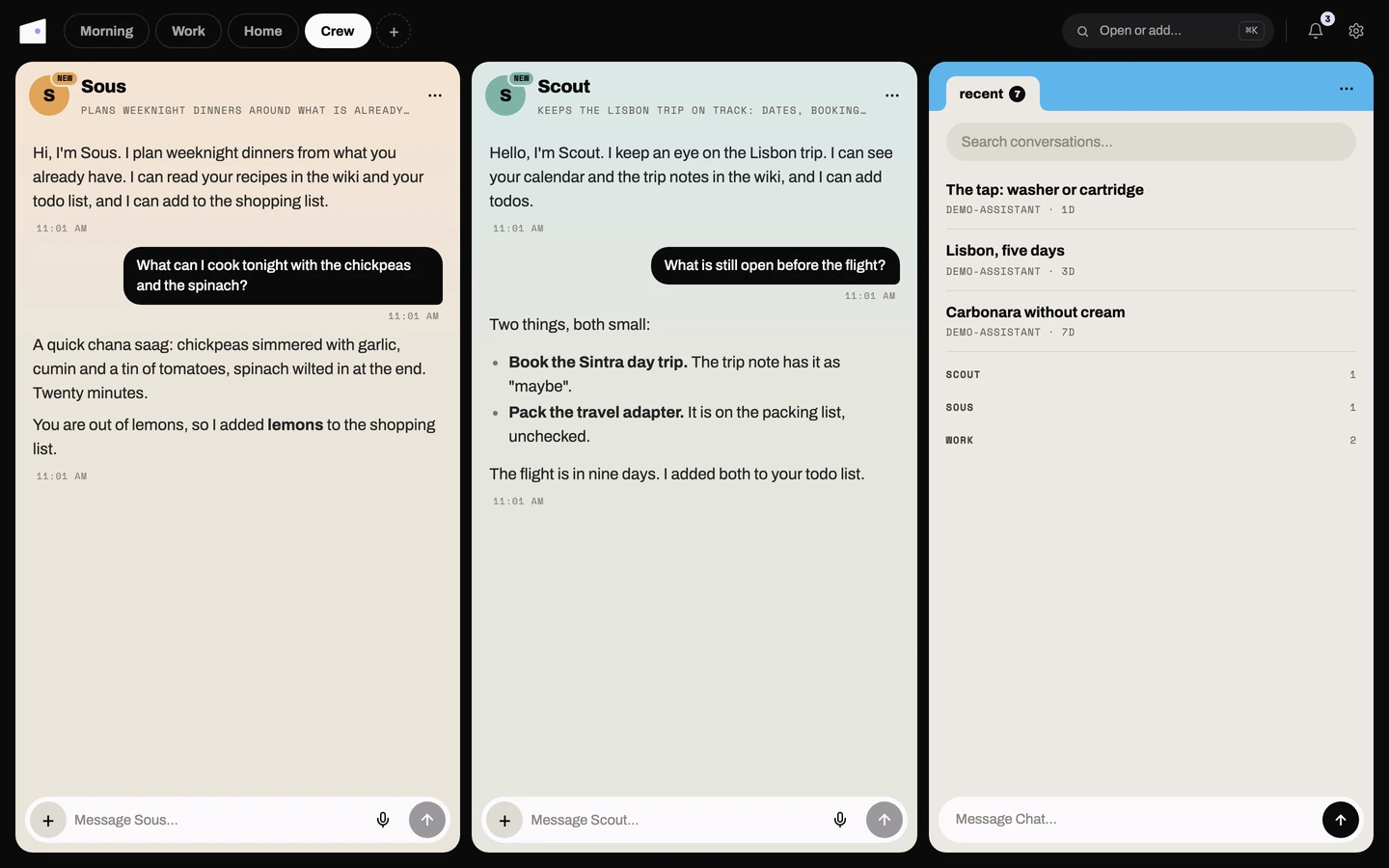
Make Gertrude, a German tutor
- Pull the phone's rail up and tap New bot, or choose New bot in the web launcher (Cmd/Ctrl + K).
- Write one sentence, for example "A patient German tutor who writes to me in German and tracks my mistakes". Pick a face, a name (Gertrude), a colour and a model.
- Choose what she may touch: off, read or write for each app. A tutor needs none, so leave them off. Write means she just writes, with no asking.
- Add a routine: every day at 8, "Send me today's lesson". Set how she talks (strict but kind) and her language, German.
- Create. She joins the rail and says hello.
You can also change her by talking: "from now on, write only in German". She updates her own name, purpose, tone, language and routines. She cannot change her access, model or keys. Only you can, in her settings.
The Cava bot, by talking to it
Make a bot with no routine and read access to nothing. Then tell it in chat: "Tell me when José Luis Cava publishes a video, and summarize it in Spanish."
- The bot writes a small check script into its folder.
- An approval card appears in the thread, showing the script. Choose Run to approve it. Edit means telling the bot what to change, and a new card comes; Not now (phone) leaves it waiting.
- The bot creates an hourly routine that runs the check first.
- Each hour the check runs without the model. If nothing is new it prints nothing and the routine ends, so a quiet hour costs no model call.
- When a video appears, the bot wakes, summarizes it in Spanish and your phone gets a notification.
Keys
A key is a credential a bot's scripts need, such as a YouTube API key. Add one in the bot's settings under Keys (name and value, shown as dots afterwards; you can replace or delete it, never read it back). The other way is a key request: the bot asks mid-task and the message shows a field. What you type there goes straight into the keys.
Never paste a key into the chat as a message. If you do, the cellar hides it before it is stored, and the bot offers to move it. The model sees key names only.
Approvals
A script the bot wrote or changed waits for your OK. Approval is for that exact content, so any later change makes it ask again. A script you placed in the folder by hand counts as yours. A bot with a pending approval shows the needs-you mark and sends a notification.
Decline on the approval card (or attic ok N --no) turns it down: the
bot stops waiting, reads a note that you did not approve it, and should ask what you
would change. The script stays unapproved until it is rewritten and approved.
Routines
A routine is a standing job: a time (daily, weekdays, chosen days, every N minutes) or a cellar event (an item added to Shopping, a new todo). Each has an instruction and an optional check script. See them in the bot's settings, whoever made them: add, pause, delete, or tap one to edit its title, what it does and when. A schedule the editor cannot show (a hand-written cron) stays as it is unless you pick a new when. You can also just ask the bot to change one.
Pause in the bot settings' header pauses all of them (the bot still answers you). A routine that fails shows a failed bubble with a short reason.
Sending from any app
Type @ and a bot's name at the start of an app's add box (Todo, Shopping, Habits,
Calendar, Wiki or Thoughts) to send the rest to that bot instead. "@sous what goes with
shallots?" in Todo adds no task. You stay in the app, a toast says Sent to Sous, and
Open goes to the bot. While you type the name, the bots it could be show above the
box; tap one to fill it in.
In the bot's thread the message shows under a small FROM TODO line, so the bot knows where you were. Its access stays the same. A name that matches no bot, or more than one, keeps your text and says why.
Starting fresh with /new
Type /new in the bot's input (or New context in its ⋯ menu on the phone, Start
fresh on the web). The bot writes a short "where things stood" note, and
from then on only newer messages are sent to the model. History above the marker stays
visible. A bot also does this itself when its context grows too long. Its memory
("Knows about you", removable item by item in settings) survives /new.
Agents from elsewhere
A bot can also be an agent that runs somewhere else, such as a Hermes agent in its own virtual machine. Attic carries the conversation and the agent does the thinking, so it keeps its own model, memory, tools and schedule. It replaces Telegram or any other chat app the agent used before.
- Choose New bot, then the option for an agent that connects from elsewhere. Give it a name, a purpose and a colour.
- Attic shows a token once, with two lines to copy into the agent's machine. Save them before closing.
- Install the attic plugin on the agent's machine (
hermes-attic/README.mdin the repository) and restart its gateway.
From then on it is a bot like the others: its own thread, face, colour and @name,
and its messages notify your phone. Its settings show whether it is connected and
when it was last seen, plus New token, which cuts off the old one. Model,
personality, routines, keys and memory are not shown, because the agent has its own.
- Write to it while it is offline and a marker says so. It gets the message when it reconnects, and nothing is lost if either side restarts.
- When the agent asks before acting (running a risky command, or choosing between options), its question shows as a card with buttons. Tap one to answer.
- It can send you pictures and files (PDFs, text, audio). Pictures show in the thread and other files show as links.
- Stop interrupts what it is doing.
/newstarts a fresh session on the agent's side.
It can also use your apps. Under Can use in its settings, set each app to off,
read, or read and write, exactly as for a bot that lives here, then add the cellar to
the agent's tools (one block in its config, in hermes-attic/README.md). Everything
is off until you turn it on. While it uses an app you see the step as a small pill in
its thread, but the steps are not kept there, so an agent checking things every hour
does not bury your conversation.
Without a cellar token, an agent that can reach the cellar's address could reach your other data too, past what its access allows. Set a token, and only connect agents you trust. Pausing a connected bot holds its messages until you unpause it: the agent stays connected but hears nothing, and cannot post or use your apps meanwhile.
What a bot can and cannot touch
- It reads and writes its own folder freely, but cannot touch its own settings files, its routines file or its face image.
- It reaches your apps only as far as its access says: off, read or write.
- It can search the web and use your skills.
- It asks or tells another bot only when its own Can ask other bots switch and the other bot's are both on, and a chain of bots asking bots stops after three steps.
- It cannot send applets or raise its own permissions.
- Text it reads from outside (a web page, a feed, a file) cannot quietly become a memory: after reading such text in a turn, it has to check with you before saving one.
Open bot cards and screens refresh every 15 seconds, so a routine's message appears on
its own. A notification opens the bot with attic://bot/<name>.
In the terminal
Every bot is in the TUI's sidebar under CREW, after Chat, and its pane is the same one
long thread. @name text sends to a bot from any pane, a submitted y or n answers
its newest approval, and ctrl+k answers a key request with a masked
prompt.
From
a shell, attic bots lists the crew, attic @name "text" asks one bot and prints the
reply, attic ok answers approvals, attic log -f follows Activity and attic bot new makes
a bot; see Navigating the TUI and Bots from a shell.
Stocks
Card tab (web and phone): watching.
Track tickers with quotes and charts. The list shows sparklines; opening a ticker gives a detail chart with selectable ranges (1 day to 1 year), intraday granularity, hover values, volume bars, and pivot support/resistance lines. Prices auto-refresh on a configurable interval.
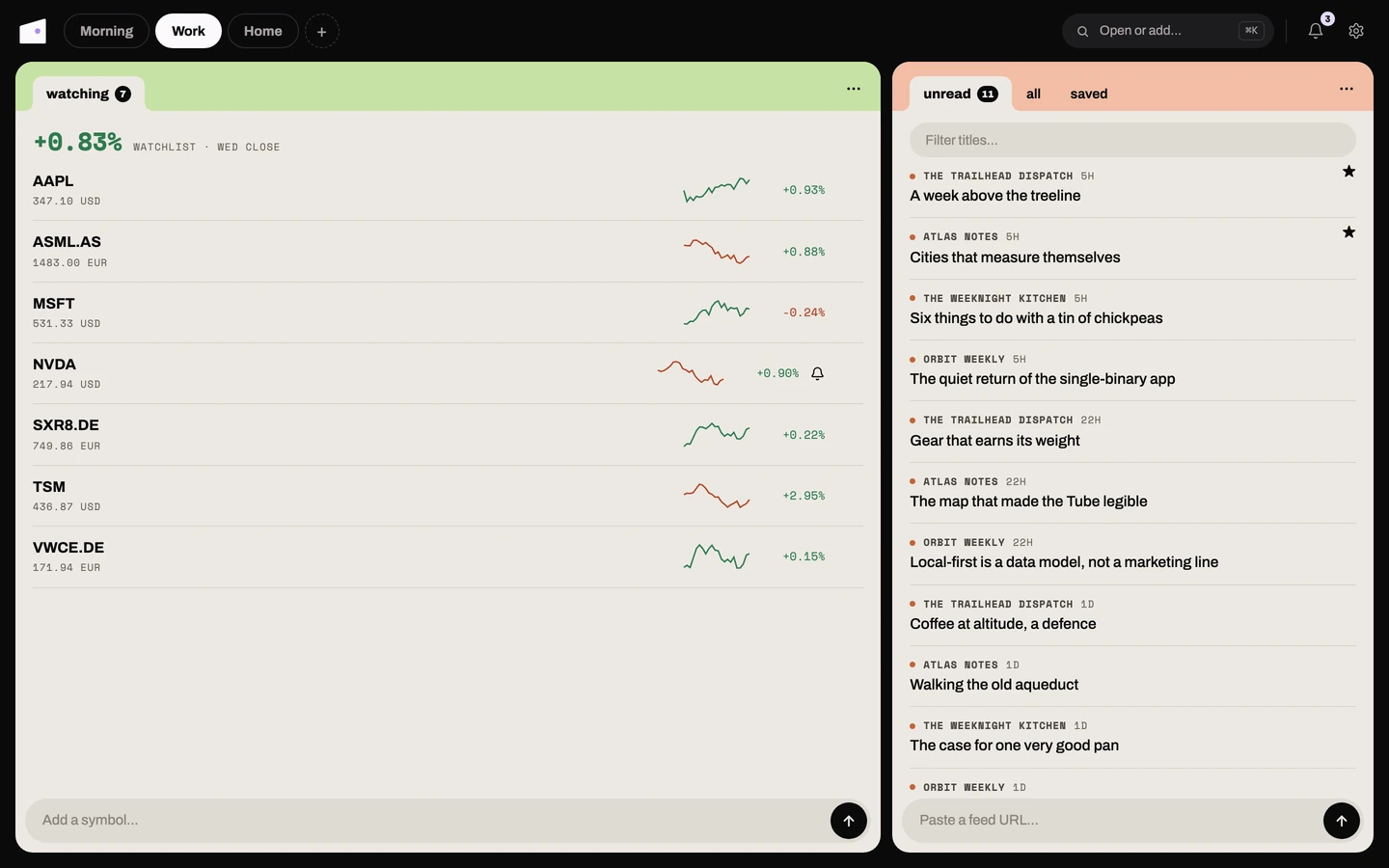
Price alerts: set a per-symbol upper (≥) and/or lower (≤) threshold and attic notifies you once each time the price crosses it (re-arming when it crosses back). On the web, each watchlist row's menu holds Set alerts… and Remove; Set alerts opens a dialog for the two thresholds.
Web: the Stocks card (Refresh now in its ⋯ menu). Configure your tickers and
poll interval in cellar.toml.
RSS
Card tabs (web and phone): unread, all, saved. The reader opens in place with its view tabs.
Subscribe to RSS/Atom feeds and read them like a feed reader. Each item tracks read/unread state, and you can star items to keep them (starred items live in the RSS module, not saved to the wiki). Add or remove feeds at any time from the web or the phone; a background job refreshes them on a configurable interval.
Items are
deduplicated by GUID, and old items you have read and not starred are removed after
[rss] retention_days; unread and starred items are never removed, and a removed item
does not come back on the next refresh.
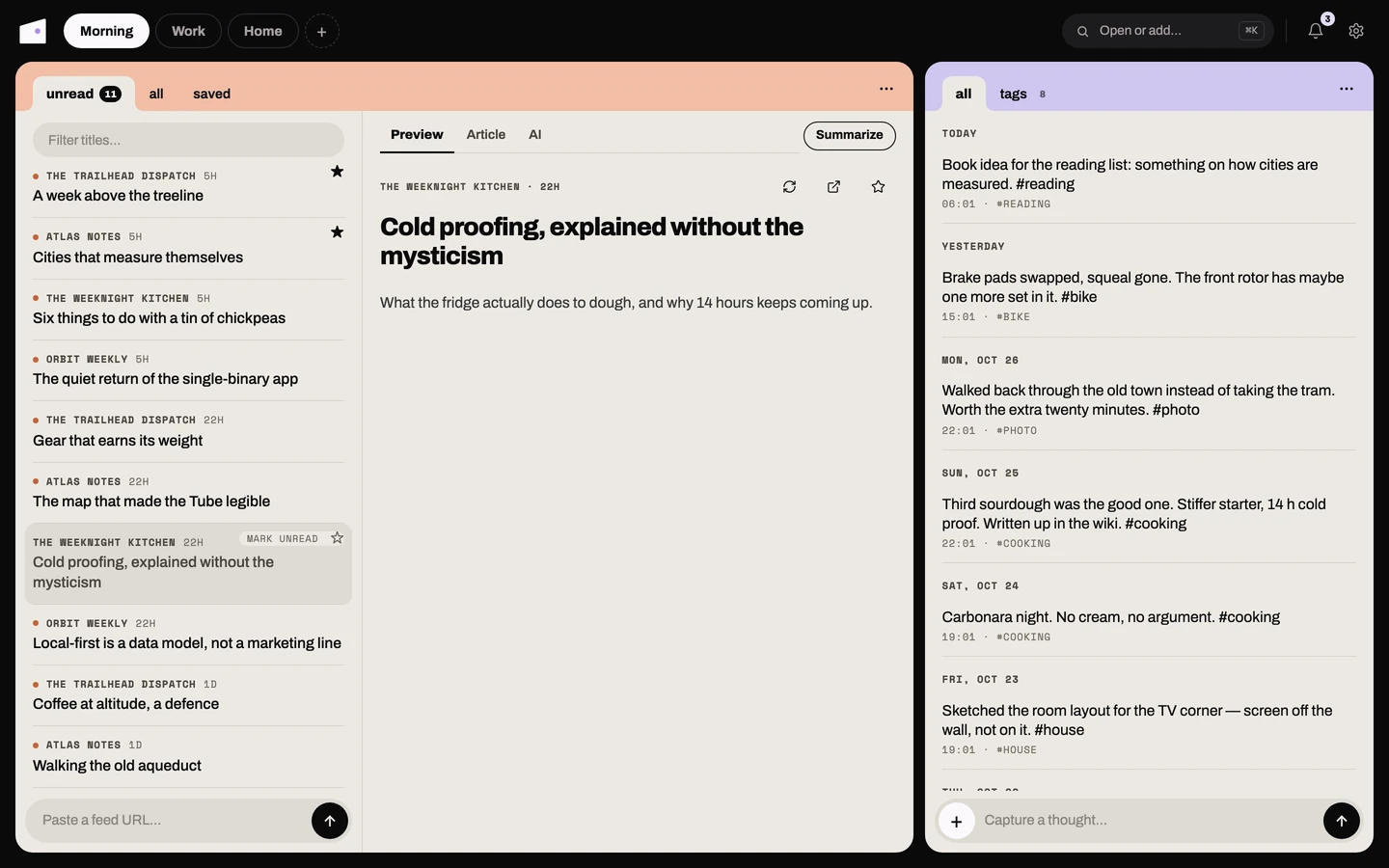
Web: the RSS card, with unread / all / saved tabs and a reader pane whose view tabs
(Preview / Article / AI, or a recipe's own) each have a refresh. The card's ⋯ menu
holds Feeds, Add feed, Refresh feeds and, filtered to one feed, Mark feed
read. The list shows titles only; the text loads when you open an item.
The list is keyboard-driven: ↓/↑ (or j/k) move a cursor and mark each item read as you land on it, g/G jump to the ends, m flips one back to unread, s stars, o opens it in a new tab, Enter shows the article, i the AI summary, r refreshes, v cycles the view and a adds a feed.
Phone: tapping an item opens the reader inside the RSS card, with the feed's view tabs and a back link to the list. Items you scroll past are marked read automatically (a fast fling doesn't count; rows dim in place). The reader's ⋯ holds refresh this view, star, mark unread, copy link and Ask Chat, and Open original article opens the page in an in-app browser tab or your browser app: choose under Settings → RSS.
Managing feeds: the list's ⋯ → Manage feeds on the phone, and the card's
Feeds sheet on the web (each feed with its own ⋮ menu), are where subscriptions
live.
Paste a bare site address into Add feed and your cellar finds the feed for you, showing what it found (the feed's real name, whether it's RSS or Atom, roughly how often it posts and, on the phone and web, its latest couple of headlines) before you commit. (If it can't find one, you can still add the address exactly as typed.) Each feed can then be:
- Muted: it keeps fetching, but its items stop appearing in Unread and stop counting toward the unread badge. They're still there under All, still searchable, and filtering to that feed still shows everything in it. Mute is for the firehose feed you want to browse on purpose rather than be chased by.
- Grouped: a free-text label (Tech, News, whatever) that sorts the feed list into sections. Feeds without one sit under Ungrouped.
- Checked less often: a per-feed interval. This only ever slows a feed down: the
cellar polls on its own schedule (
[rss] poll_minutes) and this setting tells it to skip a feed it checked too recently. Setting a feed to "every 30 min" when the cellar polls hourly changes nothing. Refreshing by hand always fetches everything, whatever this says.
Feeds on your own network. Your cellar refuses to fetch a feed or article from a
private address (your LAN, localhost), so a feed cannot be used to poke at machines
behind your router. If you do read a feed from a box on your LAN, set
allow_private = true under [rss]. Only http and https addresses can be
subscribed (and recipe://); file:// and local paths are refused.
On the phone, Mark all read in the list's ⋯ marks every unread item read after a
confirmation (muted feeds stay as they are in the all-feeds view), and tapping a feed row
in Manage feeds opens those choices plus Remove feed; a feed driven by a recipe carries a small code glyph so you can tell at a glance which of your
feeds are script-driven.
Read full article: most feeds only send a short teaser. The Article tab shows
the whole article. The article is extracted on first open and cached, so it's only fetched once. Choose how
the text is pulled with extractor under [rss] in cellar.toml: "readability" (local
extraction, the default) or "jina" (via r.jina.ai). If extraction fails (paywall,
blocked site), the reader says so and offers a way out: retry through jina or open the
original page, on every surface.
AI summary: get an LLM-generated summary (a one-line TL;DR plus a few bullets) of
any article, in the AI tab (i on the web). It's generated on first request and cached, so it's only produced once; it
needs an LLM key configured (see chat / [llm]), otherwise it shows a short notice. Over
the API the summary is the item's AI view, at GET /api/rss/items/{id}/views/{name}. Set
poll_minutes and retention_days under [rss] too. Old items you've already read
(and not starred) are auto-removed after that many days, while unread and starred items
are always kept. New items do not notify by default: one notification per feed per
poll buries everything else in the notifications screen, and the unread badge already
says the same thing without interrupting. Set [rss] notify = true to turn them back
on, which affects the scheduled poll only; refreshing by hand never notifies, since
you're looking at the feed when you ask. Chat can call rss_headlines (filter by
unread_only, starred_only, title_query, a feed, and/or a
published_from/published_to date range), rss_unread_count, and rss_star. Ask it
to star an item by title (or enough of the title to match one item) and it marks the
item kept; unstar works the same way.
Recipes: some feeds get custom handling through a small userspace script in
recipes/rss/ (config [rss] recipes_dir). A recipe can clean up a messy feed entry,
swap in its own set of reader tabs (a Comments view, for instance), or even synthesize a
feed that has no real RSS/Atom URL at all: subscribe to recipe://name and the recipe
supplies the entries. Recipes are your own scripts, not part of your cellar (the directory
is gitignored, like the wiki vault). For example, a Hacker News recipe can add a
Comments tab that pulls the discussion thread from the Algolia API, and a Meneame
one can show the original story instead of the aggregator page, with the discussion from
the per-story comments feed as its own tab. When a feed has custom views, every
reader's tab strip (web and phone) reflects them automatically; each tab also
gets its own refresh (next to the tabs on the web, in the reader's ⋯ on the phone)
to recompute that one view on demand instead of serving
the cached copy.
Habits
Card tabs (web and phone): today, week, stats.
Track binary daily rituals: each habit is either done or not for the day. Habits can run daily (every day), on specific weekdays (e.g. Mon/Wed/Fri), or every N days, a spaced cadence with a rolling due date, where the next due day is the last completion plus N days (a never-checked habit is due immediately).
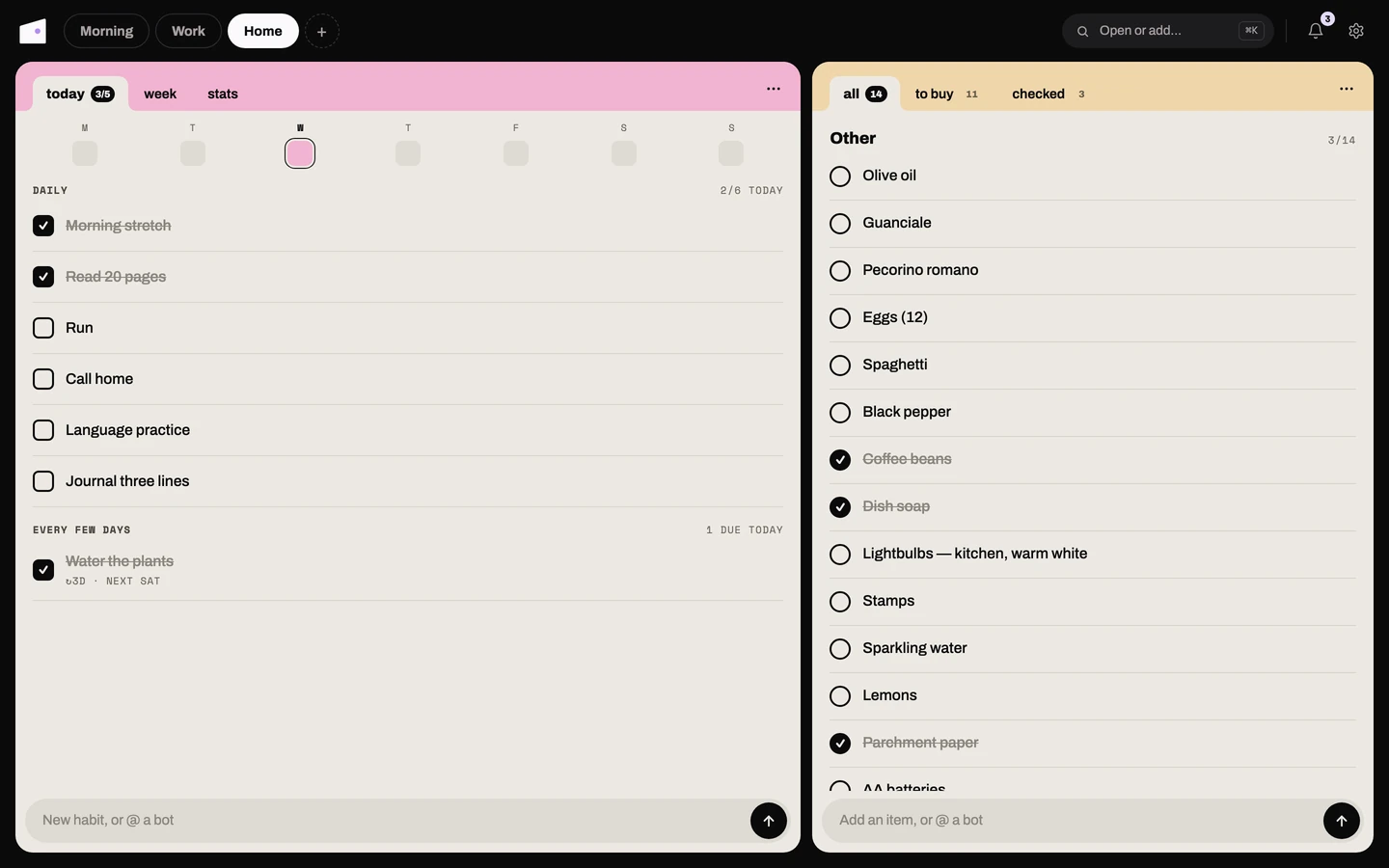
Daily and weekday habits keep a current streak (consecutive scheduled days completed) and an all-time best, alongside a streak tail: a compact, continuous run of done (●), missed (○), pending (◌), and off-day (·) days growing from the creation date.
Spaced habits count total reps instead of day-streaks, so milestone notifications fire on rep counts. They can only be checked on a due day, so clients show a dashed, non-tappable ring until then, and the server enforces it too.
The phone and webapp group the board into two lanes: DAILY (daily + weekday habits)
and EVERY FEW DAYS (spaced habits, with a "due today" count and per-habit meta like
↻7d · next Fri). Each row carries a Monday-first week rhythm strip.
Web: the Habits card, with today, week and stats tabs over the lane board (DAILY for daily and weekday habits, EVERY FEW DAYS for spaced ones with their rolling due line). Rows carry a Monday-first rhythm strip: filled dot for done, accent ring for today-and-due, hollow ring for missed, a short dash for a rest day, dim ring for days to come; hover a mark for its date. Stats shows each habit's dots for up to the last 120 days with its streak or reps figure; the streaks and reps themselves count the whole history.
Tick the circle to mark a habit done (or undo it). A spaced habit that isn't due yet
stays locked. Each row's ⋮ menu holds Move up, Move down, Edit and
Delete. The composer quick-adds a daily habit; New habit with details in the
card's ⋯ menu opens a dialog for cadence, weekdays and an optional reminder time
(HH:MM), which notifies once a day when the time has passed and the habit is unchecked.
Reminders: set reminder_time = "HH:MM" per habit via the web edit form or the API.
A background job (interval controlled by [habits] reminder_poll_minutes, default 15)
fires a habits.reminder notification routed by [notify.routes], by default to
desktop and web. Each habit notifies at most once per local calendar day; checking a
habit before its reminder time suppresses the notification for that day.
Chat tools: Chat can call habits_today (today's scheduled habits with
done state and current streak), habits_check (mark a named habit done for today, matched by exact name or a unique
substring like every other by-name tool) and
habits_add (create a new daily habit) via the event bus, with no cross-module imports
needed.
Shopping
Card tabs (web and phone): all, to buy, checked.
A simple shopping list: add items, tick them off, rename them, and clear the done ones. An optional "organise" action uses an LLM to group your items into supermarket sections (Produce, Dairy, Bakery, …) so the list matches how you walk the aisles.
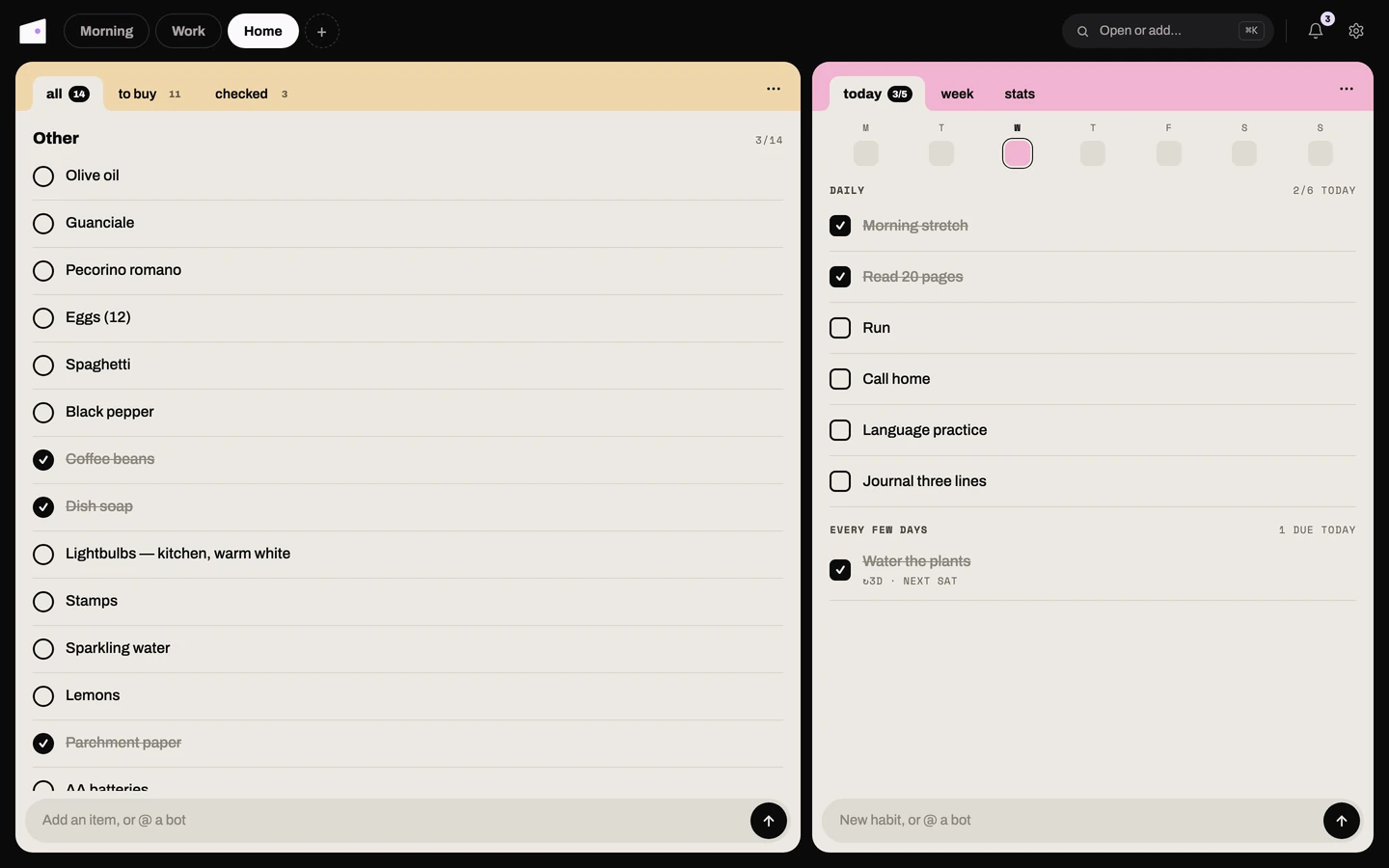
No duplicates: adding something already on the list to buy ("milk" when "Milk" is there) keeps the one you have, and Chat says it's already on the list.
Suggestions as you type: the add box suggests items you've bought before, drawn from
your whole history (including cleared items), with the things you buy most often shown
first. Near-duplicate spellings (case, plurals, extra spaces: "Tomato" and "tomatoes")
collapse into one suggestion. The web and phone add boxes both use it, and so can you,
via GET /api/shopping/suggestions.
Web: the Shopping card; Organize and Clear done are in its ⋯ menu. You can
also add items by voice through Chat. (Organise needs a chat API key.)
Documents
Card tabs (web and phone): all, then one per document type.
A searchable archive for scans, photos, and PDFs. When you add a document attic runs a single LLM vision pass that extracts the full text, infers the document type (expense, letter, ID, statement, …), assigns tags, and reads the document's own date, all in one call.
That pass runs in the background: the upload returns at once, and the document shows as queued, then reading, until it is done (usually within half a minute) or has failed with a reason. The original file is stored on disk and the extracted metadata lives in the database (the DB is authoritative, not the file). Documents are deduplicated by SHA-256 so uploading the same file twice is a no-op.
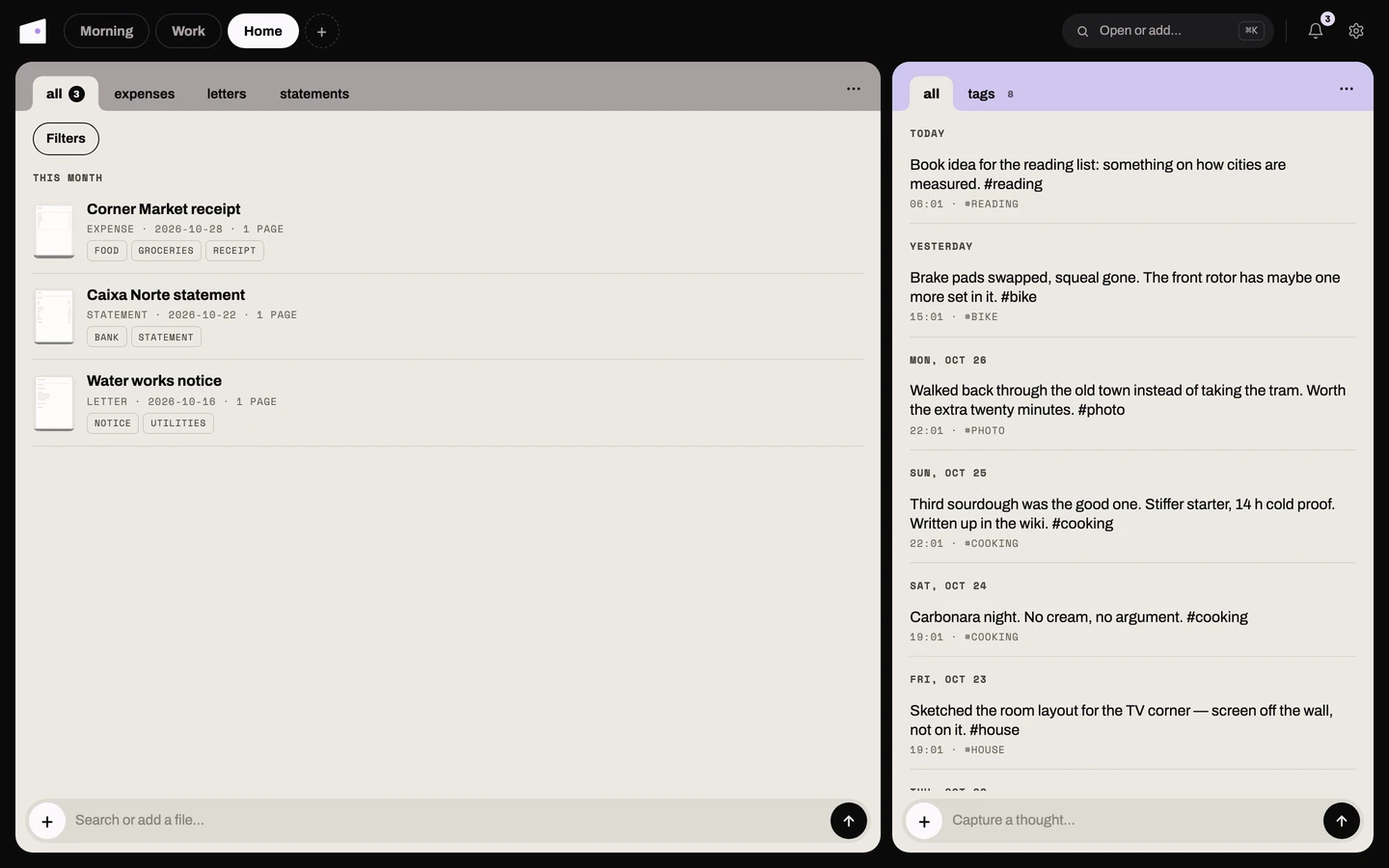
Getting documents in: Add file in the Documents card's ⋯ menu uploads one or
more files, and Scan inbox checks the inbox folder now.
Alternatively, drop files into the inbox folder ([documents] inbox_dir, default
documents/inbox) and attic moves them into the archive automatically
([documents] scan_interval, default 5 minutes). A file is taken once it has stopped
changing: it must look the same on two scans and be over 10 seconds old, so a file still
being copied in is left alone. Scan inbox takes anything over 10 seconds old at once.
Both paths share the same ingest logic.
Each document shows a small cover thumbnail in the list, generated automatically from the first page (PDFs) or the image, as soon as it is uploaded. Documents added before this feature show a placeholder until you use Retry OCR, which also generates their cover.
Edit while it reads. You can rename, retype, date, tag or fill in fields while a document is still queued. What you set is kept: the reading pass only fills in what you left alone, and adds its tags to yours. If no vision model is configured yet, documents wait as queued with a note saying so, and are read once one is.
Finding documents: FTS5 full-text search runs across the extracted text. On the web the card's tabs pick a type, and a Filters popover adds tags, a date range and the sort; all of them compose. The detail page shows the cover, an Open original link and an editable Details section (title, type, date, tags and the fields below).
The detail card's ⋯ menu holds Ask Chat with the open document's text as context
("what's the total?", "when does this expire?"), Retry OCR and Delete. Retry
OCR queues the vision pass again on the stored file, with no re-upload ("Queued to read
again"), and keeps the title and anything you edited since. A row whose OCR failed also
offers it. The open document and the list refresh themselves until it is read. Chat's
document search returns at most 50 matches.
Structured fields: for certain document types attic also extracts a fixed,
type-specific set of fields and shows them on the document's detail view. An expense (invoices and receipts are both filed as expenses)
yields vendor, purchase date, document number, subtotal, tax, total, and currency;
letter, ID, and statement each have their own field sets (e.g. an ID's
expiry date, a statement's opening/closing balance). You can edit any field there
directly, and the values are searchable via full-text search. Retry OCR refreshes the
fields along with the rest of the extraction. Documents of type other extract no
structured fields; adding or changing a schema is a code change in
modules/documents/schemas.py.
Chat tools: Chat can call documents_search ("find my electricity bill
from March", filterable by tags, doc_type, and a date_from/date_to range on the
document's own date) and documents_read (the best match's tags, structured fields, and
extracted text, as in "what's the total on that bill?") via the event bus. A
documents.ingested event fires after every successful ingest, available to automation
flows.
Configuration under [documents] in cellar.toml:
| Key | Default | Purpose |
|---|---|---|
store_dir |
documents/store |
Where originals are stored on disk (gitignored) |
inbox_dir |
documents/inbox |
Drop files here to ingest on the next scan (gitignored) |
scan_interval |
300 |
Seconds between inbox scans |
max_ocr_pages |
10 |
Page cap for PDFs; only the first N pages are sent to the vision model |
model |
(uses [llm] / [chat]) |
Optional override; must be a vision-capable model |
The documents module requires a vision-capable model. Set [documents] model to a
model that accepts images (e.g. anthropic/claude-opus-4), or ensure your [llm] /
[chat] default model supports vision.
Thoughts
Card tabs: all and tags on the web; all on the phone.
A frictionless inbox for quick thoughts. Type a note (use #tags), optionally attach
images, audio, video, or files, and hit Capture. It lands instantly in a
reverse-chronological feed you can search.
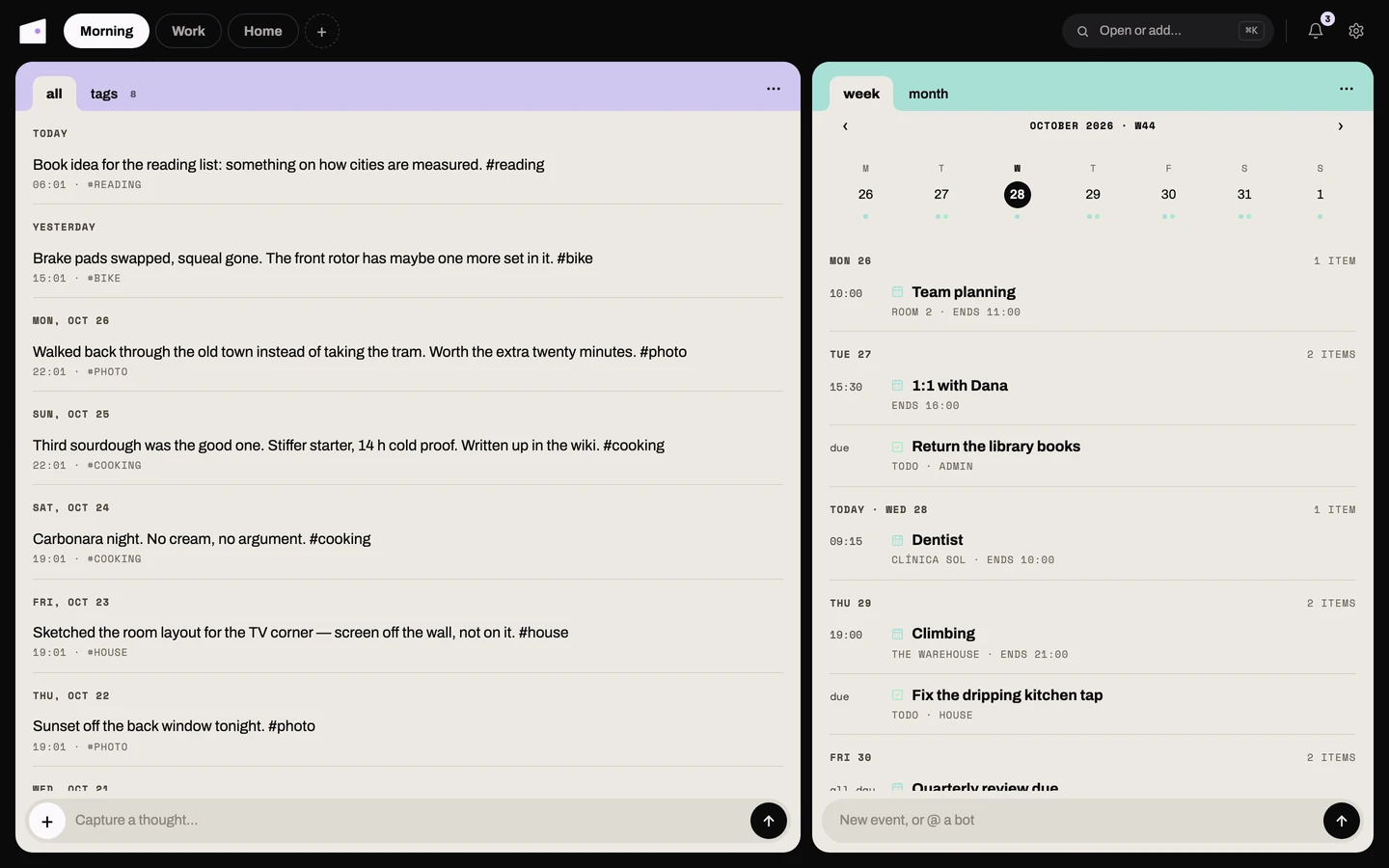
Attachments get enriched in the background: images are described and audio/video are transcribed (so a voice memo becomes searchable text). Each attachment shows a status badge with a Retry action.
Record a voice memo in the browser: the composer has a record button (it appears
only in a secure context: localhost or HTTPS). To record from another device over
your LAN you need HTTPS in front of your cellar (Tailscale is the easiest option); plain
file upload works everywhere.
Draw a sketch (web app): the composer's Draw button opens an inky drawing canvas: four brushes (fine ink, broad ink, marker, highlighter), a small palette, plain/grid/dotted paper, undo/redo, clear, a whole-stroke eraser, and a replay button that re-draws your strokes.
Attach a background image (file picker or paste) to draw over a
photo. Drawings are saved as vector data (.hubdraw: the points you drew, not pixels),
so the feed re-renders them crisply at any size and clicking a drawing reopens the
editor to keep working on it. Hovering a drawing in the feed replays your strokes live.
A small raster preview is embedded at save time so clients that can't replay strokes can
still show drawings. The phone can also draw (Draw in the capture sheet) and tap a
drawing to edit it.
From a shell: attic think "an idea" captures a thought, and so does piping into it
(see Command line).
Location: thoughts captured on the phone carry the GPS position where they were
created, controlled by Settings → Thoughts → "Attach location" (default on). When a
thought has coordinates, the web feed shows a small ⌖ link that opens the spot in
OpenStreetMap.
Chat tools: Chat can call thoughts_capture ("note down that the tomato
seedlings need repotting") and thoughts_search ("what did I say about the seedlings?",
which searches transcripts and image descriptions too; filterable by tags and a
date_from/date_to range).
Dashboard
Card tab (web and phone): today.
A single at-a-glance landing page covering six modules: todo, habits, shopping, thoughts, wiki, and chat, plus any cards a flow has published.
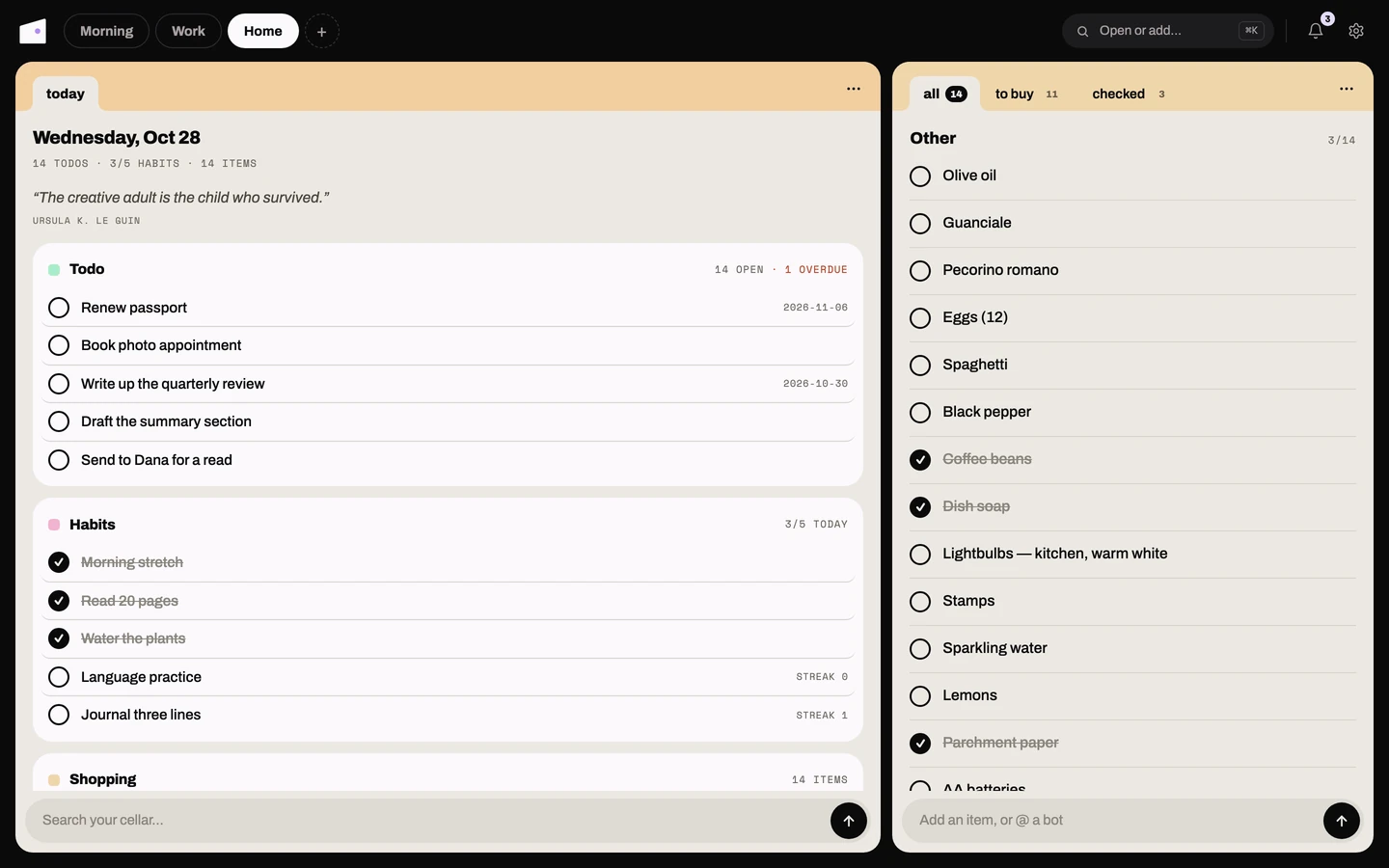
| Tile | What it shows |
|---|---|
| Todo | Open/overdue counts and the next few undone tasks |
| Habits | Today's checklist with streaks |
| Shopping | Item count and the first few unchecked items |
| Thoughts | The most recent captures |
| Wiki | The most recently edited notes |
| Chat | The most recent conversations |
Typing in the card's footer box, "Search your cellar…" (2+ characters), replaces the tiles with grouped matches across the same six modules, and clearing it restores the tiles. Every tile and result links back to its module for full editing; the dashboard's own quick-actions cover only the common case.
On the web it is the Dashboard card, which starts in the Home space. The phone has its own Dashboard app (see Companion app (phone) below), with the same six widgets plus tappable rows and habit extras.
In edit mode (Edit layout in the card's ⋯ menu), tiles can be dragged to reorder, hidden (re-addable from a
ghost placeholder), and given a per-tile density (full, or compact: just the header and
its count) and a "max shown" row count (3/5/8) while full. The habits tile adds a "hide
done today" filter. That layout is stored in the browser's local storage, not synced
across devices.
Shopping, Thoughts, Wiki, and Chat each have an inline quick-action directly from their tile: add an item, capture a thought, or start a new note or conversation.
Status
A read-only observability snapshot of the running server: no history, no sampling job, just the current state on every page load.
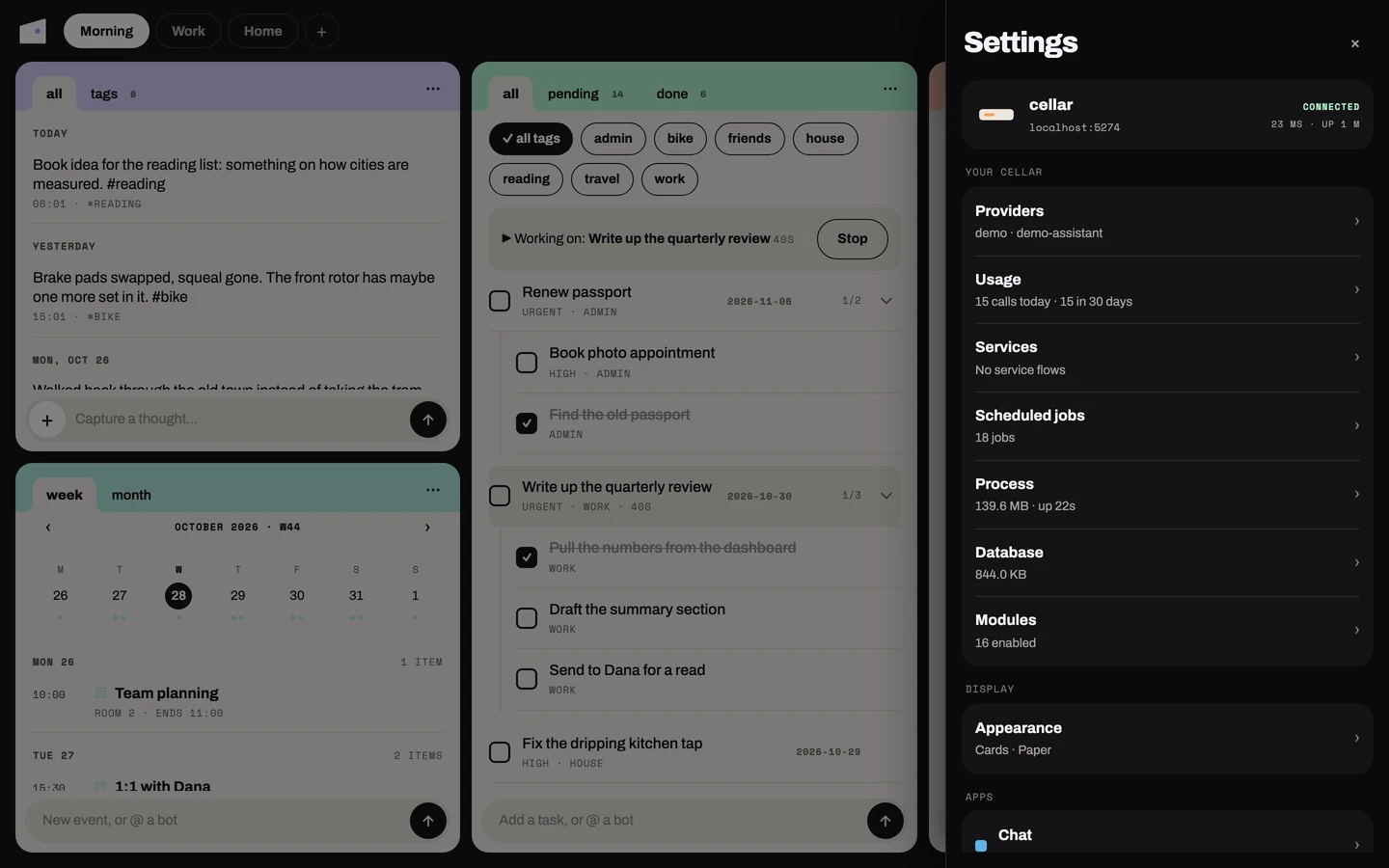
| Card | What it shows |
|---|---|
| Process | Memory (RSS), CPU time, uptime, PID, and Python version |
| Database | The SQLite file's size and path |
| Providers | The configured LLM and audio provider + model, with a checkmark once a key is present |
| Scheduled jobs | Every registered scheduler job and its next run time |
| Service flows | Each long-running service flow's supervisor state (e.g. running) and restart count |
| Usage | LLM token usage per provider/model/source, over three windows: today, last 30 days, and all time |
| Modules | Every enabled module and its version |
Web: the cellar block at the top of the Settings panel (in the gear menu at the right of the top bar),
with your cellar's details and the Usage groups (one per window) beneath it. TUI:
type cellar status at the prompt for the short version (uptime, crew, model,
modules). Phone: Settings, then "Inside your cellar". Shell: uv run cellar status (see the cellar command). Every surface reads the same GET /api/status/ snapshot; there's nothing to configure and no chat tool.
Applets
Card tabs (web and phone): pinned, all.
An applet is a small, self-contained web app (an index.html plus whatever data
files it needs) that a flow (or you, by hand) drops into data/applets/<name>/. The
Attic itself doesn't know anything about what's inside: it just lists the published
folders and serves their files. There's nothing to set up beyond where that folder lives
([applets] dir in cellar.toml, default ../data/applets).
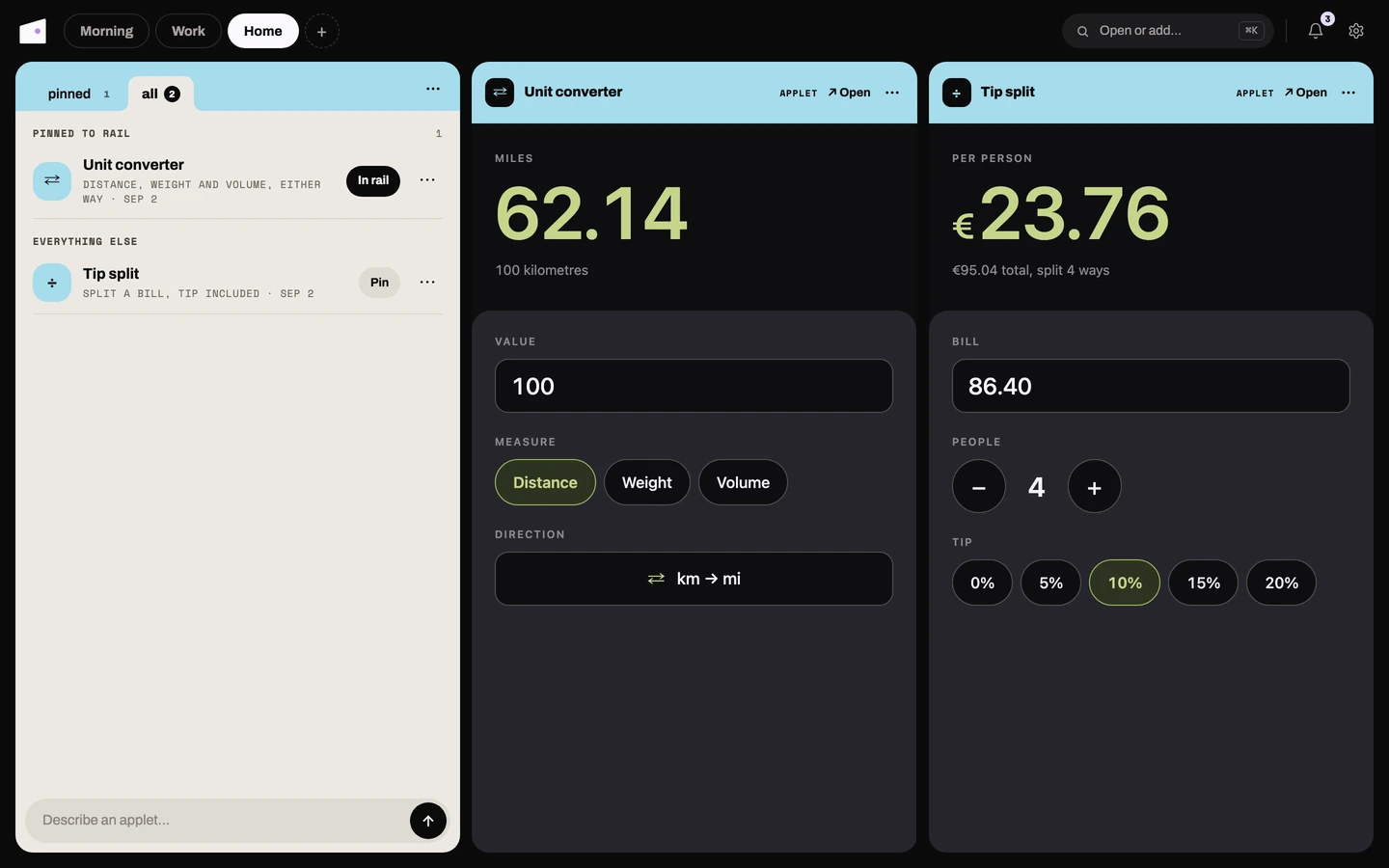
The library: the Applets card on the phone and the web both show the same shelf, with pinned and all tabs. Pinned applets appear in the phone's rail and can be placed in a web space as cards of their own.
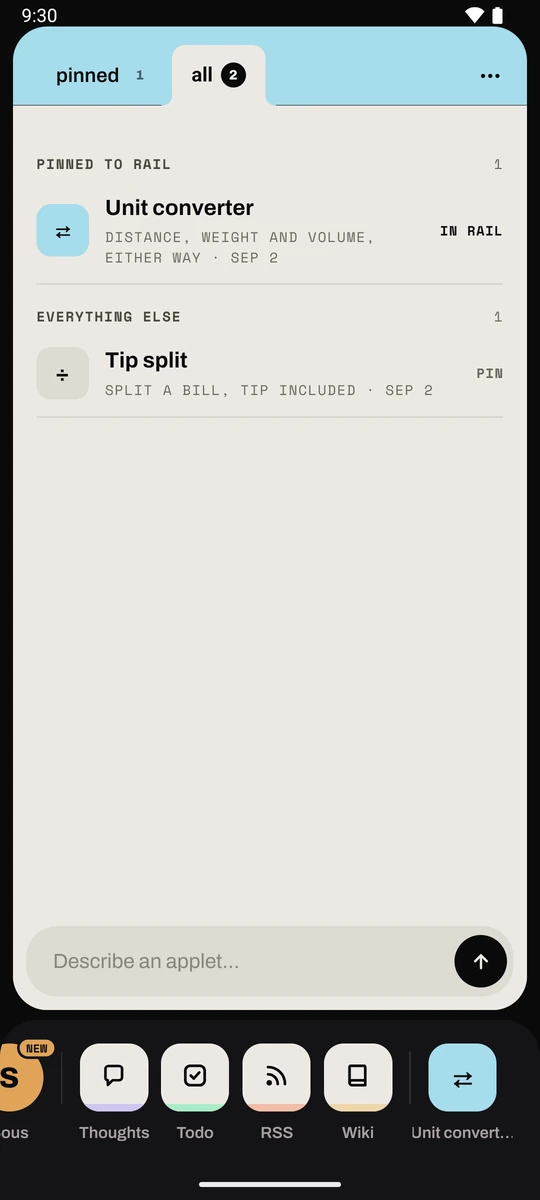
Tapping one runs it inside the Applets card, with an ↗ Open link on the web that
opens the page in a new tab. You can also browse straight to /applets/<name>/ in any browser. The
TUI leaves applets out: a terminal can't render the pages.
A locked box. An applet page is code a model or a flow wrote, so it never gets to talk to your cellar itself, not even with your login. Its data and its buttons go through the attic window around it (the web app's card, the phone's applet screen), which checks each request and makes it only for that applet. Opened on its own in a browser tab, an applet still shows its page, but its data reads empty and its buttons say Open this in attic to use it.
Videos inside applets. A YouTube, Vimeo or map embed only plays inside an applet
when applets have a site of their own and you allow it for that applet. First set
[applets] port in cellar.toml (8486 in the bundled compose.yaml, published as
8001) and, behind Docker or a proxy, public_url to the address your devices use, such
as http://hub:8001. Then turn on Allow videos and embeds in the applet's ⋯
menu, on the web or the phone.
That site still has no way into your cellar. But applets with the switch on share it, so they can see each other's data; leave it off for anything private. With it off, a video shows its picture and an Open on YouTube link instead. Without the port the switch is greyed out ("Needs the applets port in cellar.toml").
A page also cannot keep anything in the browser between visits. What an applet keeps (a game's high score, its settings, a photo you add) goes in its own store on your cellar instead, so it is there on the web and the phone alike. A link to another applet opens it as a card of its own.
Each applet carries a title, a one-line description and a single-character glyph, which Chat writes when it builds one. A folder dropped in by a flow (or by hand) has none of that, so it simply lists under its folder name with its initial as the glyph.
Managing one: long-press an applet on the phone (or use the ⋯ menu on a running
one, or the row's ⋯ and Pin button in the web list) for:
- Pin / Unpin: moves it to the cards at the top of the library.
- Change it by talking (phone): opens Ask Chat already pointed at this applet, so "make the buttons bigger" just works.
- Rename: changes the title you see. The folder name never moves, so links, pins and the applet's own editing conversation keep working.
- Duplicate: copies the folder to
<name>-2. The copy is yours to change by talking, and starts its own editing conversation rather than sharing the original's. It starts with an empty store. - Export: downloads the applet's folder as a zip (its files only; the title, description, pin and store stay on your cellar).
- Delete: confirms first, then removes the whole folder from
data/applets/, and its store with it. There's no undo, though a flow that republishes (like the morning briefing) recreates its folder on the next run, and if it does, it comes back with the title and pin you gave it.
Card or full layout
An applet has one of two layouts, chosen by Chat when it builds one. A card
applet gets a cyan head (a glyph, the title and an APPLET tag) above the page, like the
other cards. A full applet is for tools where the page is the surface, such as a
drawing canvas, a game or a map: no head and no tint, just the page. When the applet
has a card of its own, nothing covers it while you use it: rest the pointer over it and
a small ⋯ fades in at the top right, with the applet's name, Open in new tab and the
rest of the menu inside. It fades out again as soon as you move, click or type. On a
phone or tablet the ⋯ stays, faintly. You can ask for full screen explicitly.
Applets that existed before layouts did are treated as cards, so they get the head.
Applets Chat builds link a small kit that your cellar serves at
/applets/_kit/: a stylesheet, the fonts and the rules for buttons, steppers, fields
and lists. It is what makes a generated applet look like it belongs in attic.
Ask Chat to build one
You don't have to write an applet by hand: just ask. The Applets card's composer
("Describe an applet…") and Ask Chat in its ⋯ menu both open Ask Chat over
the library, on the web and on the phone. Describe what you want, and it is
built and already on the shelf when the reply lands.
Chat does the same thing. Say "make me a tip calculator" or "build a
countdown to my flight", and it publishes a working page under data/applets/<name>/ and
pins it as a floating bubble in the phone chat, the same way
asking it to show you something does.
Asking for changes ("make the buttons bigger", "add a dark mode") continues the same applet and rewrites its page in place, so Chat is always editing from the current version rather than guessing at it.
Behind the scenes, each applet gets its own stored conversation, filed in an Applets folder in the conversation list and titled "Applet: <name>". It is a dedicated authoring conversation, kept separate from the conversation you asked in, with no tools of its own and its own message history.
It writes back a single self-contained index.html, with CSS and JavaScript inline and no
external resources, and is instructed never to call your cellar's API, so a well-behaved
applet stays a standalone page.
That is an instruction to the model, not an enforced sandbox. Nothing stops the generated page's JavaScript from making network calls the same way any web page could.
Bots talking to bots
Bots can ask each other questions and tell each other things, across both kinds: a Hermes agent can ask Juno what is on your list, or tell it "I updated the Houses applet".
- Turning it on. Each bot has a Can ask other bots switch in its settings, off by default. Only bots with it on can ask or tell; any bot can be asked.
- What you see. Both threads show it as a dim marker: "asked Juno: what's on the list?" in one, "Hermes asked: what's on the list?" in the other, and "Juno answered: ..." when the answer comes back. The asking bot carries on from there.
- Telling wakes the other bot but expects nothing back.
- No endless loops. A bot can't ask back a bot that is waiting for its answer, has at most three questions waiting at a time, and can reach the same bot at most ten times an hour. A busy bot gets the question once it is free; after a day an unanswered question lapses.
Applets your bots keep
Any applet can carry data a bot keeps filling in, and buttons that answer back. A house hunt is the example: a Hermes agent adds each new listing as a card with a photo, price and its opinion, and every card has Contact, Save and Not for me. The bot is the applet's keeper. (These used to be a separate kind called boards.)
- Making one. Give a bot Applets under Can use in its settings (read and write), then ask it for one ("make an applet for the flats you find"). It writes the page itself, publishes it and becomes its keeper. Chat can make them too.
- Buttons. Some buttons only record your choice (Save, Not for me, "more like this"), instantly and without waking anyone; the bot reads them on its next run, and pressing one again takes it back. Others wake the bot that keeps the applet (Contact): the button says Sent for a moment, you see "you pressed Contact in Houses" in its thread, and it gets on with it. If it is busy, the button says Queued, busy and the press reaches it when it is free.
- Videos. A video in an applet plays in place: press the still and it becomes the player, without leaving attic.
- Live help. An applet can ask the bot that keeps it for a quick answer while you use it, with no button: a writing desk where the bot leaves notes in the margin a few seconds after you stop typing, say. It answers in its own voice in a few seconds and nothing lands in its thread. Only bots that live in the cellar can do this; a Hermes agent is too far away to answer that fast.
- Who keeps it. In any applet's
⋯menu, Who keeps it sets which bots can write it and which one its buttons reach. With nobody handling them, waking buttons stay greyed out. A bot can only republish an applet it keeps, so giving one an applet Chat made is up to you. - What you see in threads. A bot's routine refresh stays quiet. When it has news ("3 new listings") a short marker says so in its thread. When a bot names an applet in a reply, the name is a pill that opens it.
- Finding them. In Applets, an applet a bot keeps says Kept by and the bot's name.
The data comes from the web, so the page only ever shows it as text: a listing can't run code in attic.
[applets] model in cellar.toml picks which model does the authoring, independent of
whatever model the surrounding conversation is using, falling back to attic's usual
default when unset. An applet published by a flow, like the morning briefing below, is
never touched by Chat: only a folder Chat itself created can be edited
this way.
Worked example: the narrated morning briefing
flows/morning_briefing/ ships disabled by default; enable it like any other flow
(Writing flows above). Each run it asks Chat for a short, blunt
morning plan (overdue/due-today todos, unchecked habits, top unread headlines, the same
Chat cron pattern as before), narrates that reply with
ElevenLabs text-to-speech, and publishes the result as the
briefing applet: that day's plan in Markdown, an audio player when narration
succeeded, and a short archive of past days to page back through. The notification it
sends links straight to that day's page.
Narration needs an ElevenLabs API key. Add it to secrets.toml:
[flows.secrets]
elevenlabs_api_key = "..."
Without a key, or if the ElevenLabs call fails for any reason, the flow still publishes the written plan, just without an audio player. The run never fails because narration did.
Calendar
Card tabs (web and phone): week, month.
One agenda, two kinds of event: calendars you subscribe to (read-only, refreshed on a schedule) and events you create directly in attic (the only kind you can edit or delete).
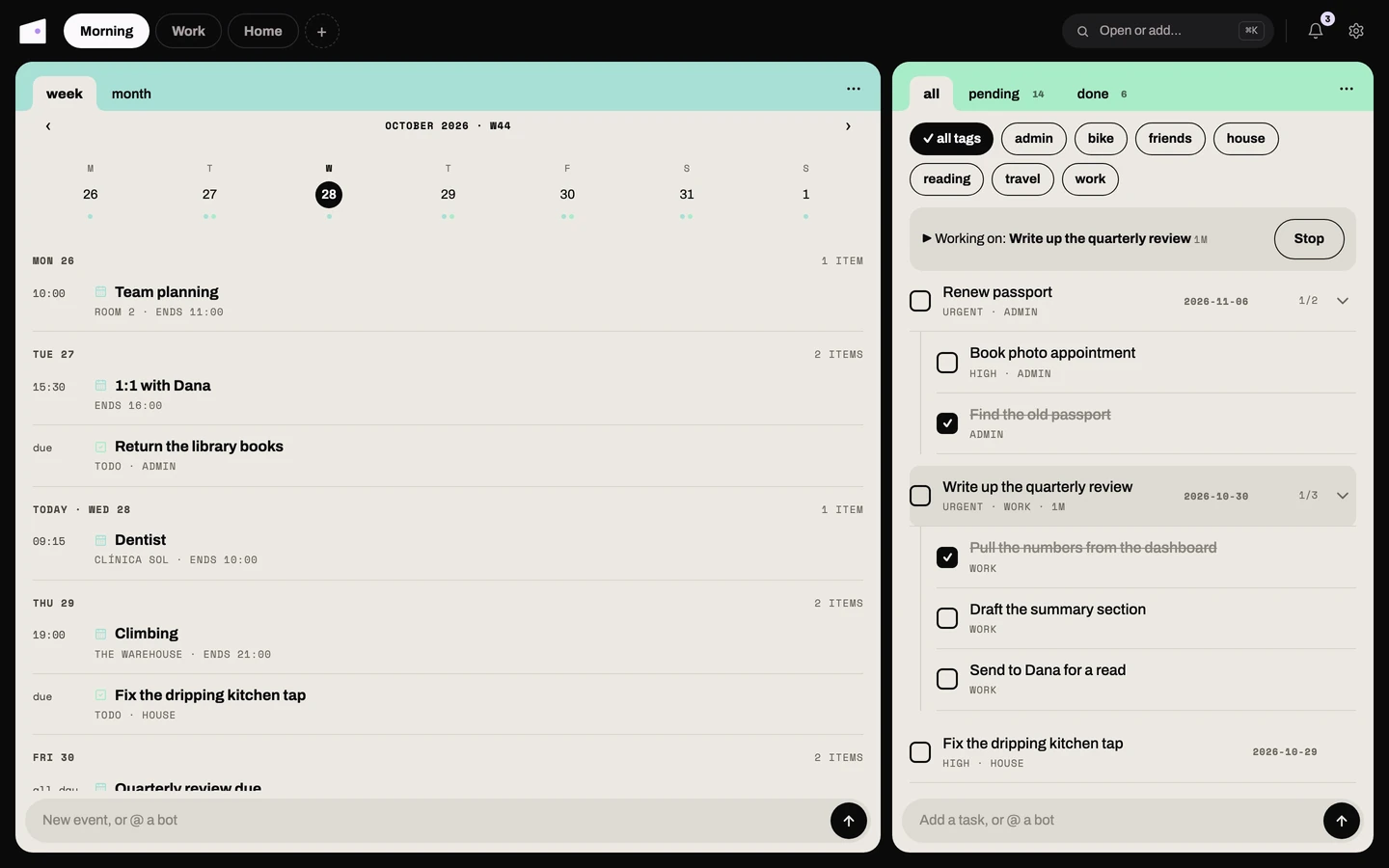
Subscribing to a calendar: add its .ics URL under Calendars in the web
Calendar card's ⋯ menu. Both
Google and Apple publish exactly this kind of link, usually described as a "secret
address in iCal format":
- Google Calendar: on calendar.google.com, open the calendar's Settings, find "Integrate calendar", and copy the "Secret address in iCal format" URL.
- Apple Calendar / iCloud: on iCloud.com's Calendar app, click the calendar's info
icon, turn on "Public Calendar", and copy the
webcal://link. Attic acceptswebcal://URLs directly (it converts them tohttps://internally).
Once subscribed, attic fetches the calendar straight away, then polls that URL on
[calendar] poll_minutes (default 60) and mirrors its events, repeating ones and moved
occurrences included. Those events are read-only: an attempt to edit or delete one
gets a clear error, because there is nothing to write the change back to. Use "Refresh
calendars" (also in the card's ⋯ menu) to pull changes immediately instead of
waiting for the next poll.
Calendars (the ⋯ menu on the web, a sheet on the phone) lists your subscriptions:
show or hide one (a hidden calendar is neither polled nor shown), rename it, change its
colour on the web, set a slower refresh interval for it, remove it, or add another. A
per-calendar interval can only slow a calendar down, never poll it more often than
poll_minutes.
Creating your own event: the card's composer quick-adds one, and New event with
details in its ⋯ menu (web) or the add-event sheet (phone) makes a local event, the kind you can freely edit and delete. Give it a title, a
start (and optional end) time, mark it "All day" if it has no specific time, an
optional location and notes, and a repeat (every day, every week on the same day,
and so on).
Tap one of your own events to edit it; a change to a repeating event applies to the whole series. On the web, hover an event for its pencil and bin; on the phone, tap to edit or long-press for Edit and Delete. Events from a subscribed calendar offer neither.
Week and month views ship on both the webapp and the phone: a horizontal week strip or a full month grid, each day carrying small source dots for what's on it (a calendar event, a due todo, a scheduled flow run); selecting a day shows its full agenda underneath. The month view also shows a small legend explaining the dots.
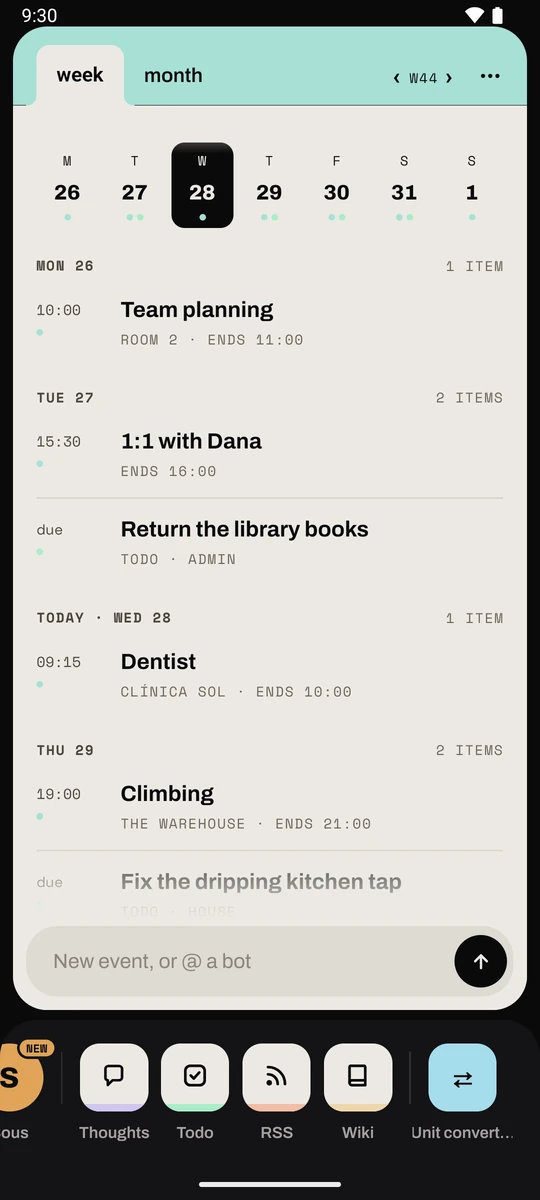
The agenda is more than your calendars: it also folds in your todo due dates and
scheduled flow runs (cron/date-triggered ones only; a flow that just runs "every 15
minutes" isn't an appointment and is deliberately left out), controlled by
[calendar] sources below, so set it to [] to see only your own calendar events.
CLI: the terminal agenda is read-only (writes go through the webapp, the phone, or
Chat). attic cal [--days N] prints the agenda for an N-day window starting today
(default 7) and exits, like the other one-shot CLI commands. The TUI has no calendar
pane.
Chat tools: Chat can call calendar_agenda ("what's on my calendar this
week?") and calendar_add ("put dentist at 4:30pm on Friday on my calendar") via the
event bus. calendar_add only ever creates a local event, optionally repeating: Chat can't write
into a subscribed calendar, the same restriction every other client has.
Configuration under [calendar] in cellar.toml:
| Key | Default | Purpose |
|---|---|---|
poll_minutes |
60 |
How often subscribed .ics calendars are refetched |
sources |
["todo", "flows"] |
Which cross-module overlays appear in the agenda; [] shows only your own calendar events |
Cards
A card is a small compiled result a flow (or other automation) hands you: "here's what I found," not "here's a form to fill in." A flow publishes it, and it shows up on the Dashboard as its own widget, right alongside todo and habits, instead of being reachable only from inside a notification you had to catch.
A card has a title, an optional subtitle, and a handful of glance lines: short bits of markdown, each with its own colored accent dot, that summarize what the flow found. Tapping a line follows that line's own link when it has one; tapping the card itself opens whatever the flow pointed it at (often an applet), or, if the flow didn't set a link, a detail page with the card's full write-up and a history of earlier days.
Cards live on the dashboard like any other widget: in edit mode you can drag one to reorder it, hide it, and switch it to the compact layout, exactly like the built-in widgets. The order of the tiles is saved in your cellar, so a second browser shows the same order; hiding a tile and the compact layout stay on the device that set them.
Publishing a card is a flow-author concern, not something you configure. See
flows/morning_briefing/ (Applets above) for a working example: it
publishes a morning_briefing card alongside its usual narrated applet and notification
on every run.
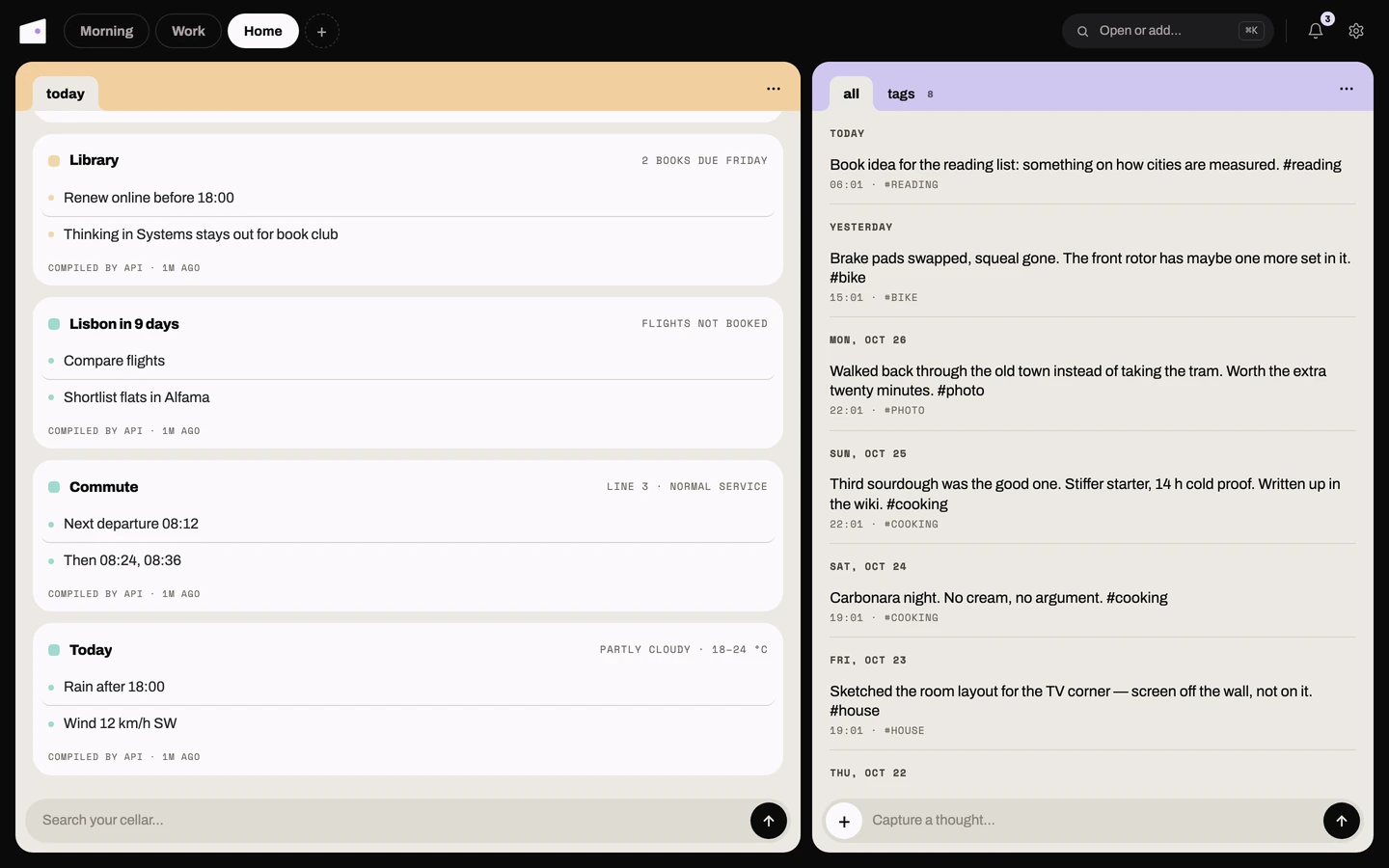
Remotes
Remotes are devices Chat can control. The first is an Android phone running
attic remote, a small standalone app (remote-android/, separate from the phone
companion app) with its accessibility service enabled. Register a token in secrets.toml
([remotes.tokens] pixel = "…"), enable remote control on the device, then ask
Chat: "open PipePipe and play something good".
Each device gets its own chat skill on your cellar (the phone's is remote_pixel) holding its
command list and driving instructions. Chat loads it when you ask for something
on that device, and you watch every step as it happens. A device that is off or
unreachable fails fast with a clear message rather than queueing.
Driving is index-based: Chat reads the screen as a numbered list of what's on it, buttons, fields, list rows, text, and acts by number, so a long task stays cheap instead of re-reading the whole screen at every step.
To turn a phone into a remote:
- Build and sideload the app:
cd remote-android && ./gradlew installRelease, a ~3 MB APK that appears as "attic remote" in the launcher. - Put a token in your cellar's
secrets.tomlunder[remotes.tokens]: any long random string, keyed by the name you want to address the phone by. - Open attic remote's one settings screen and enter your cellar's URL and that same token.
- Tap through to Android's accessibility settings to enable the attic remote service, then flip the enable toggle.
A status line on that screen confirms the connection and the last command run. The phone connects only while the toggle is on and the screen is awake, and shows a violet border whenever Chat is acting on it.
Adding a second device is a second token plus a copy of the skill folder pointed at that name, with no change to your cellar itself.
The TV canvas
The TV canvas (remote-tv/) is a second, very different remote. It isn't a phone being
driven; it's a screen Chat puts things on.
It shows a near-black room holding a handful of things scattered across it: an album playing, a film, a note, a doorbell notice, an answer to something you asked. A camera either pulls back to frame the whole room or moves in on one thing. You steer it with the arrow keys from the sofa, and Chat steers it over the same remotes protocol, adding and removing things and moving the focus. "Put a note up about dinner", "take the film off", "show me what's on the TV".
It is also the house stereo: it plays your Jellyfin music library directly, so "play some Elder Island", "play Sera mejor by Muchachito Bombo Infierno", "next track" and "stop" all do what they say, and the sleeve goes up on the screen while it plays.
Setting it up is one token plus two Jellyfin values, then leaving the page open on the screen:
- a token in
secrets.tomlunder[remotes.tokens], and the same value in the app's.env.local VITE_JELLYFIN_URLandVITE_JELLYFIN_TOKEN, also in.env.local
Its skill is remote_tv. One quirk worth knowing: a browser will not start sound in a
page nobody has touched, so the first time after opening the TV it asks you to press any
key. After that it plays on command.
It is early elsewhere. The other kinds of thing are placeholders with no real media
behind them, and the room lives in the page, so reloading starts over. pnpm mock in
that folder runs a stand-in for the cellar, so you can work on it while the real one is down. See
remote-tv/README.md.
Companion app (phone)
An Android companion app (Expo/React Native, sideloaded locally, no Google Play
Services) puts every app and your crew in your pocket, reached over WireGuard/Tailscale
the same way the web app is. It's a client only: there's no phone-specific server code, and it
talks to the same /api/<module> endpoints as everything else.
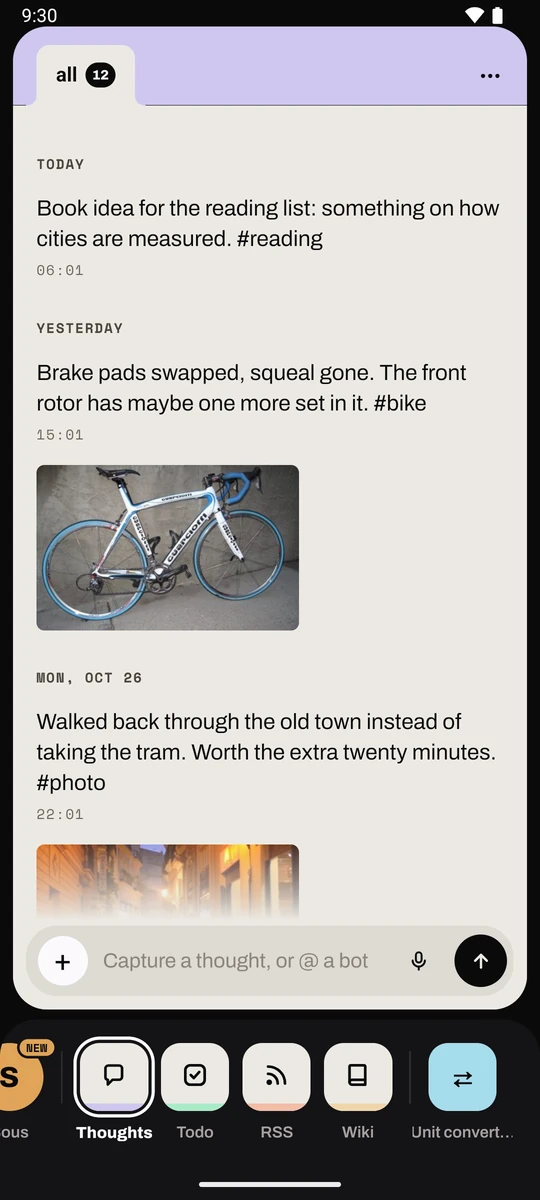
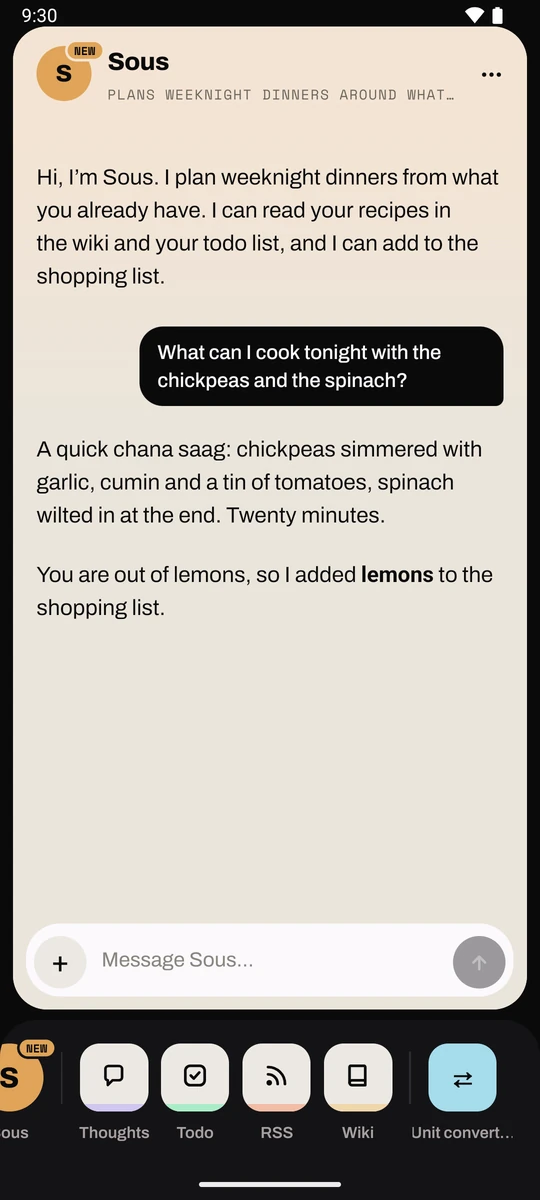
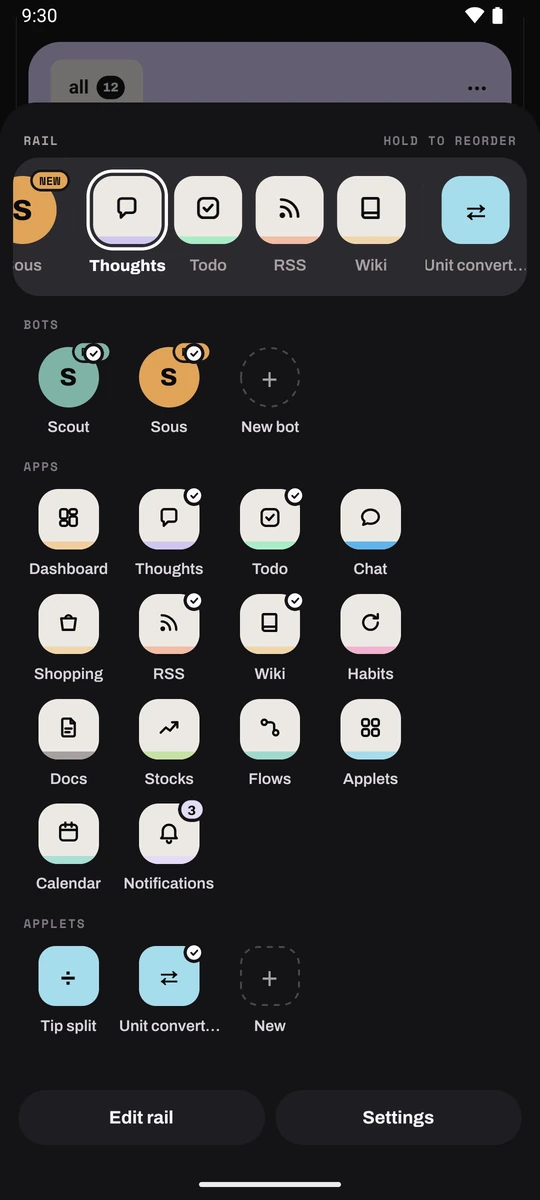
The rail. The app opens on the card you last used. A rail along the bottom holds your bots, then your apps as tiles, then the applets pinned in your cellar. Tap a tile and its card slides in. A tile shows a live count where it has one: open todos, habits done today, unread RSS items, things left to buy, unread notifications. Tapping the tile you are already on, while a detail opened from elsewhere sits in its card, goes back to that app's list.
Dashboard, Shopping, Habits, Applets, Calendar and Notifications start off the rail and wait in the pulled-up rail until you add them.
Opening. A plain cold start shows the house over the desk, a light stroke running
round its outline, then fades while the app comes up beneath it, and never holds a touch. It is skipped when a link opened the
app (a notification, the Thoughts shortcut) or when the app opens on Thoughts, so quick
capture stays instant. An attic://web link opens its page inside that app's card,
with a back link.
Pull the rail up for everything. Drag the rail up (a flick is enough) and it lifts onto its own band, captioned RAIL, while the card steps back and dims. Below it are every bot, app and applet, with a tick on the ones already in the rail. Drag down, press back or tap the card to close it.
Hold an app in the raised rail to drag it to a new place. Edit rail marks each tile: an app's mark shows or hides it in the rail (the same setting as Settings, Rail and launch), and an applet's mark pins or unpins it in your cellar.
Details stay in their card. Opening a note, a conversation, a document or a stock keeps the rail on screen, and the back arrow returns to the app's list. From another app, back first returns to the app you came from.
Open on launch. Settings, Rail and launch sets which app opens on a cold start. This is also what makes triggers that can only open the app, such as a Pixel Quick Tap, land where you want.
Your rail follows you. The rail's apps, their order and Open on launch are saved in your cellar, so a new phone pointed at it picks up the same rail. Pinned applets already live there. The card you last used stays per phone.
Settings is a dark screen reached from the Settings button in the pulled-up rail.
Appearance. Settings, Appearance picks how the cards look: Paper (light paper cards on the ink background, the default), Dark (charcoal cards whose header has no coloured band: a thin line in the app's colour runs under the tabs and curves up around the open one, and your own messages take the app's or bot's pale colour) or Match system (Dark whenever the phone is in dark mode). The web app and the Mac app have the same choice under Settings, Display, Appearance. Each device keeps its own choice; the rail, the desk and Settings stay dark either way.
Dashboard
An at-a-glance home screen: today's weekday, an open-todo and habit-progress count, and six widgets (todo, habits, shopping, thoughts, wiki, chat) plus a widget per published card, in the same layout as the webapp's.
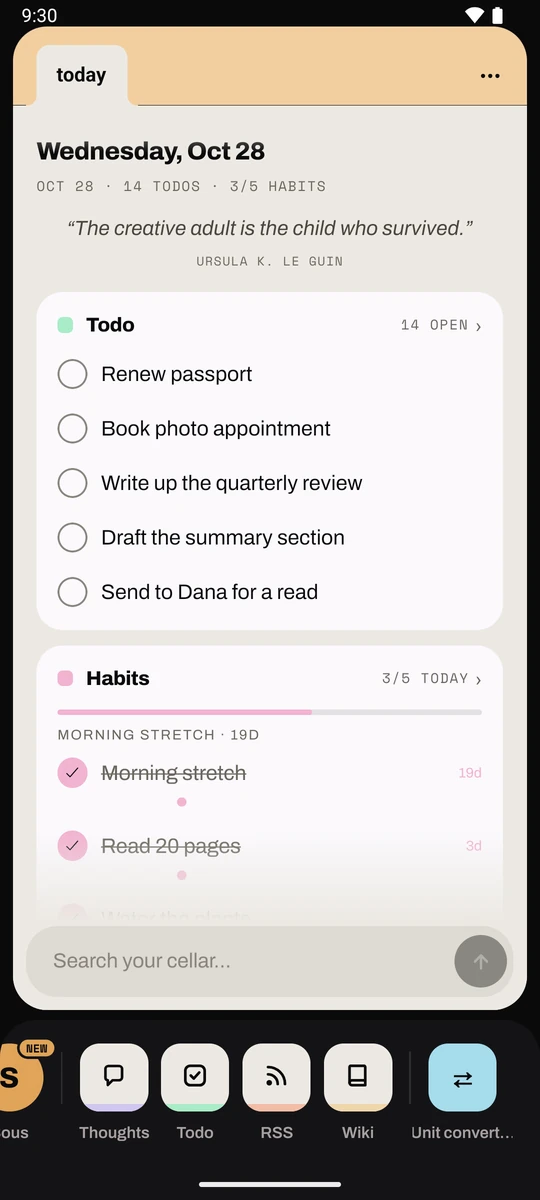
The difference from the webapp is that rows here are tappable. A circle completes a todo, checks in a habit, or ticks a shopping item right from the widget, queued through the same offline outbox as any other write. The habits widget adds a progress bar, a current-streak insight line, a 7-day dot history per habit, and a "hide done today" filter.
The footer box, "Search your cellar…", searches across modules as you type (2+ characters), with results grouped by module, each section separated by a hairline rule and headed by the module's accent-colored label and a count of matches. Quick-actions add a shopping item, capture a thought, start a new wiki entry, or start a new chat without leaving the screen.
Edit dashboard in the ⋯ menu opens edit mode: drag a widget's handle to reorder it, hide or restore them, set each
one's row count (3, 5, or 8) and density, and flip the habit extras on or off. A
"Compact" widget shrinks to a small card with just its count (or latest-item age) and a
one-line preview, and neighboring compact widgets tile two-across so more modules fit one
screen. The layout is saved on the phone only, not synced to the webapp's.
Thoughts
The original quick-capture screen, now a journal: a time-gutter feed under day headers, where the timestamp column is the separator.
The composer stages text, photo, voice and drawing in a single draft. Its + opens a
capture sheet (Camera, Video, Gallery, Voice, Draw), the mic records a voice memo, and
everything sends as one capture, queued and synced.
Todo
Near feature parity with the web: a sectioned list with subtasks, status and tag filters, quick-add, an edit sheet (text, tags, priority, due date, parent), a start/stop timer with a "current task" banner, and archive-done.
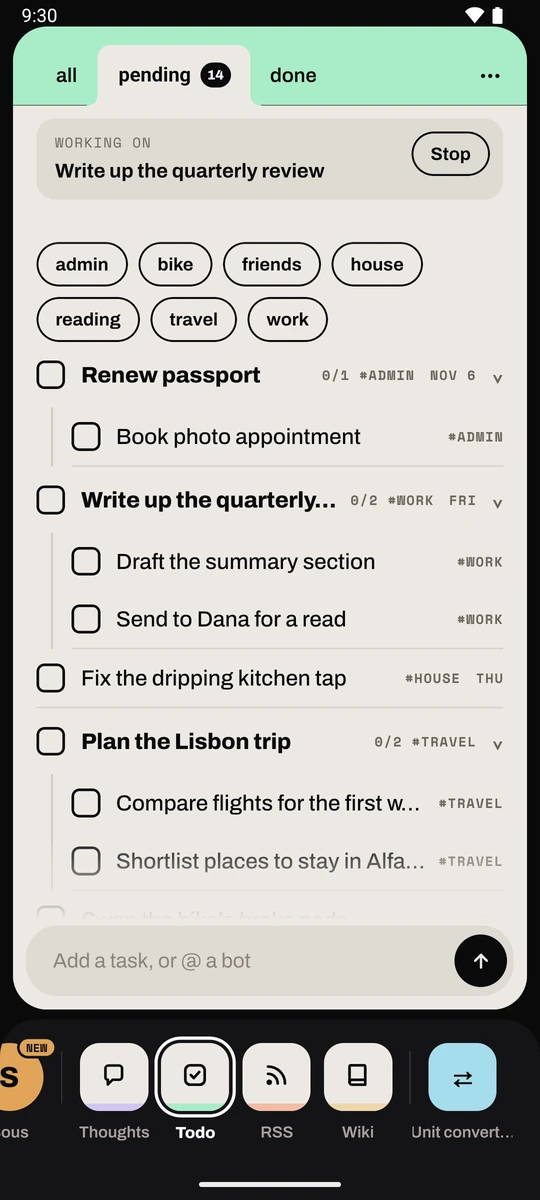
Archive done tasks is in the ⋯ menu. Long-press a row to drag-reorder. Drag right or left while dropping to nest under a task
or promote it to top level.
Shopping
Full parity: add with live suggestions drawn from your history, tap to toggle, edit text (long-press), clear done items, and the LLM "organise" action.
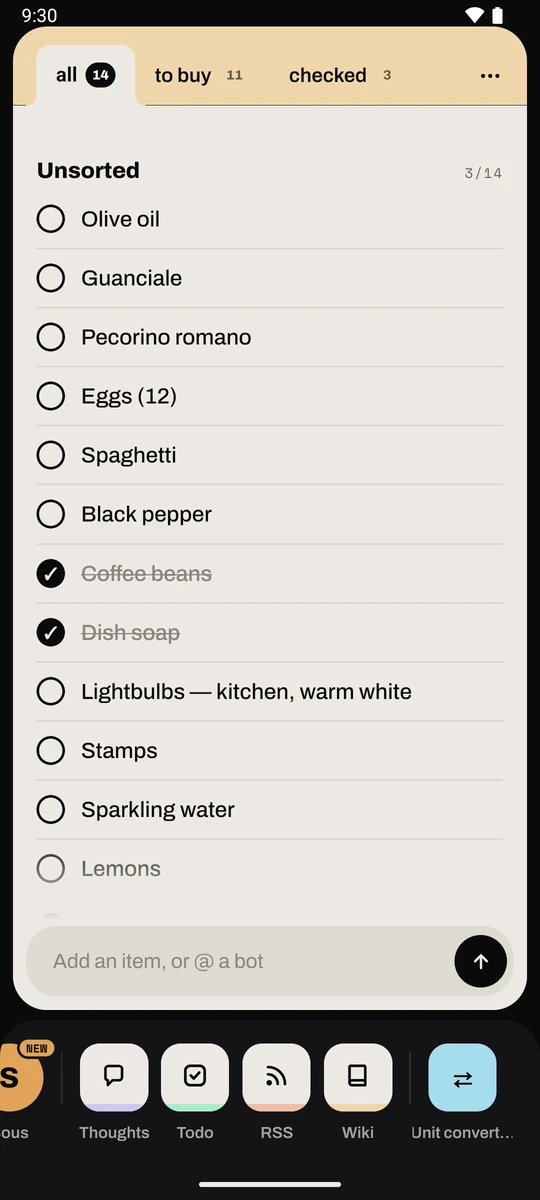
Habits
The lane board has two lanes. DAILY holds daily and weekday habits. EVERY FEW DAYS holds
spaced habits, with rolling due dates, reps counts, and dashed non-tappable rings when
they are not due. Each row carries a Monday-first week rhythm strip under an M–S day
header. The card's tabs are today, week and stats; the composer quick-adds a habit, and
New habit with details in the ⋯ menu opens the add sheet (daily, every few days or
weekly cadences).
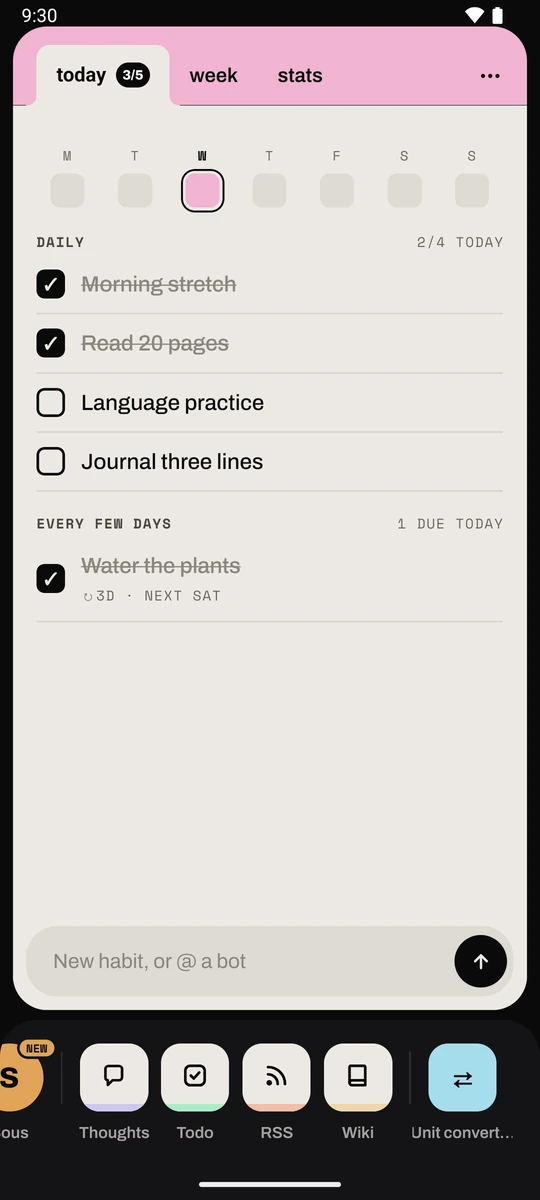
On the board, tapping anywhere on a row marks the habit done, or undoes it. The stats tab draws every dot since each habit's creation with its streak or reps figure, and tapping a history row opens the edit sheet to rename, change cadence, or delete with a confirmation.
Docs
Browse with cover thumbnails, search, and a filter sheet (type chips with live counts,
tags, and a Newest/Oldest/A–Z sort, previewed as "Show N documents" before applying).
Scan a document with the camera or pick one from the library, from the composer's +
or the ⋯ menu. Each row reads type · date · amount
(or page count), with its tags capped at a few chips and a +N counter.
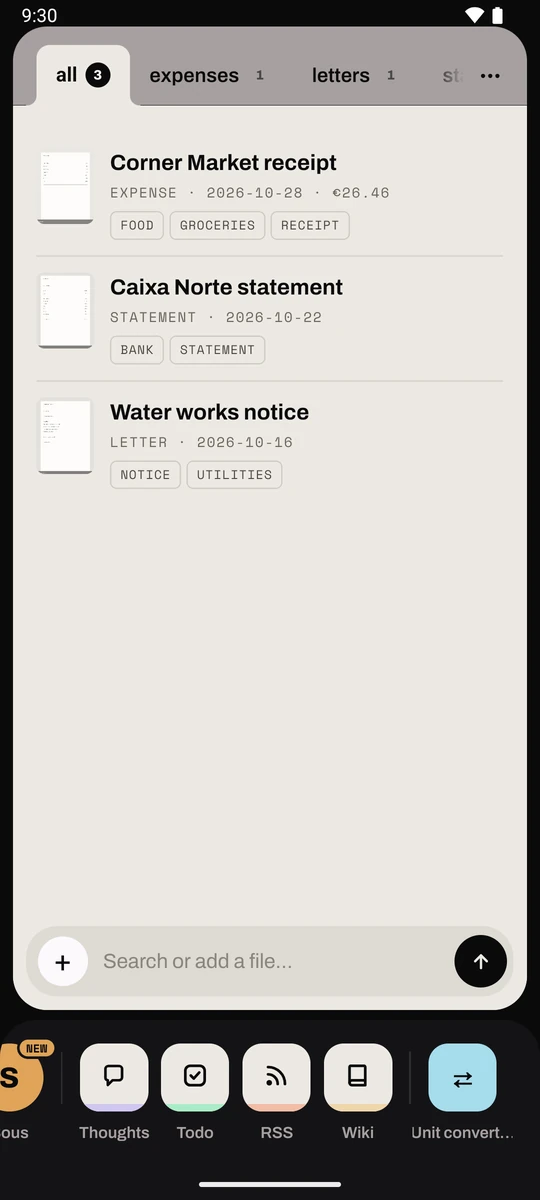
The detail screen opens inside the Docs card with a back link, and leads with the scan, which you tap to open the original, then the title, that same meta line, tags, the fields the model pulled out of the page, and the transcript, clipped until you tap "more".
Its ⋯ holds Open pages, Share, Rename, Retry OCR, Ask Chat and Delete, and the
composer ("Ask about this file…") asks Chat about this document directly.
Wiki
Card tabs recent and folders. Recent lists pinned notes as cards on top, then every other note newest-first. Folders drills down the vault's folder tree, with note counts per folder row and a breadcrumb to go back up.
There is full-text search, a composer that makes a note from the name you type (a
date-shaped name becomes that day's daily note; Today's daily note is in the ⋯
menu), and a native markdown reader and editor with tappable [[wikilinks]] and
backlinks.
A note's screen leads with its title, edit date, word count and tags, and the nav bar
carries the folder breadcrumb instead of repeating the name. A long-press in the list
offers pin, rename, move to folder, export markdown and delete; the note's ⋯ adds Edit
and Ask Chat to those.
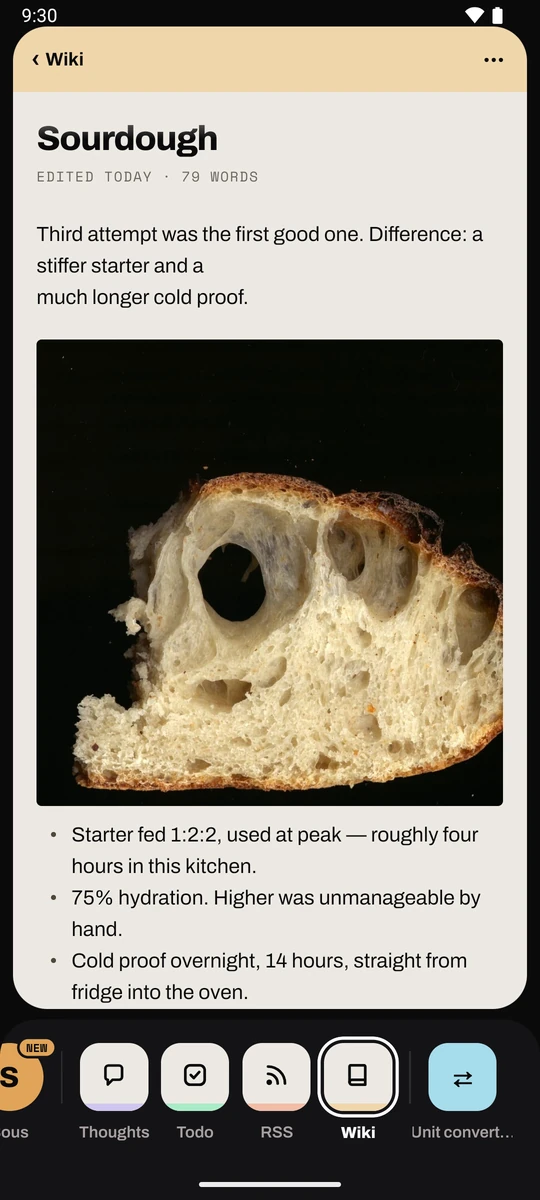
Chat
Core chat: a conversation list with recent and folders tabs (new from the ⋯ menu;
rename, move to folder and delete via long-press), streamed replies rendered as
markdown, and auto-titled conversations.
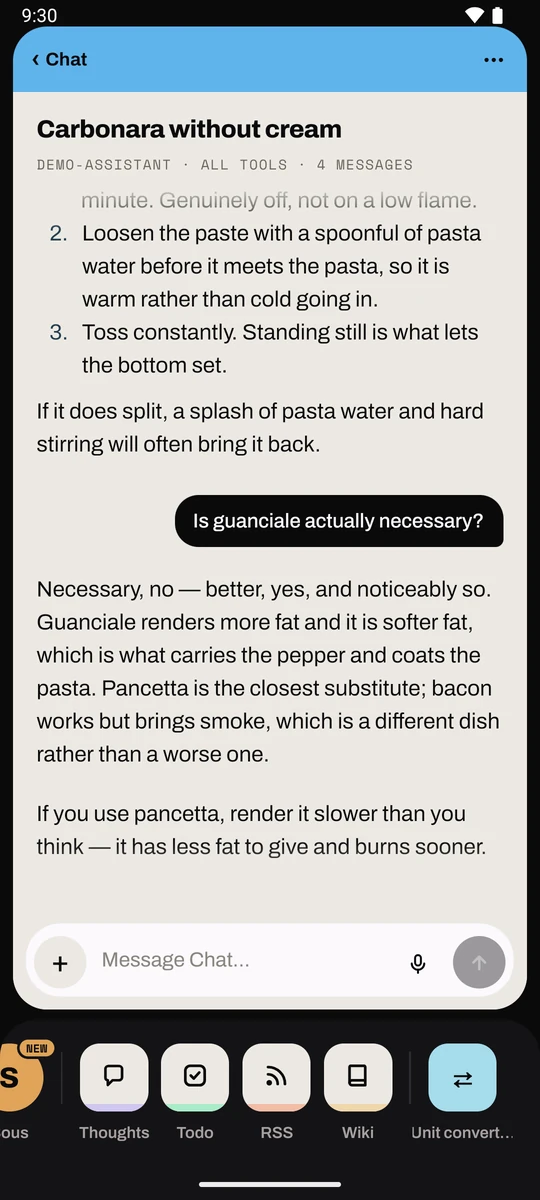
Model reasoning shows as a collapsible "Thinking" chip. Tool calls render as the work
rail described under Chat above ("Working…" with a ticking clock while live, a folded
"Worked · 5 steps" receipt once settled, a bottom sheet per row), reply headings render
as caps accent section labels, and a reply that wrote into another module ends with a
receipt pill (↻ Habits · 8 added →) that jumps to that module.
Model and Tools in the conversation's ⋯ menu open a settings sheet to switch
models, with a search-first picker and recents, and to toggle tool modules on or off.
The composer's + offers Take photo, Attach image and Attach file (text inlined, 200 KB
cap), and typing / pops up matching-command chips above the composer.
Online-only by design: a failed send keeps your draft in the composer.
RSS
A reader with unread / all / saved tabs and a feed filter. Opening an item marks it read, as does scrolling past it, both queued offline-safe like starring. Each row leads with its source and age over the headline.
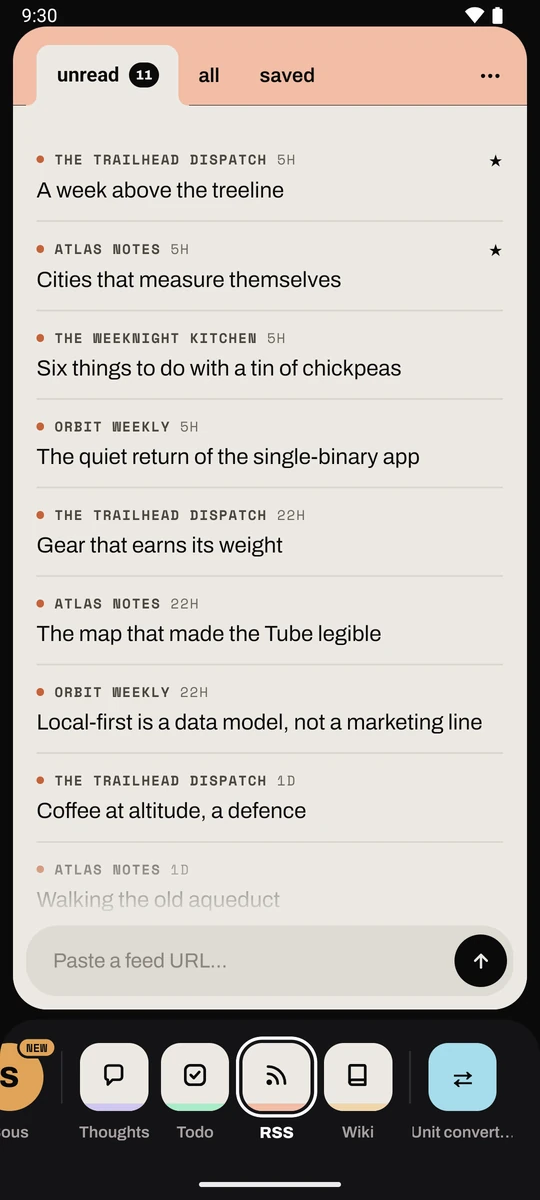
The reader opens in the card with the feed's own view tabs, an Open original article button and a ⋯ holding refresh, star, mark unread, copy link and Ask Chat.
The header's ⋯ has Filter by feed, Refresh feeds and Manage feeds, where a feed's menu mutes it out of Unread, groups it, sets how often it is checked or removes it. Add a feed by pasting a site address into the composer: your cellar finds and previews the feed first.
Flows
Full parity with the web, behind flows and logs tabs.
Flows lists every flow grouped by trigger kind, with an enabled switch and last-run status
(service flows show supervisor state). Tap a row for Run now, Restart or View logs, and
Rescan flows in the ⋯ menu rescans the flow files.
Logs is the cross-flow runs feed, filterable to one flow; tap a run for its full output.
Online-only by design: flow actions target the live server, so nothing is queued.
Offline behavior. Reads need your cellar reachable, and a screen whose fetch fails shows a banner with a retry button.
Writes never wait on connectivity. Every add, edit, toggle, check-in or scan is queued immediately in one local, offline-safe outbox, and drains in order the next time your cellar answers, so a subway tunnel or a VPN hiccup never loses anything typed on the phone. A queued item shows as a translucent "phantom" row for a new item, or a pending/failed badge on the existing row for an edit, until it lands.
- Waiting, not failed. No signal, a timeout, or a cellar that answers "busy" or "down for a moment" (408, 429, 502, 503, 504) leaves the action waiting, and the queue tries again when the connection comes back. The banner says whether the cellar could not be reached or answered with an error. Any other refusal marks the action failed, with Retry and Discard.
- Tied to its cellar. Each queued action remembers which cellar it was made for. If you switch cellars, it waits for that cellar rather than landing on the new one; Settings lists such actions and lets you discard them.
- Never twice. A thought or document upload that went through but whose answer was lost is recognised on the retry, so it is never stored twice.
- Latest edit wins, safely. Several offline edits to one wiki note, or to one thought, go out as one save. If the note changed elsewhere meanwhile, the save stops with "Changed elsewhere, open the note to merge" instead of overwriting it.
Cellar token. If your cellar has a token, enter it under Settings › Cellar token. The phone then sends it with everything, including pictures, audio and pages it opens, and only ever to your cellar. A document or export you open from the phone is downloaded with the token and handed to the share sheet.
See phone/README.md for dev/build instructions and
docs/superpowers/specs/2026-07-07-phone-multi-module-design.md for the full design
(the original quick-capture-only design is
docs/superpowers/specs/2026-07-05-hub-companion-app-design.md).
Notifications
Attic can notify you through several channels: desktop (native OS notifications),
web (shown in the browser), email, Telegram, push (the attic phone app's
own notifications) and ntfy (push through the ntfy app). Which channels a given notification uses is decided by routing rules in
cellar.toml under [notify.routes] (matched on the notification's source), falling back
to default_channels. Some notifications also carry a link: tapping it opens straight
into whatever it's about (e.g. a Chat cron conversation); ntfy renders this as its
tap action, Telegram appends it as a line, and the web toast links to it.
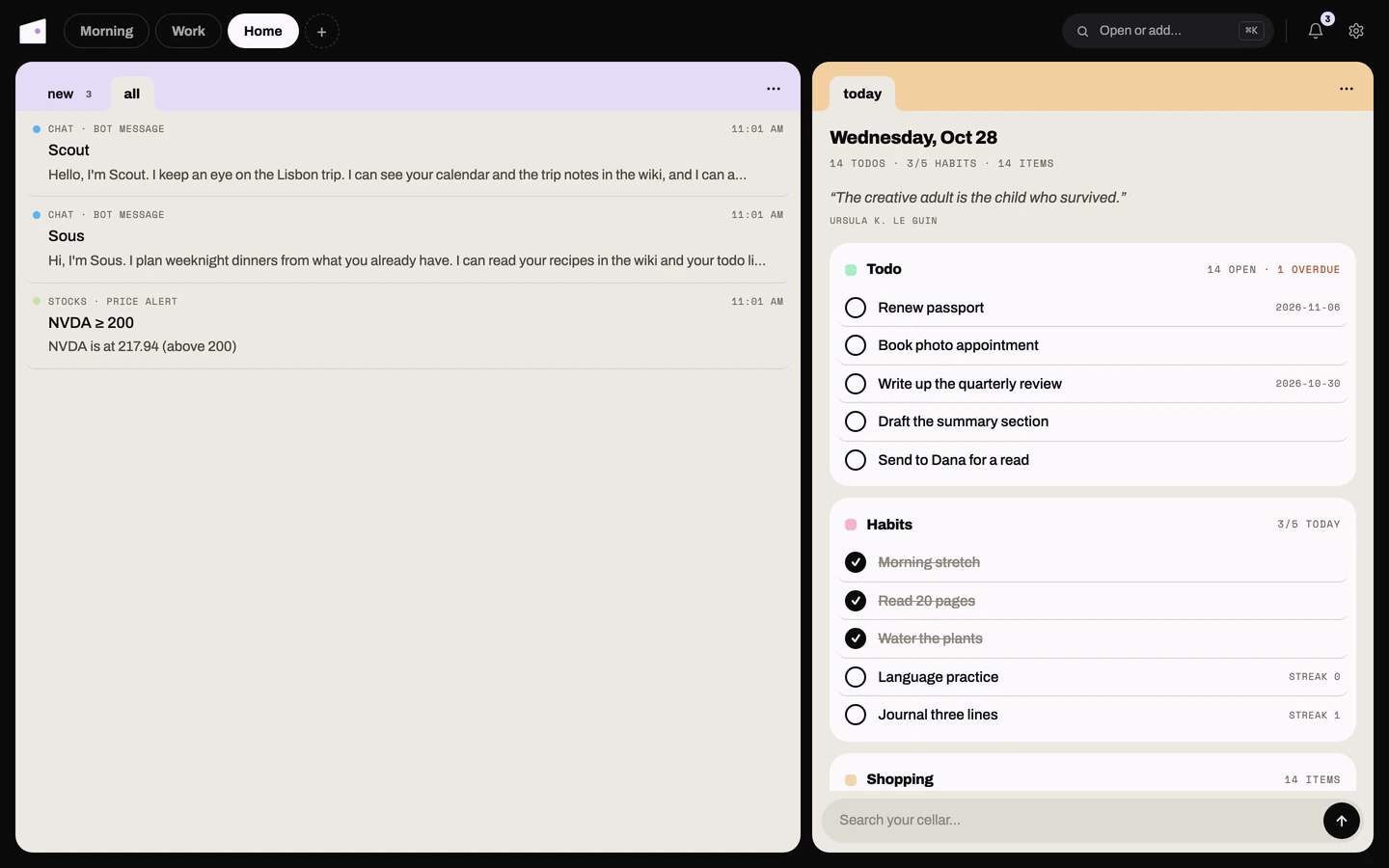
The notifications screen
Card tabs (web and phone): new, all.
Toasts come and go, so every notification attic has ever sent is also kept in an
inbox: the Notifications card in the webapp (badged with the unread
count) and the Notifications app in the phone's pulled-up rail (it can be put on the rail too). Both open the same list,
newest first, with new / all tabs, Mark all read in the card's ⋯ menu, and a
tap on any row to mark it read and follow its link. On the phone the list splits
into Today and Earlier, so where you last looked stays obvious.
Read state lives on the server, so marking something read on your phone shows it read in the browser too. The inbox lists everything regardless of which channels a notification went out on: a Telegram-only alert still happened, so it still shows up here.
Notifications on your phone
The attic phone app shows its own notifications (its icon, the bot's name and face, and a tap opens the bot or conversation) without Google services. It uses UnifiedPush, the open push standard: a small push app on the phone keeps one connection open for every app that uses it, and attic borrows it.
- Install ntfy from F-Droid (or any other UnifiedPush app, such as Sunup). You don't need to subscribe to anything in it.
- In attic, open Settings › Notifications and tap it. Android asks once whether attic may notify you. The row then reads On · Through ntfy.
- Route what you want to the
pushchannel incellar.toml:
[notify.routes]
"chat.bot_message" = ["web", "push", "desktop"]   # a bot wrote back
"chat.turn_done"   = ["push", "desktop"]          # a Chat reply finished
Send a test, under the same row, checks the whole path. Messages are encrypted for
your phone (Web Push encryption), so the ntfy server in between, public ntfy.sh or
your own, only ever sees ciphertext. Your phone does not need to reach your cellar for a
notification to arrive, only the ntfy server; it reaches the cellar to register, and for
a bot's face.
At your Mac, the phone stays quiet. While the Mac app has seen keyboard or mouse
input in the last few minutes, notifications go to the Mac only; walk away and the
phone gets them again. The window is [notify] desktop_active_minutes (default 3;
0 sends to both always). It covers both phone channels, push and ntfy.
Push through the ntfy app (ntfy)
ntfy is a simple pub/sub push service (self-hosted or the public
ntfy.sh) with no Google Play Services dependency, so it works on de-Googled Android
builds. Set it up:
[notify.ntfy]
server = "https://ntfy.sh"      # or your own self-hosted server
topic  = "cellar-CHANGE-ME"        # on ntfy.sh the topic name IS the secret
Optionally add a notify_ntfy_token to secrets.toml (sent as a bearer token) if your
server requires auth. Install the ntfy Android app (available on F-Droid, no Google
account needed) and subscribe to your topic. On the public ntfy.sh server, anyone who
knows your topic name can publish or subscribe to it, so pick an unguessable topic name
or, better, protect it with an access token. Route any notification source to ntfy in
[notify.routes] like any other channel.
How the TUI shows notifications
For the desktop channel, the TUI can show notifications as an in-app toast
(rendered right in the terminal) or as a native OS desktop notification, controlled
by the notifications setting in tui/attic.toml (copy from tui/attic.toml.example) or
the ATTIC_NOTIFICATIONS env var (TUI_NOTIFICATIONS still read). This is local to the TUI process now, not cellar.toml:
the extracted TUI never reads core's config file.
| Value | Behavior |
|---|---|
"internal" default |
In-app toast. Works over SSH, since it shows in your terminal session. |
"desktop" |
Native OS notification (fires on whatever machine the TUI is running on). |
"both" |
Both at once. |
Over SSH, prefer "internal", since an OS notification needs a desktop session on the
machine running the TUI.
Writing flows (automation)
A flow is your own Python script that attic runs on a schedule. Drop a .py file
into the flows/ folder with two header blocks: dependencies and a trigger.
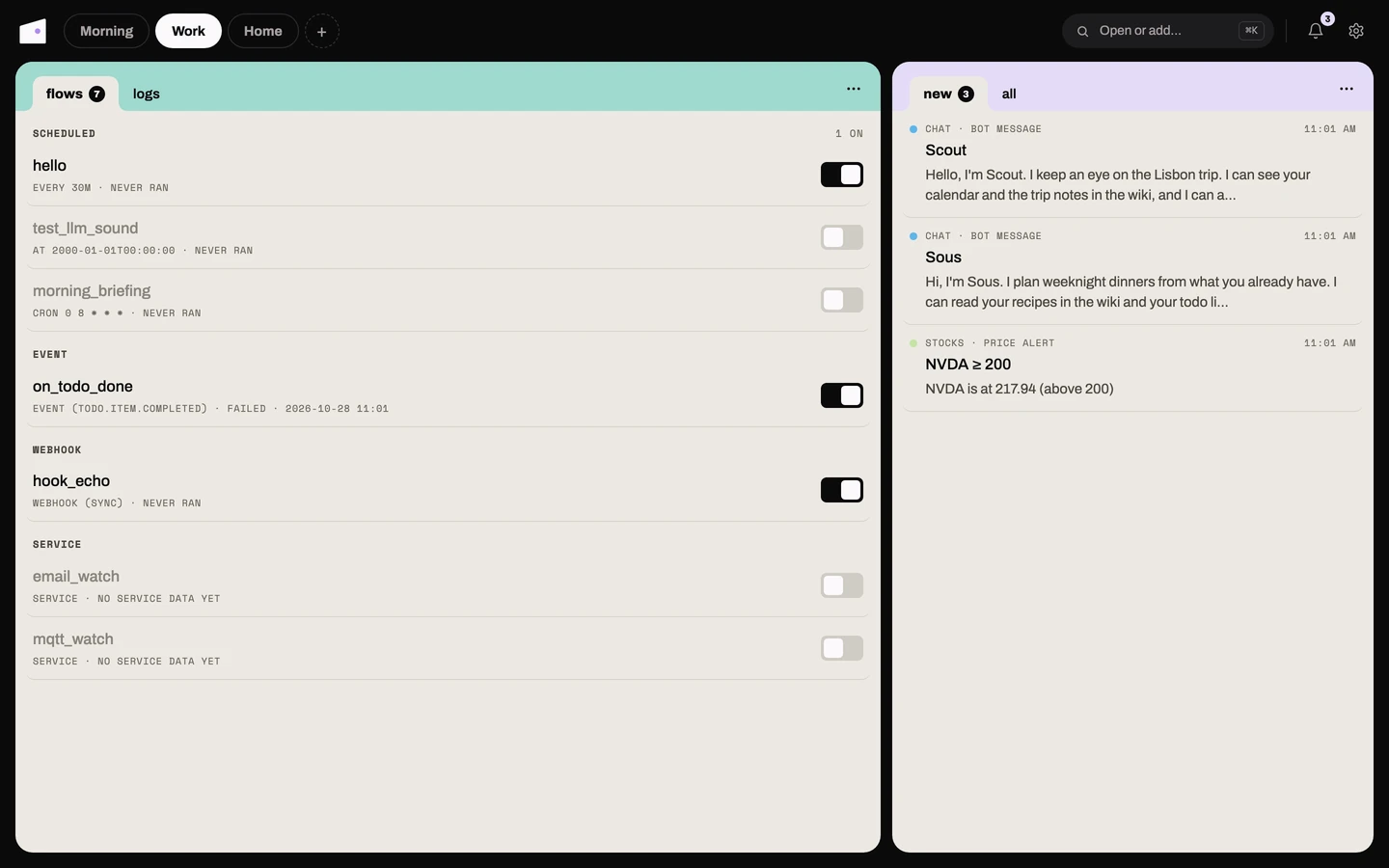
Keep a blank line between the two header blocks (as below). The dependency block is
standard PEP 723 that uv reads; without the blank line uv merges the trigger block
into it and the run fails with a TOML parse error.
# /// script
# dependencies = ["httpx"]
# ///

# /// flow
# enabled = true
# [trigger]
# type = "cron"
# cron = "0 8 * * *"        # every day at 08:00
# ///
from cellarflow import store, notify

count = store.get("runs", 0) + 1
store.set("runs", count)
notify("Good morning", body=f"This flow has run {count} times")
Trigger types. Every [trigger] needs a type plus its type-specific field:
| type | Field | Example |
|---|---|---|
"cron" |
cron |
cron = "0 8 * * *" |
"interval" |
every |
every = "15m" (s/m/h) |
"date" |
at |
at = "2026-07-01T09:00" (fires once) |
"event" |
event |
event = "todo.item.completed" (see below) |
"webhook" |
mode (optional) |
mode = "sync" (default "async"; see below) |
"service" |
none | kept alive + supervised (see below) |
The cellarflow SDK available inside every flow:
from cellarflow import store, notify, llm, play_sound, secret, emit

store.get("key", default)   # read a value (private to this flow)
store.set("key", value)     # write a JSON-serialisable value
store.delete("key")         # remove a value
store.all()                 # dict of all this flow's entries

notify("title", body="…")  # push an attic notification

llm("Summarise:", text)            # run the configured LLM, returns its text
llm("Classify", text, model="…")   # override the model for this call
play_sound()                        # play a sound on the machine running your cellar (dev/test)

secret("imap_password")     # read a credential from [flows.secrets]
emit("mail.received", {…})  # fire an attic event other flows can react to
llm() uses the [llm] section of cellar.toml (provider + default model, reusing the
chat provider and secrets.toml keys; it falls back to [chat] when omitted). Pass
model= to override per call. It needs an API key configured, or the call fails.
play_sound() plays a placeholder sound on the machine running the server (handy for
testing a flow fired).
Each flow runs in its own isolated environment, so its dependencies never affect
attic. Output is captured and run history is visible in the Flows card. Editing
a flow's body takes effect on its next run automatically. When you add or remove a
flow, or change its trigger, choose Rescan flows in the card's ⋯ menu (web or
phone) to apply it without restarting the server.
You can also enable or disable any flow from the UI without editing its file: each
flow row on the web has an enabled switch, and opening a flow shows Run now (or
Restart for a service flow). The choice is stored in attic's database and overrides the flow file's enabled
header (so you can switch a flow off, or turn one back on, either way); it takes effect
immediately: a disabled scheduled flow stops being scheduled and a disabled service
flow is stopped, with no server restart.
Chat tools: Chat can call flows_list (names, trigger types, enabled
state) and flows_run ("run the morning digest now"). Service flows are refused by
flows_run, since they run continuously and can only be restarted.
On the web, the Flows card has two tabs: flows (each row with its enabled switch,
trigger and last-run status) and logs, the runs feed newest first across all flows,
filterable to one flow, where any entry expands to its captured output. From a shell, attic flow list and
attic flow run <name> cover the basics.
Event-triggered flows
A flow can run in reaction to something happening in attic instead of on a clock. Use
type = "event" and name the event:
# /// script
# dependencies = []
# ///

# /// flow
# enabled = true
# [trigger]
# type = "event"
# event = "todo.item.completed"
# ///
from cellarflow import event, notify

notify("Todo done", body=event.payload["text"])
The triggering event's content is delivered to the flow as event.payload (a dict) and
event.name, so the example above gets the completed todo's text directly, no lookup
needed. Events follow a module.entity.verb naming convention. Available events and
what each payload carries:
| Event | Payload |
|---|---|
todo.item.created / .completed / .uncompleted / .started / .stopped / .edited / .deleted |
{id, text, done} |
todo.list.archived |
{count} |
shopping.item.added / .checked / .unchecked / .renamed / .removed |
{id, text, done, section} |
shopping.list.cleared |
{count} |
shopping.list.organised |
{items: [{text, section}, …]} |
wiki.page.created / .edited / .deleted |
{slug, title, path}; edited fires only on Save/blur, not mid-typing |
stocks.prices.updated |
{symbols: [...]} |
chat.conversation.created |
{id, title} |
chat.message.completed |
{conversation_id, message_id, text}; text is a snippet |
chat.tool.invoked |
{tool, conversation_id, input, result, result_chars}; input and result are snippets |
Events fire reliably whether the action came from the web, the API, or the TUI. Rapid bursts of the same event coalesce so a flow never runs concurrently with itself. (Events raised while the server is stopped are not replayed when it restarts.)
Webhook-triggered flows
A flow can also run when something outside attic calls it over HTTP. Use
type = "webhook":
# /// script
# dependencies = []
# ///

# /// flow
# enabled = true
# [trigger]
# type = "webhook"
# ///
from cellarflow import event, notify

notify("Bookmark saved", body=event.get("url", ""))
Each webhook needs a secret in secrets.toml (flows live in git, so secrets never go in
the flow header):
[flows.webhook_secrets]
save-bookmark = "abc123"
Until the secret is configured, calls are rejected with 403. Trigger the flow with a
JSON body, which arrives as event.payload, exactly like an event trigger:
curl -X POST http://127.0.0.1:8484/api/flows/hooks/save-bookmark \
  -H "X-Hook-Secret: abc123" \
  -d '{"url": "https://example.com", "title": "Cool article"}'
# → 202 {"status": "queued"}
By default the call returns 202 immediately and the run is queued (every call gets its
own run, in order; bursts beyond the queue bound get 429). Add mode = "sync" to the
trigger to make the call wait and return the flow's output instead, handy when the
caller wants an answer back:
curl -X POST http://127.0.0.1:8484/api/flows/hooks/summarize \
  -H "X-Hook-Secret: abc123" \
  -d '{"text": "long article text..."}'
# → 200 {"status": "success", "exit_code": 0, "output": "- point one\n..."}
output is the flow's captured stdout, so a sync flow that wants to return clean JSON
should print only JSON.
Service flows (long-running connectors)
The trigger types above all run a flow to completion. A service flow instead stays
alive: attic starts it when the server boots and keeps it running. Use it to bridge
an external system into attic: watch an email inbox, subscribe to an MQTT topic, run
a chat bot, anything that needs a persistent connection. Use type = "service":
# /// flow
# enabled = true
# [trigger]
# type = "service"
# ///
import time, signal, sys
from cellarflow import secret, emit

running = True
signal.signal(signal.SIGTERM, lambda *a: globals().__setitem__("running", False))

while running:
    # ... poll/connect using secret(...) and emit(...) ...
    time.sleep(5)
sys.exit(0)
Attic supervises the process: if it exits or crashes it is restarted with exponential backoff (capped at 60s; a process that stays up long enough resets the counter). Its state (running, backoff, crashed) plus its restart count and a tail of its output show in the Flows card. Because the process is long-lived, editing its body needs a restart to take effect: use Restart on the flow, or Rescan flows, which restarts any service flow whose file changed and starts/stops newly added/removed ones.
A service flow handles SIGTERM to close its connections cleanly when attic stops or
restarts it. Credentials must not live in the git-tracked flows/ folder; read them
with secret("name") from a [flows.secrets] table in secrets.toml:
[flows.secrets]
imap_host = "imap.example.com"
imap_user = "me@example.com"
imap_password = "app-password"
Use emit("event.name", {...}) to fan a service flow out to ordinary event-triggered
flows: an inbox watcher emits mail.received and any number of type = "event"
flows handle it. Two complete, copyable examples ship disabled by default:
flows/email_watch.py (IMAP inbox → mail.received) and flows/mqtt_watch.py (MQTT
topic → mqtt.message, with paho-mqtt declared in the flow's own dependency header).
Chat crons
A flow can drive Chat itself instead of just store/notify:
emit("chat.message_requested", {...}) runs a full tool-using turn in a fresh
conversation (created for that one call, with the same tools every other conversation
has, minus flows itself: a headless turn can't trigger another flow) and returns
{"reply": "...", "conversation_id": "..."} in the result, or an "error" key if the
turn failed:
# /// script
# dependencies = []
# ///

# /// flow
# enabled = false
# [trigger]
# type = "cron"
# cron = "0 8 * * *"
# ///
"""Assistant cron: a tool-using morning briefing, pushed with a tap-to-open
link into the saved conversation. Enable above; route however you like via
[notify.routes] (source is flow:morning_briefing)."""

from datetime import date

from cellarflow import emit, notify

res = emit("chat.message_requested", {
    "text": "Check my overdue and due-today todos, unchecked habits, and top "
            "unread headlines. Write a 5-line morning plan, blunt and concrete.",
    "folder": "Morning briefing",
    "title": f"Briefing {date.today():%Y-%m-%d}",
})
if "result" not in res:
    raise SystemExit(f"assistant turn failed: {res.get('error')}")
notify("Morning briefing", "Your plan is ready, tap to open.",
       url=f"attic://chat/{res['result']['conversation_id']}")
This pattern ships as a ready-to-enable example, flows/morning_briefing/, disabled by
default so it doesn't run (or need an LLM key) until you opt in. Setting a folder
keeps its daily conversations out of your main chat list. The shipped flow goes one step
further than the snippet above: it narrates the reply with ElevenLabs and publishes it
as a tap-to-open, narrated page instead of just linking to the raw conversation. See
Applets for the full worked example.
Event-triggered flows can also emit chat.message_requested, not just cron ones: a
tool's domain event (a todo completed, a habit checked) can trigger a flow that chains
into another Chat turn. Keep this deliberate, since an unbounded chain of flow to
Chat turn to domain event to flow can loop.
Configuration: cellar.toml
Non-secret settings live in core/cellar.toml, which is gitignored: copy
cellar.toml.example and adjust it. An excerpt:
[modules]
enabled = ["todo", "wiki", "chat", "stocks", "shopping", "flows", "rss", "habits", "documents", "thoughts", "status", "applets", "dashboard", "calendar", "cards", "remotes", "layouts"]

[server]
cors_origins = ["http://localhost:5173", "http://127.0.0.1:5173"]  # webapp/ dev server origins
timezone = "Europe/Madrid"   # IANA zone for "today", reminders, schedules, chat clock; set it (unset = $TZ, /etc/localtime, else UTC)
# url = "http://127.0.0.1:8484"  # where the `cellar` command finds this cellar
# hosts = ["hub.example.ts.net", "100.64.0.1", "127.0.0.1", "localhost"]  # refuse any other Host (read at startup)

[events]
retention_days = 30        # delivered events are logged to the events table for debugging; older rows go (0 = keep all)

[wiki]
vault_dir = "vault"
daily_dir = "Daily"        # folder for daily notes; "" = vault root

[stocks]
tickers = ["AAPL", "MSFT", "VWCE.DE"]
poll_minutes = 15
intraday_days = 7          # keep every poll-tick quote this long; older days keep their last quote (0 = off)

[rss]
poll_minutes = 30          # how often subscribed feeds are refreshed
retention_days = 30        # delete read+unstarred items older than this (0 = off)
notify = false             # new-item notifications (off; the unread badge says it quietly)
extractor = "readability"  # full-text strategy: "readability" (local) or "jina"
allow_private = false      # true lets feeds and articles on your LAN or localhost through
recipes_dir = "recipes/rss" # per-feed clean/fetch/views/render hooks, see recipes/rss/

[habits]
reminder_poll_minutes = 15        # how often the reminder job scans
milestones = [7, 30, 100, 365]    # streaks that fire habits.streak_milestone

[chat]
provider = "openrouter"    # or "anthropic"
model = "anthropic/claude-sonnet-4.5"   # default; override per conversation
commands_dir = "commands"  # /slug prompt shortcuts (user content, gitignored)
skills_dir = "skills"      # model-loadable skills (user content, gitignored)
paste_collapse_lines = 6   # pastes this many lines or more collapse into a chip
title_model = "deepseek/deepseek-v4-flash"   # cheap model that auto-names new chats (optional)
bots_dir = "../data/bots"  # one folder per bot (bot.toml, routines, scripts, .env keys)
system_prompt = "You are the user's personal assistant."   # optional static system prompt; the current date/time is appended automatically every turn
# max_tokens = 8192        # longest reply (Anthropic models); a cut-off reply ends with [truncated]
# history_chars = 150000   # history one turn sends; the oldest turns drop past it

[llm]
provider = "openrouter"    # programmatic LLM for flows' llm(); falls back to [chat]
model = "anthropic/claude-sonnet-4.5"   # default; flows can override per call

# Extra LLM providers (OpenAI-compatible). Usable from any provider = setting
# and as "name:model" qualified ids in the chat model pickers, e.g. pin one
# conversation to "deepseek:deepseek-chat" while the default stays elsewhere.
# Key goes in secrets.toml as [providers.<name>] api_key.
[providers.mistral]
base_url = "https://api.mistral.ai/v1"
[providers.deepseek]
base_url = "https://api.deepseek.com/v1"

[documents]
model = "mistralai/mistral-medium-3"   # vision-capable; reads every document
ocr_interval = 20          # seconds between background reading passes
scan_interval = 300        # seconds between inbox scans

[flows]
dir = "flows"
timeout_seconds = 300
runs_keep = 50             # each flow always keeps its newest 50 runs...
runs_retention_days = 30   # ...and older ones go after 30 days (0 = off)

[cards]
retention_days = 90        # delete superseded card revisions after 90 days (0 = off)

[notify]
default_channels = ["desktop", "web"]
[notify.ntfy]
server = "https://ntfy.sh"
topic  = "cellar-CHANGE-ME"
[notify.routes]
"stocks.price_alert" = ["telegram"]
"habits.reminder"    = ["desktop", "web"]
"chat.turn_done"     = ["ntfy"]   # a Chat reply finished while nobody watched
"chat.bot_message"   = ["ntfy"]   # a bot finished a turn while nobody watched
The enabled list controls which modules load. Remove a name to drop that module
entirely; the web app, the phone and the TUI hide what the cellar does not enable.
The TUI has its own, separate config file, tui/attic.toml (copy from
tui/attic.toml.example, or point ATTIC_CONFIG at any path), for client-side settings
(cellar_url, editor, notifications, and a [modules] table whose disabled list can
hide Todo or Wiki from the sidebar), plus token for a cellar that has one. It never
reads core/cellar.toml; all of its data comes from the JSON API.
It reads only the
attic names: attic.toml, ATTIC_CONFIG, CELLAR_URL and --cellar-url (the old
tui.toml, TUI_CONFIG, HUB_URL and --hub-url are gone). On the cellar side the
pre-rename core/hub.toml, HUB_CONFIG, HUB_DB_PATH and hub_url key are still read
when the new names are absent.
Secrets: secrets.toml
API keys and credentials go in secrets.toml (gitignored). Copy the example and fill in
what you use:
cp secrets.toml.example secrets.toml
chmod 600 secrets.toml
LLM provider keys live in one [providers.<name>] table per provider, the canonical
form, matching the [providers.<name>] tables in cellar.toml:
[providers.openrouter]
api_key = "sk-or-..."

[providers.deepseek]
api_key = "sk-..."
Common keys (the flat LLM keys still work as a legacy fallback):
| Key | Needed for |
|---|---|
[providers.<name>] api_key tables |
LLM providers (chat, flows' llm(), documents OCR, thoughts enrichment, audio transcription) |
openrouter_api_key |
Legacy fallback: chat (default provider) and shopping "organise" |
anthropic_api_key |
Legacy fallback: chat when provider = "anthropic" |
notify_telegram_bot_token |
Telegram notifications |
notify_ntfy_token |
ntfy notifications (optional, only if your server requires auth) |
[flows.webhook_secrets] table |
Webhook-triggered flows (one entry per flow) |
[flows.secrets] table |
Values flows read with secret(); a [flows.secrets.<flow>] table overrides per flow |
[remotes.tokens] table |
One token per remote device (pixel = "...") |
[server] token |
The optional cellar token; unset means no login |
Email notifications use the [notify.email] SMTP settings in cellar.toml plus
credentials in secrets.toml.
Both files are re-read whenever they change on disk, so edits (a new webhook secret, a fresh API key, a tweaked setting) apply on the next request without restarting the server. That includes notification routes and channel credentials. If an edit leaves a file that does not parse, attic keeps running on the last good settings and logs the error once.
The exceptions are things consumed at startup: the enabled module list,
[server] hosts and the timezone the scheduler runs in need a restart, and new flow
triggers need a Rescan in Flows.